CAESES Troubleshooting
CAESES Startup Problem (Windows)
If CAESES is not starting without displaying any error message:
1. Try to Reset the License System
2. Remove Files
If resetting the license system did not resolve the problem, try to remove all files in:
%ALLUSERSPROFILE%/finterprocess

%PROGRAMDATA%/finterprocess
Still not working? Delete all files in the following locations, too:
C:/ProgramData/boost_interprocess/FS_LICENSE_SHM2
C:/ProgramData/Application Data/boost_interprocess/FS_LICENSE_SHM2
C:/Users/All Users/boost_interprocess/FS_LICENSE_SHM2
Background Information
CAESES is writing lock files into these locations to ensure only the licensed number of instances are opened on your computer. If, for some reason, the lock file is not removed, when CAESES is closed (if CAESES crashes suddenly), then a new (additional) instance of CAESES may be blocked.
If the issue still persists, please contact our support team via the helpdesk and attach the startuplog file.
CAESES Freezes on Update Check
Occasionally, the update dialog may freeze, making CAESES unresponsive. As a workaround, try disabling the automatic update check to prevent the update dialog from appearing.
- In the explorer navigate to:
%LOCALAPPDATA%/caeses/etc
-
Open the file
framework.iniin an editor like notepad. -
Search for this string:
General\Check%20for%20updates%20on%20framework%20start\default=true
and change it to:
General\Check%20for%20updates%20on%20framework%20start\default=false
License Issues
No Connection to the CAESES License Server
The connection to the CAESES license server requires an HTTPS connection to the server address https://license.friendship-systems.com at port 443.
Please ensure that your firewall allows outgoing connections for CAESES to the server:
- Hostname:
https://license.friendship-systems.com - Port:
443.
Test License Server Access
Check Windows Firewall Settings
- Check if you have any Firewall (e.g. Windows Defender, Kaspersky, …) that blocks outgoing connections.
- If so, allow outgoing connections for the CAESES application
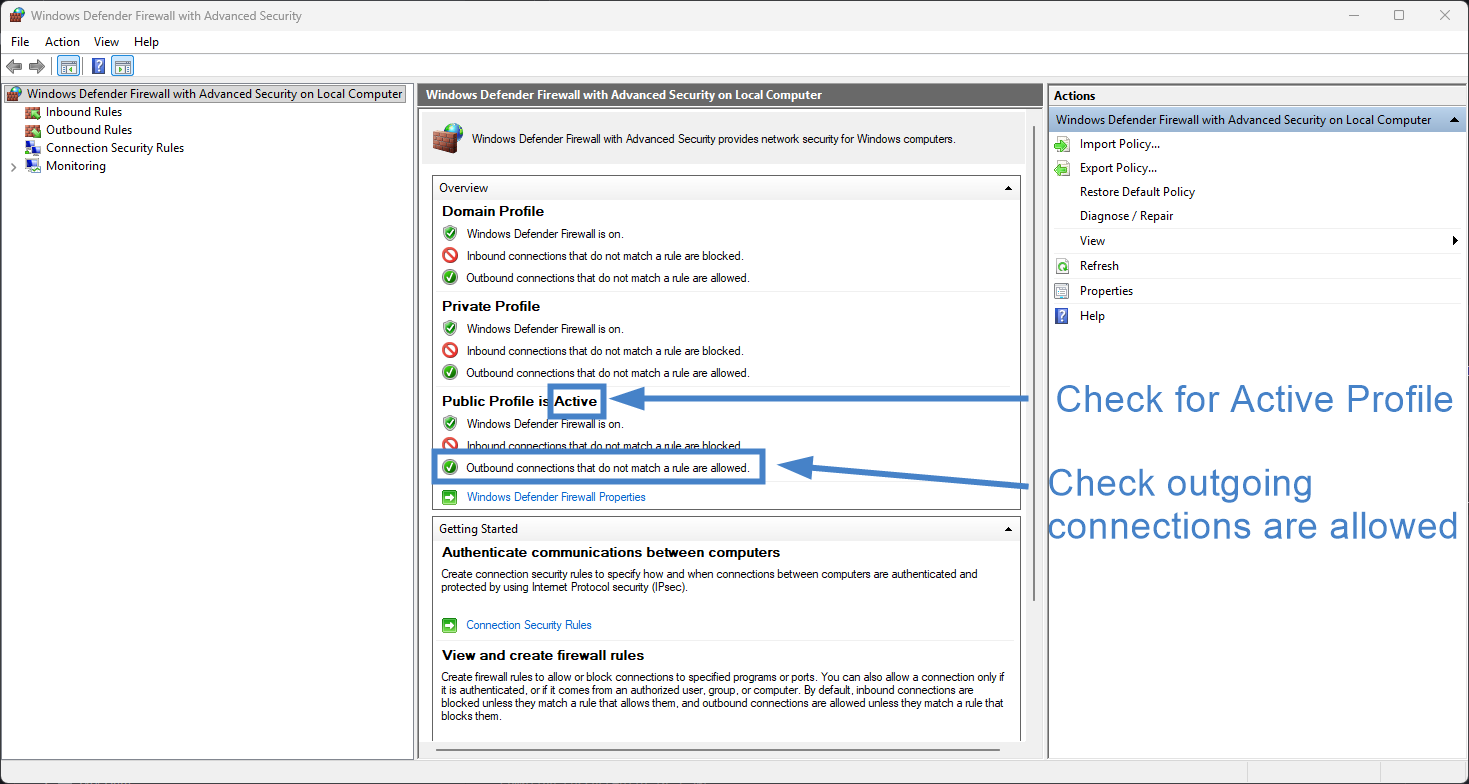
- Example is shown below for Windows Defender Firewall (check your firewall documentation for other vendors)
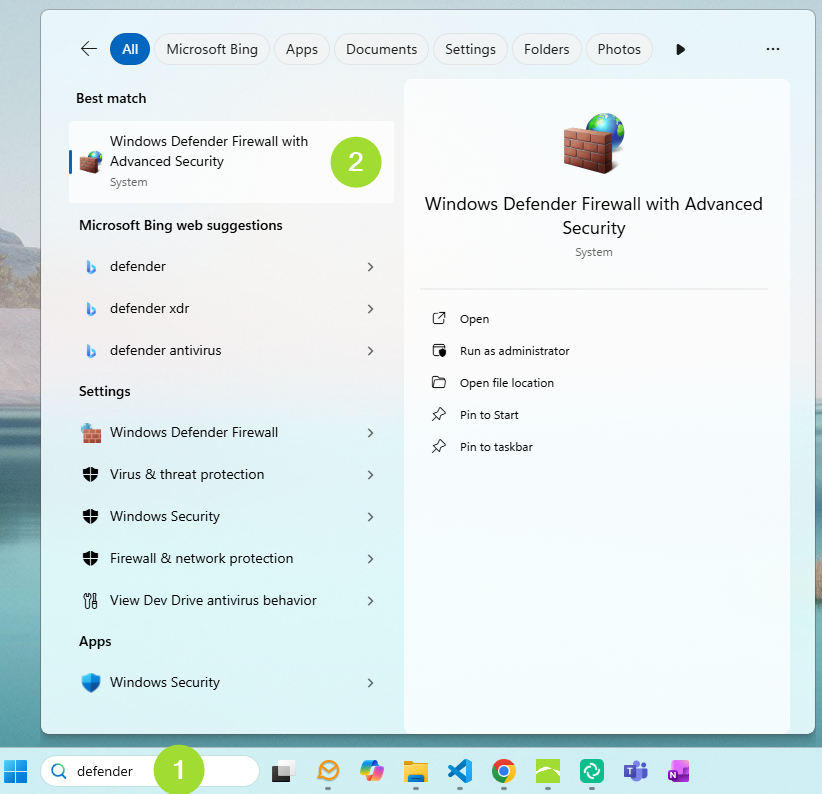
- Go to the Advanced Settings
- Check that no outgoing connections are blocked
Proxy
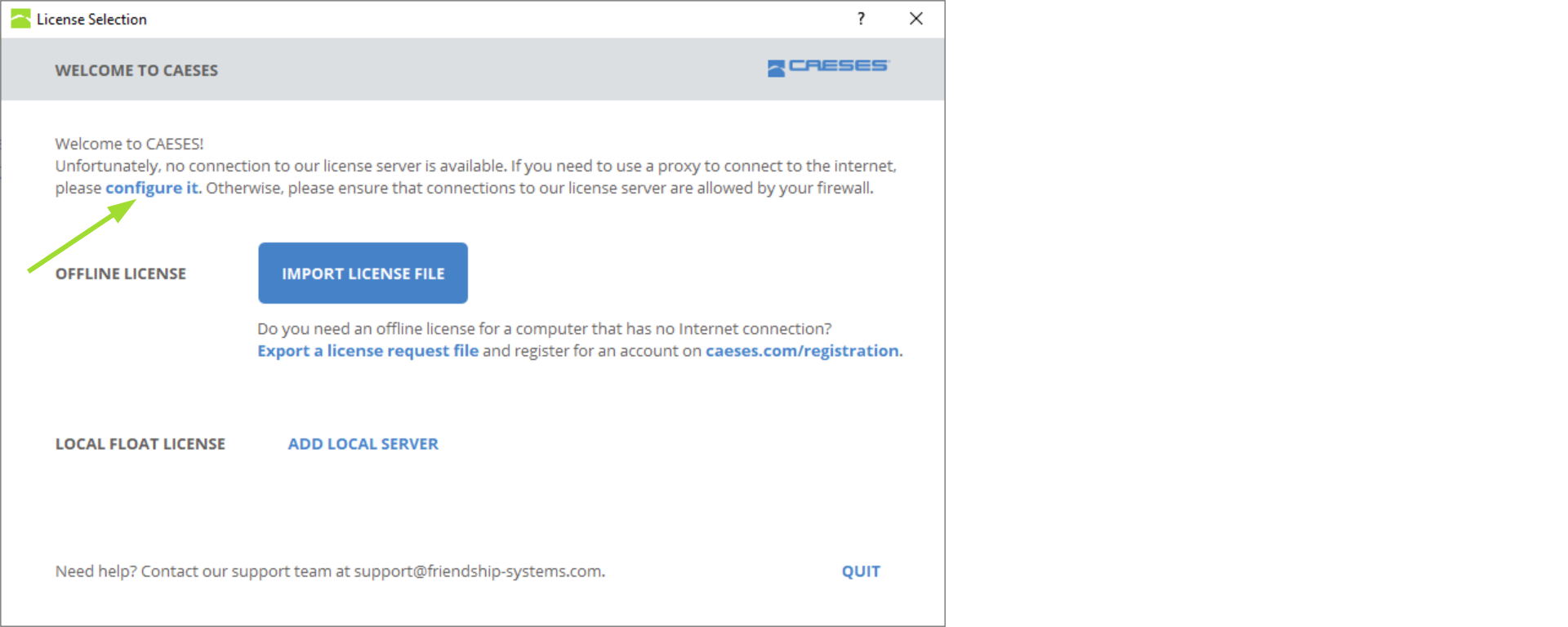
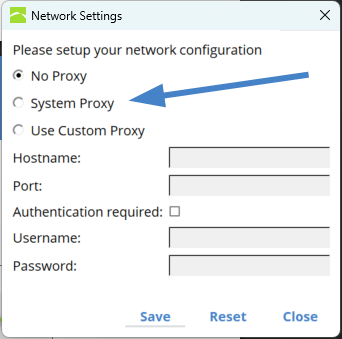
If you require a proxy (in browser or system wide) to access the internet, you also have to set it up for CAESES by clicking the configure it link in the following dialog:
or by opening the "Network Settings" via the Windows Search Bar:
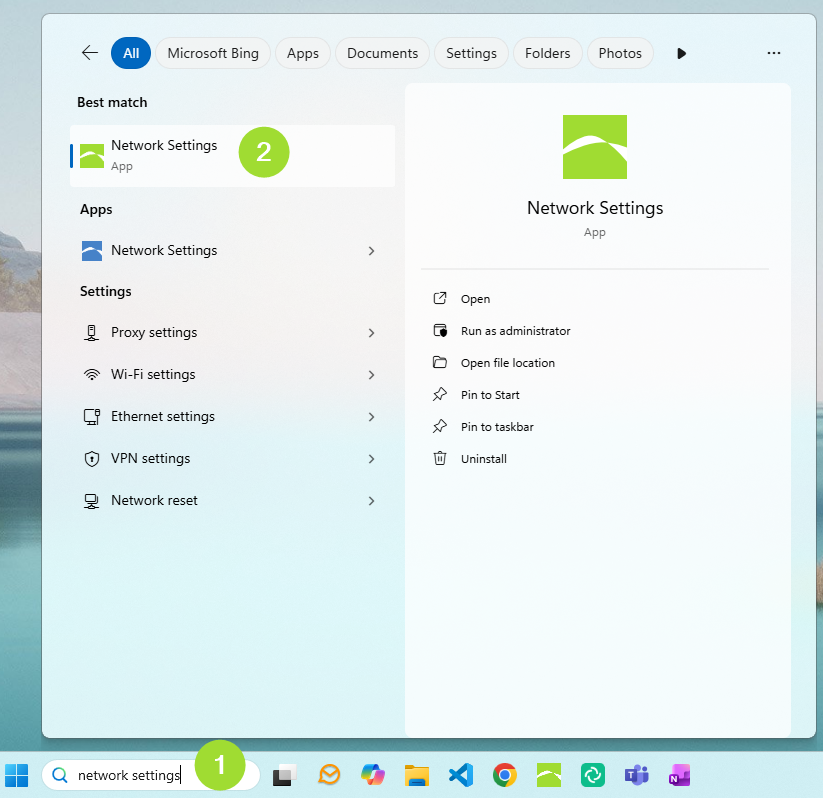
- Ask your system administrator if you need a proxy to connect to the internet
- If you are not sure, try using the system proxy
Reset the License System Selection
You can reset all license-related settings by starting CAESES with the option ("Reset license system"). The license selection screen will be shown on startup of CAESES.
On Windows choose
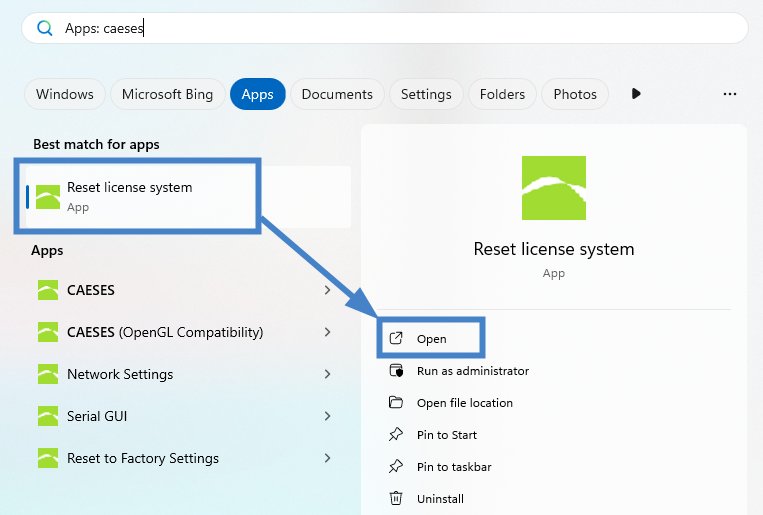
or use a command terminal (e.g. Command Prompt), navigate to the installation directory (e.g. C:\Program Files\CAESES\bin) and start CAESES with the --licreset option:
CAESES --licreset
On Linux open a terminal, navigate to the installation directory and start CAESES with the --licreset option:
./CAESES --licreset
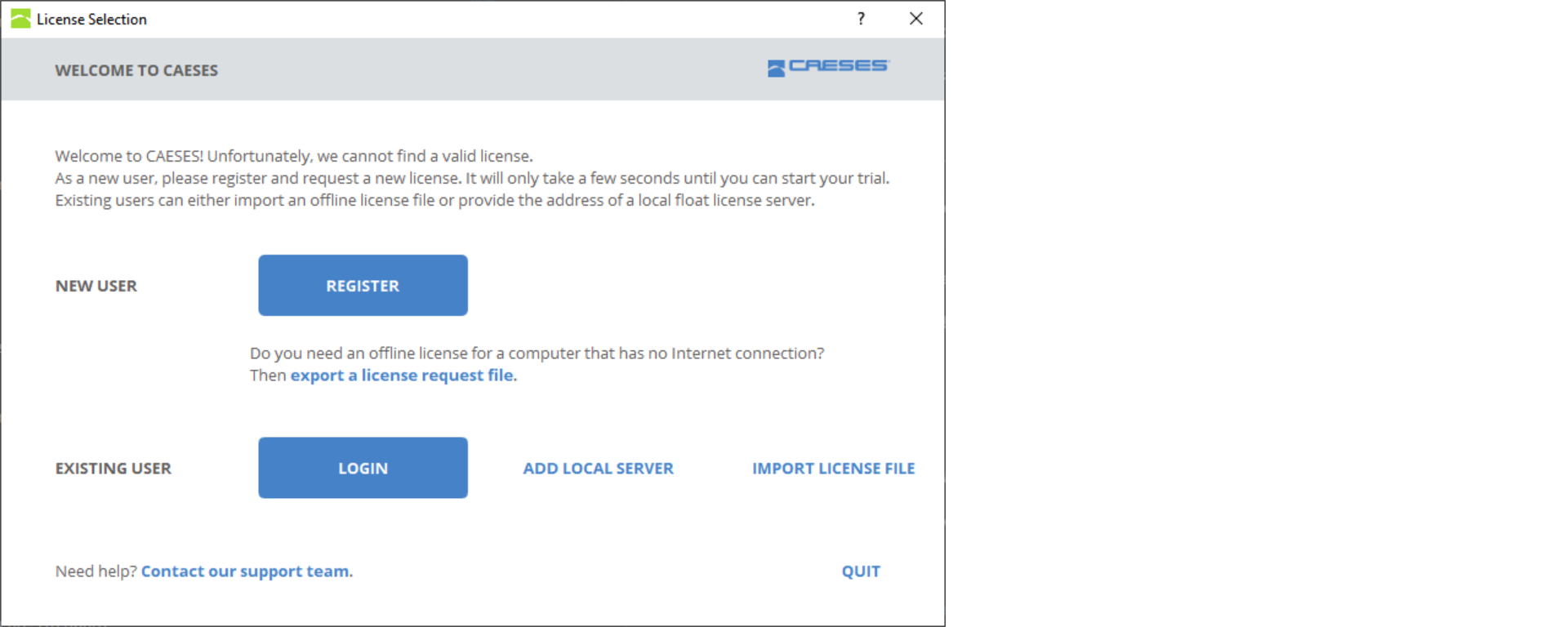
- After resetting the license selection, you need to login with your CAESES account again.
- Choose the license from the list and start CAESES.
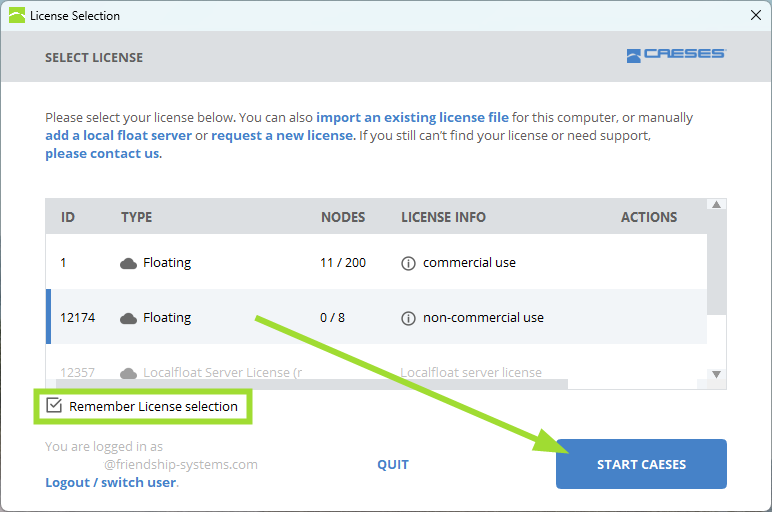
When the “Remember license selection” checkbox is enabled, CAESES will store your current license choice and automatically apply it at the next startup, so you won’t need to select a license again.
No Free Webfloat Slots
In some cases a web float license node does not get released/returned correctly by the system after closing CAESES (or e.g. after a crash) and you get the error "no free webfloat slots available" when trying to restart CAESES. You can release a stuck web float license node (reset the node) in the online license portal.
Please note that if you reset a node that is still in use, the CAESES instance which used that node will be closed. Checked out nodes cannot be reset.
You can manually release the blocked webfloating license node following these steps:
-
Login on our website in the Login area.
-
On the right side next to the license click on the See Details button:
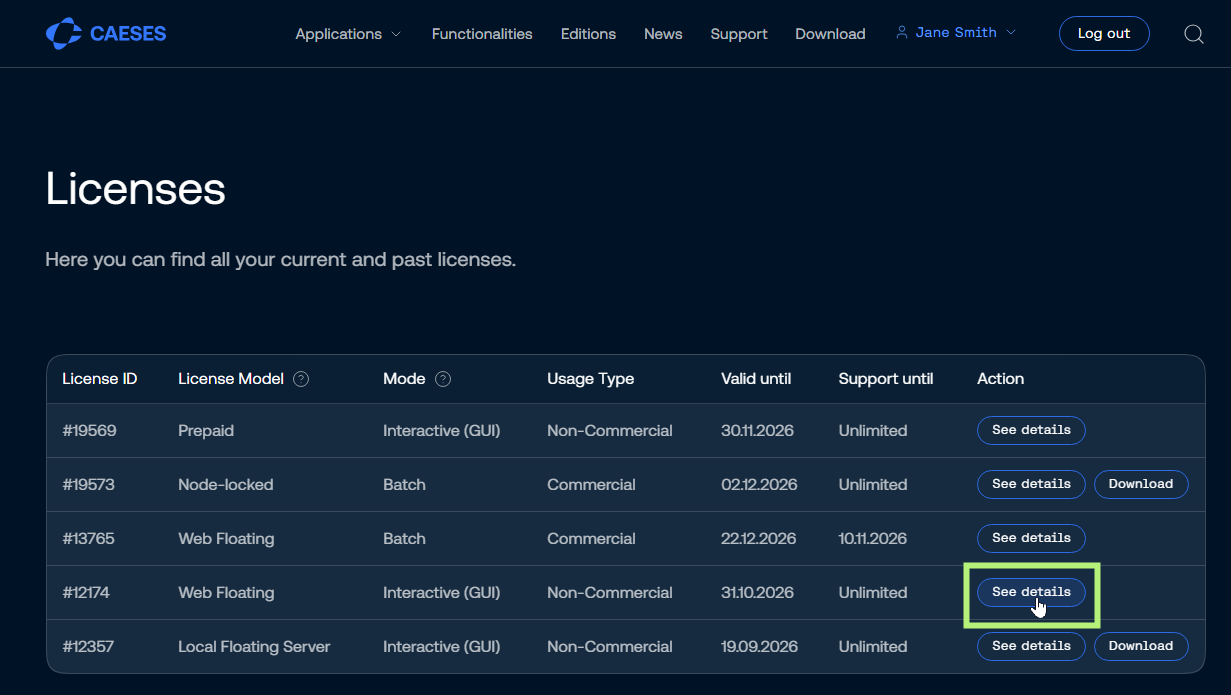
- After you entered the details view, check if the license is in use.
- Mark the license node you want to release by ticking the checkbox and click on the Release selected node button:
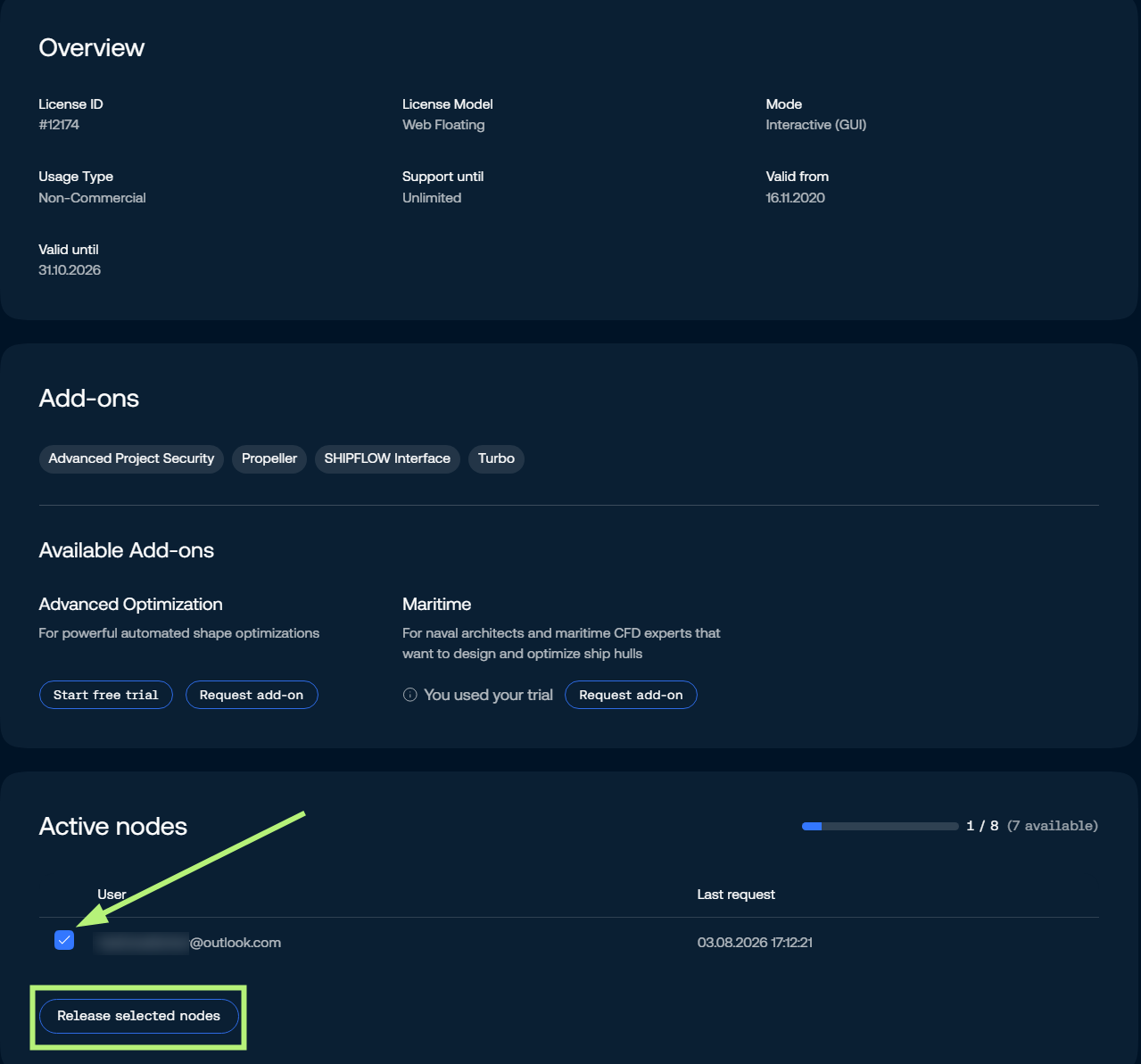
- Try restarting CAESES
Offline License
In order to avoid issues with offline licenses (node-locked) it is crucial that the license file fslicense.dat provided does not get edited manually. A manually edited file cannot be used as an offline license file. If you need a new license file for offline usage of CAESES please contact us.
The license request file (license.request.txt) and the node-locked license file for offline use (license.dat) should NOT be edited manually. A manual change in the files will lead to a blocked access.
Local Float License Server Issues
Local Float Server Does Not Start
If the local float server does not start, please make sure that the ports 5317 and 5318 (or if you changed the default ports, the ports you specified) are not in use. This could either be because you started the server multiple times (see your process monitor) or because another application uses it. In the later case, please specify another port, see the Configuration section for more details.
No Connection to the Local Float Server
Please make sure the firewall at the server side allows incoming connections to the TCP port 5317 (or if you changed it to your custom port) and the client side firewall allows outgoing connections to the same port.
The localfloat server blocks connections coming through a proxy or from a non-private network address. Private network addresses are the CIDR blocks 10.0.0.0/8, 172.16.0.0/12, 192.168.0.0/16.
If the local float server cannot be found when running CAESES through command lines, however the local float server is found in interactive GUI mode, try to specify the license ID and the local float server address by adding the command line options:
--licid=<licenseid> --liclfl=https://<servername>:<serverport>
Linux Specific Issues
Missing Libraries (Linux)
If CAESES is not starting due to missing libraries, you can check the folder lib/Linux.x86_64/missing_libs located in the installation directory for that license. If it is available in that folder, simply copy it to the folder lib/Linux.x86_64/.
Symbol Lookup Error within a Library (Linux)
Try to remove the files libcrypto.so.* and libssl.so.* from the lib/Linux.x86_64 folder.
Furthermore, under Red Hat 8 please ensure that libnsl is installed.
Inserted Values only Visible after Clicking in 3D View (Linux)
If you insert values into the object editor which only appear after clicking into the 3D view, try to start CAESES with the option -glmesa.
Add an alias in your .bashrc file:
alias caeses="<CAESES_installation_folder>/CAESES -glmesa"
Contact Support
If your issue is still not resolved, please contact our support engineers via the CAESES Helpdesk and attach the startuplog file.
If you are having trouble with the Local Float Server setup, in addition to the client startuplog , please attach all server log (log.html.*) files located in the installation directory in your helpdesk ticket.
Start Up Log startuplog.html
Please attach the start up log startuplog.html (and in case of offline license use the license file (fslicense.dat)) in your support requests.
Under Windows, you can find the startuplog file at %LOCALAPPDATA%/caeses/etc/logs.
(e.g. C:\Users\USERNAME\AppData\local\caeses\etc\logs\startuplog.html).
Under Linux, you can find the file under $XDG_CONFIG_DIR/caeses/logs (e.g. ~/.config/caeses/etc/logs/startuplog.html).
Known Issues
- Corrupted project files when working on network drives
- Unstable network connections can lead to corrupted project file databases. To avoid data loss, we strongly recommend working on local drives instead of network drives.
- Update dialog may cause CAESES to freeze
- Disable the automatic update check to stop the update dialog from appearing at startup.
Check the changelog for a list of fixed issues and ongoing improvements.
Report a Bug
If you have found a bug in CAESES, please report it using our CAESES Helpdesk. You can open a ticket via the helpdesk website, or create a ticket from within CAESES.
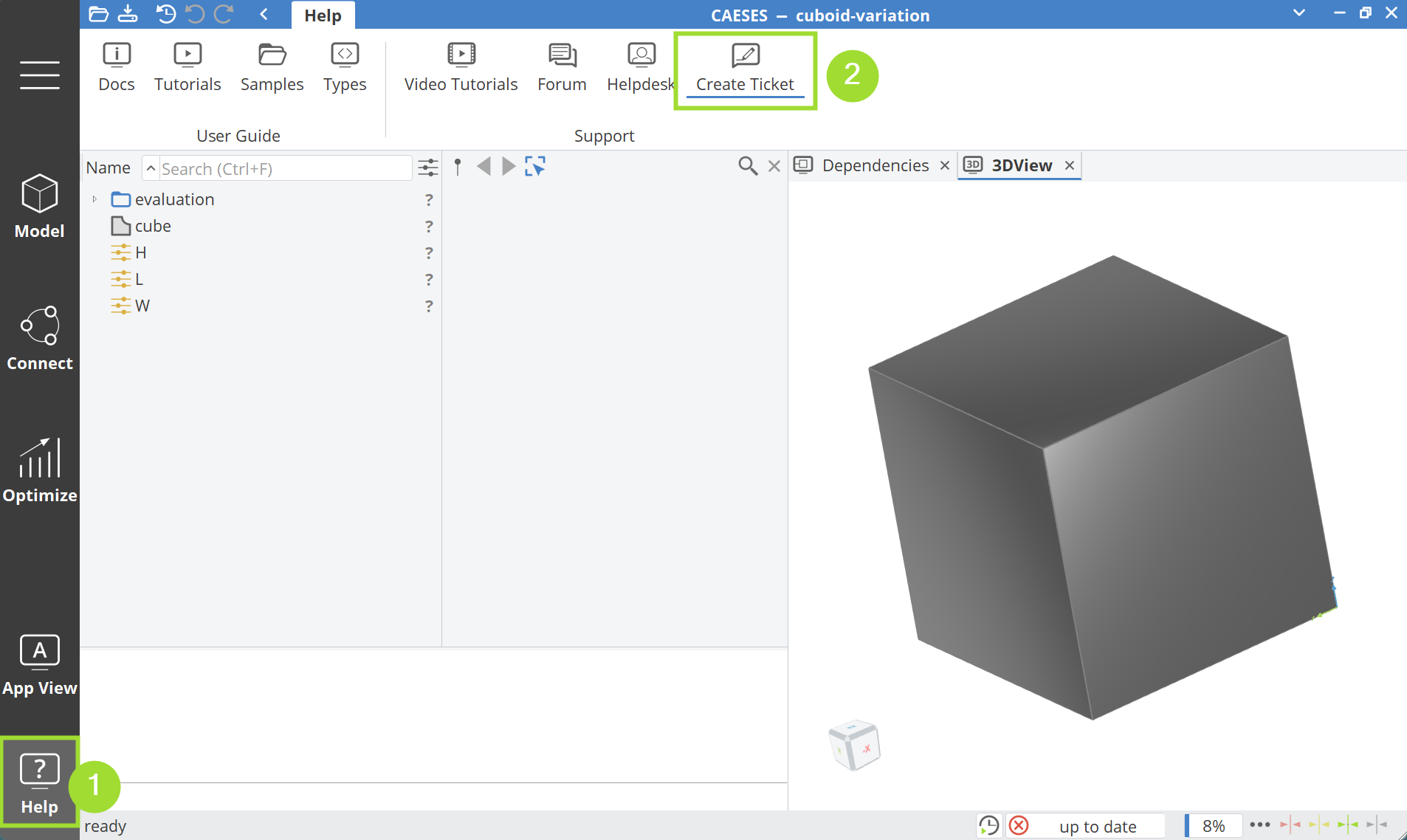
Your bug report should include:
- a concise summary of the bug including what happened, where and under what conditions,
- if possible, attach a (test) CAESES project file that allows us to reproduce the bug,
- add a list of actions to perform to trigger the bug,
- add screenshots or videos to help explain the issue,
- add details about
- the operating system,
- the CAESES version you are using.