Batch Mode
The CAESES batch mode (= no graphical user interface) allows you to embed CAESES as a geometry engine, and to control the geometry generation through external 3rd-party optimization tools, such as OptiSLang, Optimus, ModeFRONTIER, Isight etc. This allows you to run up to several hundreds CAESES instances at the same time, e.g. for creating geometry variants on HPC clusters. Read more information on the batch mode use cases.
There is a dedicated batch license available.
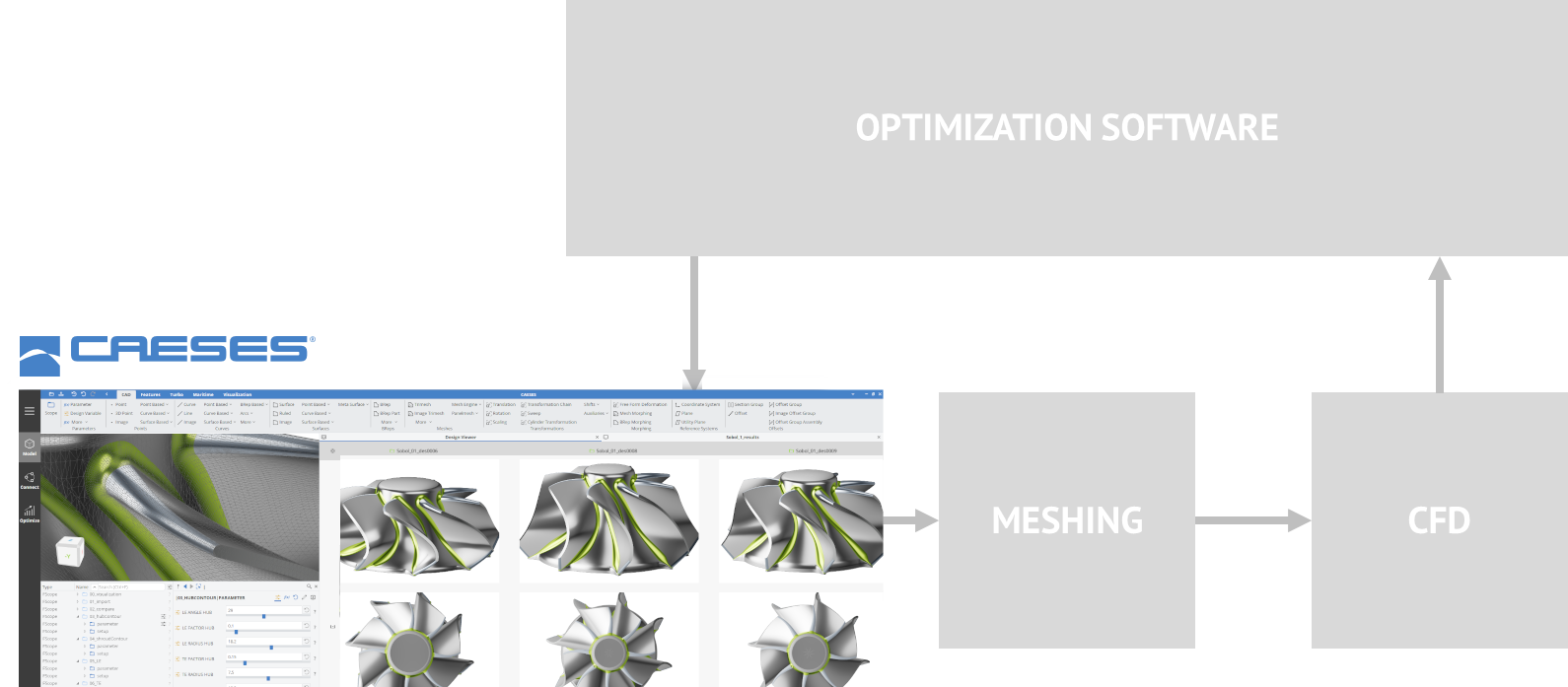
CAESES Project
Typically, one would first create a geometry model in CAESES in the graphical user interface (GUI), to have a project file (*.cdb) available. The goal for the batch mode run is then to generate new design candidates of this geometry and export it automatically - everything in the background without opening the CAESES GUI again.
Design Variables
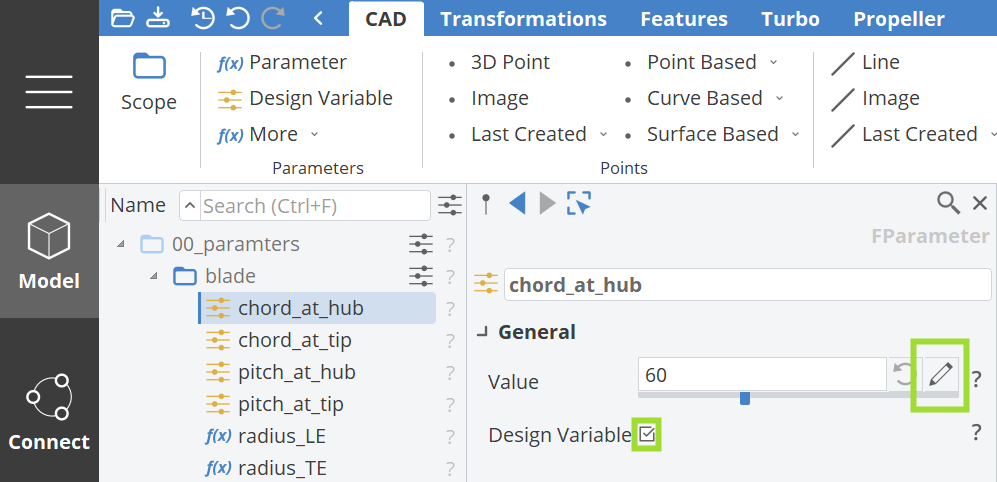
In a next step, make sure that your CAESES project contains design variables because these are the objects that will be changed by the external optimization tools.
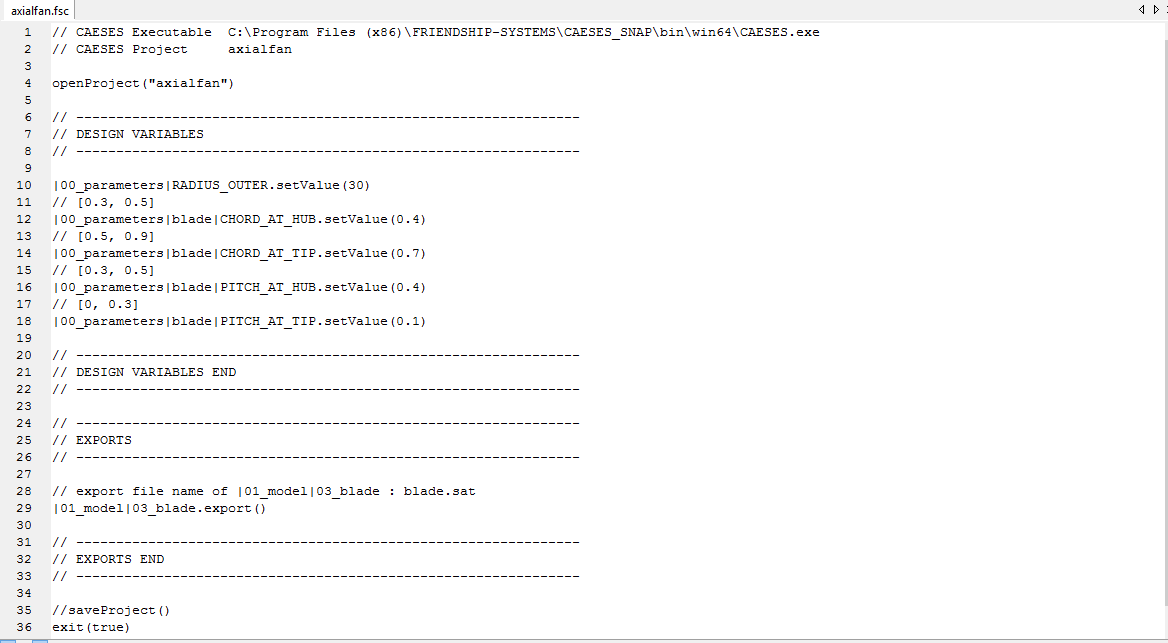
Optionally, your design variables can have lower and upper bounds which will be additional information in the upcoming script file (*.fsc), and hence useful information for your external tool.
Configure the Export Data
Put all the geometry objects that you want to automatically export into a separate scope. Select the scope and choose a type (e.g. exportSAT or exportIGES) and a file name in the object editor of the selected scope. Note that the color of the scope icons turns to green once the export is configured.
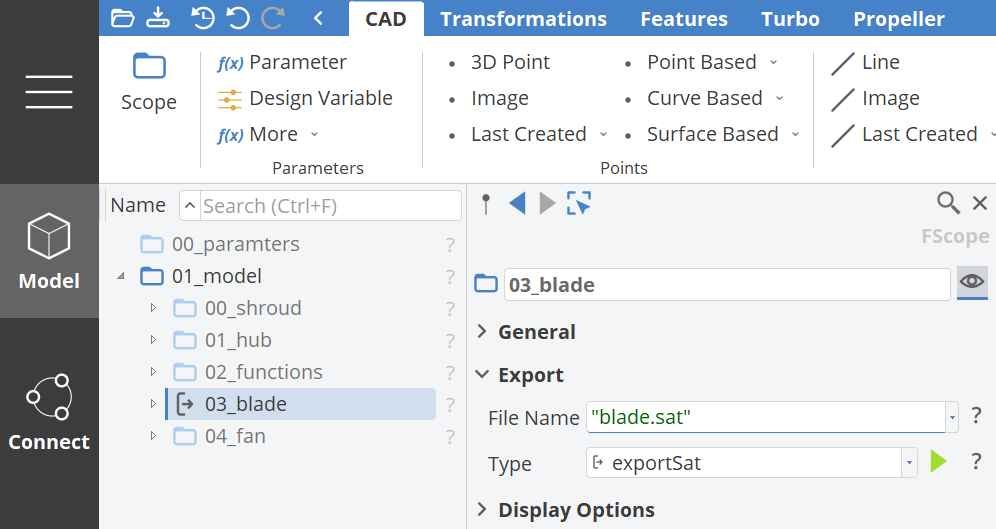
Scopes are the folder-like objects in CAESES which help you to structure the project. You can rename them and move them at any time when setting up a model. All the dependencies are kept, but the absolute name of the objects within the scope might change! So make sure not to change the structure of the project once you have created the fsc-file.
Generate a Script File
For an opened CAESES project, choose
- Menu > CAESES scripts > Export Script
to write and store the batch mode control file. Here is an example:
Export Single Objects
Note that you can also individually trigger an export command for any geometry object in your project, and not only for scopes (which you would use to have a set of objects in one exported file). For instance, you could add myBlade.exportIGES("blade.iges") or myBlade.exportSTL("blade.stl") to the fsc-file to export the myBlade object.
Custom Exports
Basically, you can trigger any command within such a script file. For instance, if you have a feature that writes out an additional file that you need in your process, you could add the command |abc|myFeature.run() to the script. Take care to you use the full name of the object, including the pipe character.
Include Conditional Statements
You can use conditional statements e.g. if-conditions in the .fsc script to trigger some feature execution based on your parameter settings:
IF(|00_parameters|exportPointData==1,[|03_exports|exportPoints.run()])
Running CAESES in Batch Mode
At this stage, we have the model setup *.cdb and a script file *.fsc. As an example, we name the script file model.fsc. With these two files, we can run CAESES in the batch mode using the CAESES crt-version:
Windows
C:\Program Files\CAESES\bin\CAESES_crt model.fsc
or within a bat-file:
”C:\Program Files\CAESES\bin\CAESES_crt” model.fsc
If you would like to write the console output into a log file you can run the following command:
”C:\Program Files\CAESES\bin\CAESES_crt” model.fsc > C:\Documents\batchrun\logfile.log
Linux
For Linux, there is also a crt-version in the CAESES installation directory which can be used in the same way. If you need a separate script in Linux, an example script might be:
#!/bin/bash -x

INSTALLDIR/CAESES_crt model.fsc
Read more about the batch mode use cases for automated geometry creation on a cluster.