Feature Programming in CAESES
Features are commands and functions that are wrapped into a single object. Such a piece of code is defined in so-called feature definitions, which is the programming environment of CAESES. With the use of features you basically shift from an interactive modeling to customization of geometry and processes.
Why Features?
Features help you to create your own geometry objects. But there is more you can do with it. Features provide you a possibility to customize and automate any design task. Here are some examples of what you can do with it:
Define Customized Geometry
Features allow you to create your own geometry objects, e.g. specific curve or surface types that are not directly available in the CAESES menu.
Read and Write Files (File Input/Output)
Write proprietary import and export routines for any kinds of ASCII data.
Define Functions
Define custom functions with arguments and return value.
Consider Constraints
Define and run internal optimizations in geometry models to consider geometry constraints such as cross-sectional areas, compression ratios, distances to keep etc.
Fit Parametric Models
Create workflows that import and fit data into an existing parametric model.
Automate Workflow Tasks
Prepare, modify and manipulate geometry or any other data in automated workflows by defining complex routines and processing rules.
Features: A First Example
Just to give you a first idea of what we are talking about, see the following simple example of a feature definition that creates a line by means of two points. The objects ya and yb are input arguments to the definition and variable float numbers.
// creates two points
// using the input values ya and yb

point a([0,ya,0])
point b([1,yb,0])

// call the line creator
// and provide a and b as input

line connection(a,b)
The resulting feature object that is based on this example definition looks like this:
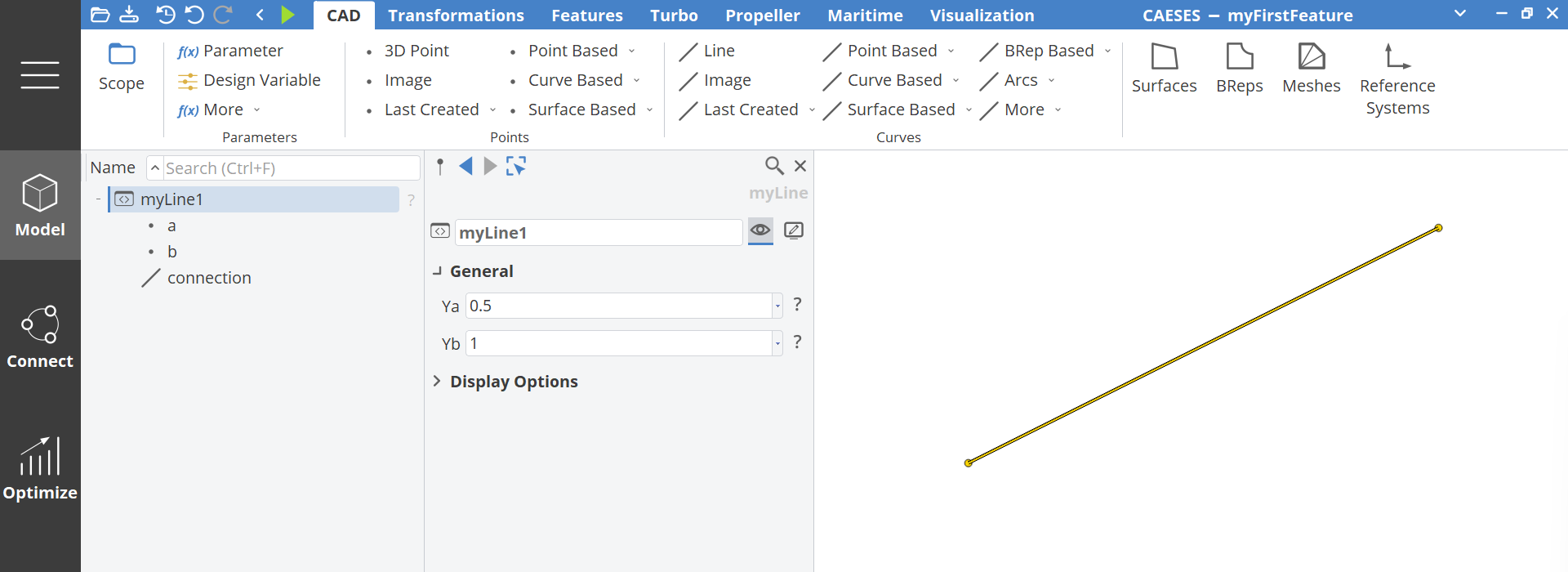
This can be understood as a user-defined geometry object which now expects two inputs, the value ya and yb. A line gets created and visualized, and can be used for further modeling tasks.
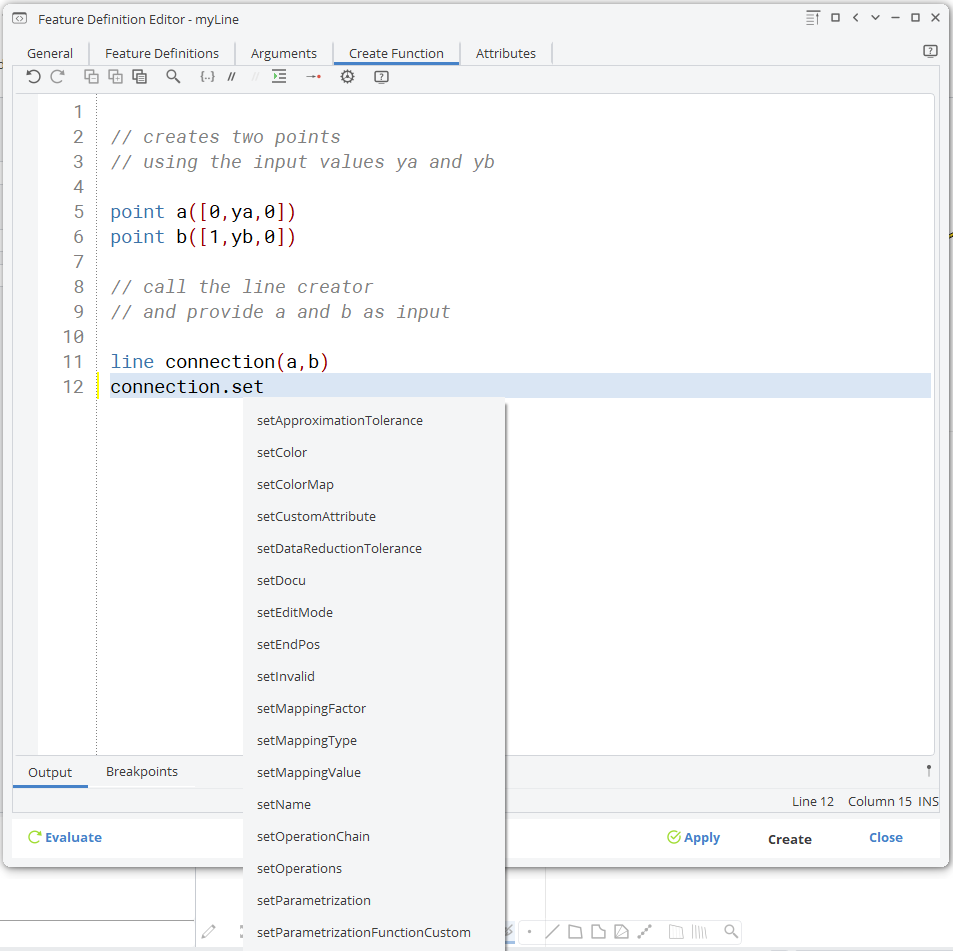
In this snippet, there are creator commands used, to create two points and a line. These commands can be found in the type documentation of the 3D point (type F3DPoint) and line (FLine). There are much more commands that you can use, in particular setter methods to set the properties of objects. You see all possible commands if you type the name plus a . and then Ctrl+Space for the auto-completion:
How Does It Work?
CAESES is an object-oriented and command-based framework. Any interactive actions that you do in CAESES trigger specific commands in the background.
For instance, if create a 3D point in the CAESES GUI and you set the x-coordinate of the point, the creation command point() and then the command .setX() are triggered in the background.
All these commands are not obvious in the first stage when using CAESES interactively. However, you could make use of them by typing them into the console widget. More interesting, you can wrap a set of command sequences into a feature definition. This feature definition is then the template from which feature instances (objects in the tree) can be created.
Control Statements
Besides commands for object creation and setting object properties, there are also standard control statements available, such as loops, if-else etc.
loop(N)
  // do something
endloop
Global Commands
In addition to the various type commands (creation, set, get), there are also global commands that you can use. Examples are mathematical operations such as sin(), cos() and sqrt(), or vector operations such as abs() and dotproduct().
There are also string operations to extract substrings, several date and time commands, and much more. See the global commands section for a list of all commands.