Installation and Licenses
Installation
In order to install CAESES on your PC or notebook, please follow these instructions depending on the operating system you use.
Binaries are available for Windows (64 bit) and Linux (64 bit). Check the download area for supported operating systems.
Linux
Downloaded the CAESES archive for Linux from our website.
- Open a terminal, move the downloaded archive file to the desired location and navigate to that location
- Extract the file with
tar -xf CAESES_20XX.X_Linux.x86_64.tar.bz2(replace 20XX.X with the current version) - (Optional) rename the folder with the extracted files, which is the installation directory
- (Optional) Add the installation directory to
$PATHor add an alias in your shell config (~/.bashrc,~/.zshrc, ...) - Get CAESES up and running calling
.\CAESESinside the installation directory
To expose CAESES globally:
mkdir -p /opt/caeses
tar -xf CAESES_20XX.X_Linux.x86_64.tar.bz2 --strip-components=1 -C /opt/caeses
add to your shell config (~/.bashrc, ~/.zshrc, ...):
export PATH="$PATH:/opt/caeses"
Windows
Downloaded the CAESES executable CAESES_20XX.X_win64.exe for Windows from our website.
- Start the installer by double-clicking the executable.
After the installation process has finished, start CAESES, read through and agree to the software license agreements.
- Connected to the Internet
- Offline (No Internet Connection)
If an internet connection is available, you will see the license selection dialog:
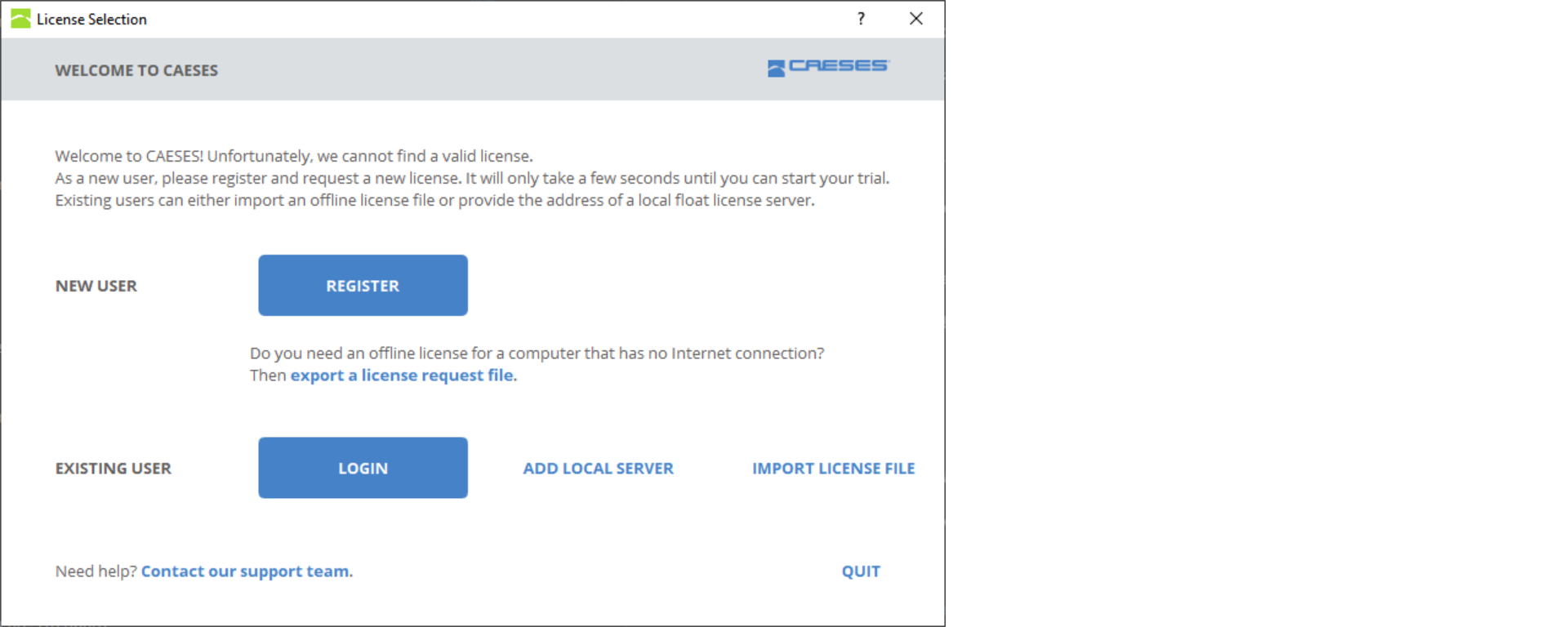
If you do not have an internet connection you will see the Offline License Selection Dialog
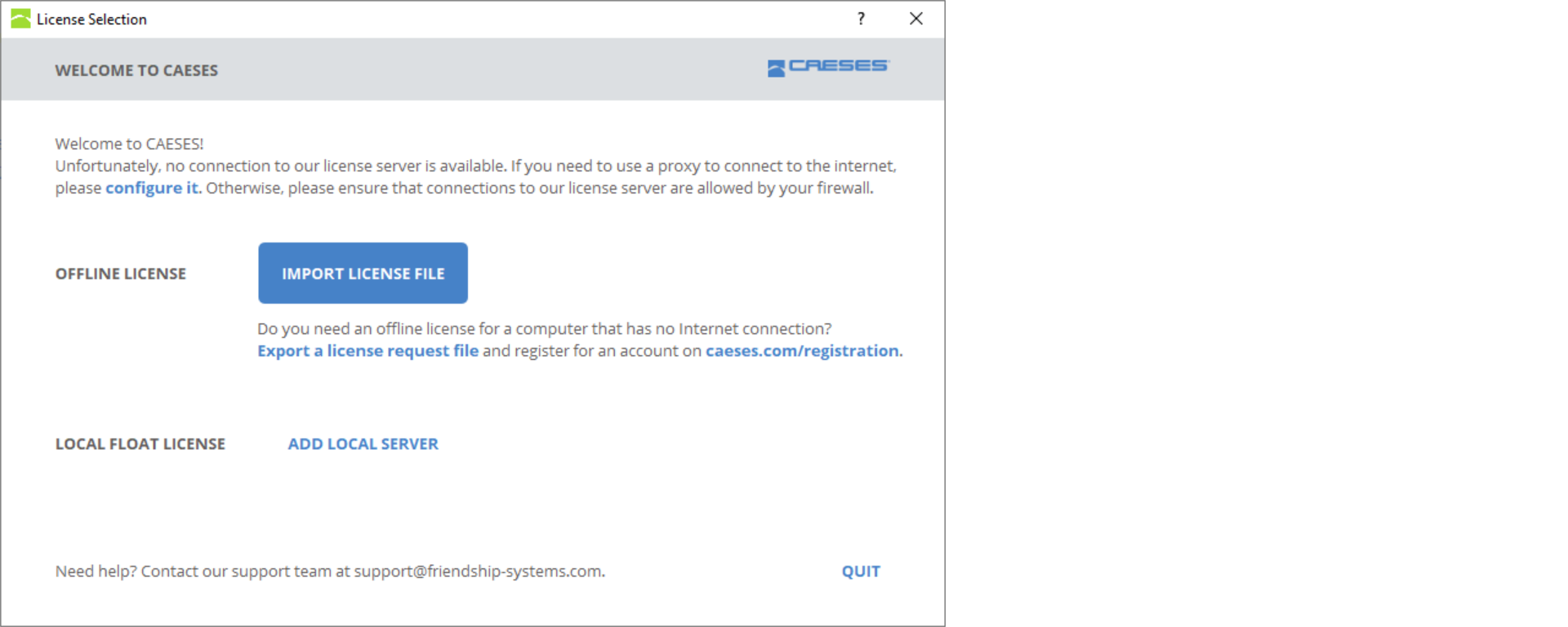
If you have an internet connection and still see the offline license dialog, please follow the Troubleshooting steps.
Registration
Create a New CAESES Account
For the usage of the Software CAESES, you'll need to create a CAESES user account. This account will be used
- to manage your licenses,
- to allow access to the helpdesk (for commercial licenses) or,
- to access the forum (for non-commercial licenses).
You can register for a new account from within CAESES by clicking the "Register" button on the license selection page. Alternatively, you can register on our website.
After registration, you will get a confirmation email that your account has been registered. This email contains a link to validate your account, which is required to proceed.
Make sure to register a valid email address for your CAESES account and remember the password for the login to use the software CAESES, the helpdesk and the forum.
Check the spam/junk mail folder in case you didn't receive the confirmation mail.
After a successful registration you can either request a license or contact us to request the linking of an existing license to the newly registered account.
If you already have a license file (fslicense.dat) that you want to import or would like to use a local float license server on your network, you do not need to create an account.
Existing Users
If you already have a CAESES account, you can login to access your Web Float License, Node-Locked License or pre-paid license. After the login with your CAESES user account, you have an overview of your licenses:
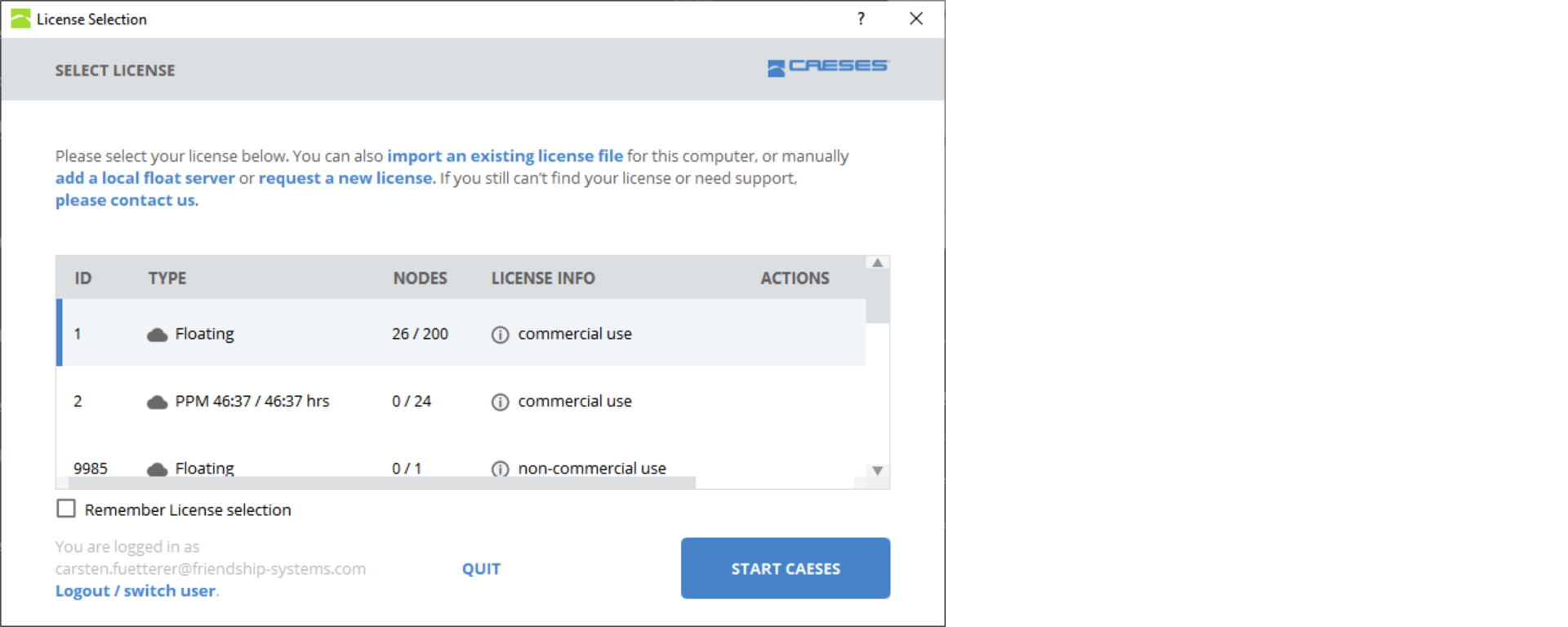
Reset Password
You are a registered customer and lost your password? Request your password reset link on our website:
Reset PasswordLocal Float Server
In case you are not using the local float server yet, follow the installation guide for the Local Float Server Setup first.
If the setup for the localfloat server (Local Float License) in your own network succeeded, you connect to it by clicking "Add Local Float Server".
License File
If you already have a license file (fslicense.dat) which you would like to use, you can import it by clicking "Import Existing License File".
Purchased Web Float License
If you have already purchased a web float license, but do not have a CAESES account, yet, please continue with the steps at Registration.
Request a License
If you do not have a valid license, you can request a license. If you do not have a CAESES account yet, please register first. After you have a valid account, you can click on "Request License". The following dialog will show, where you can select the different options:
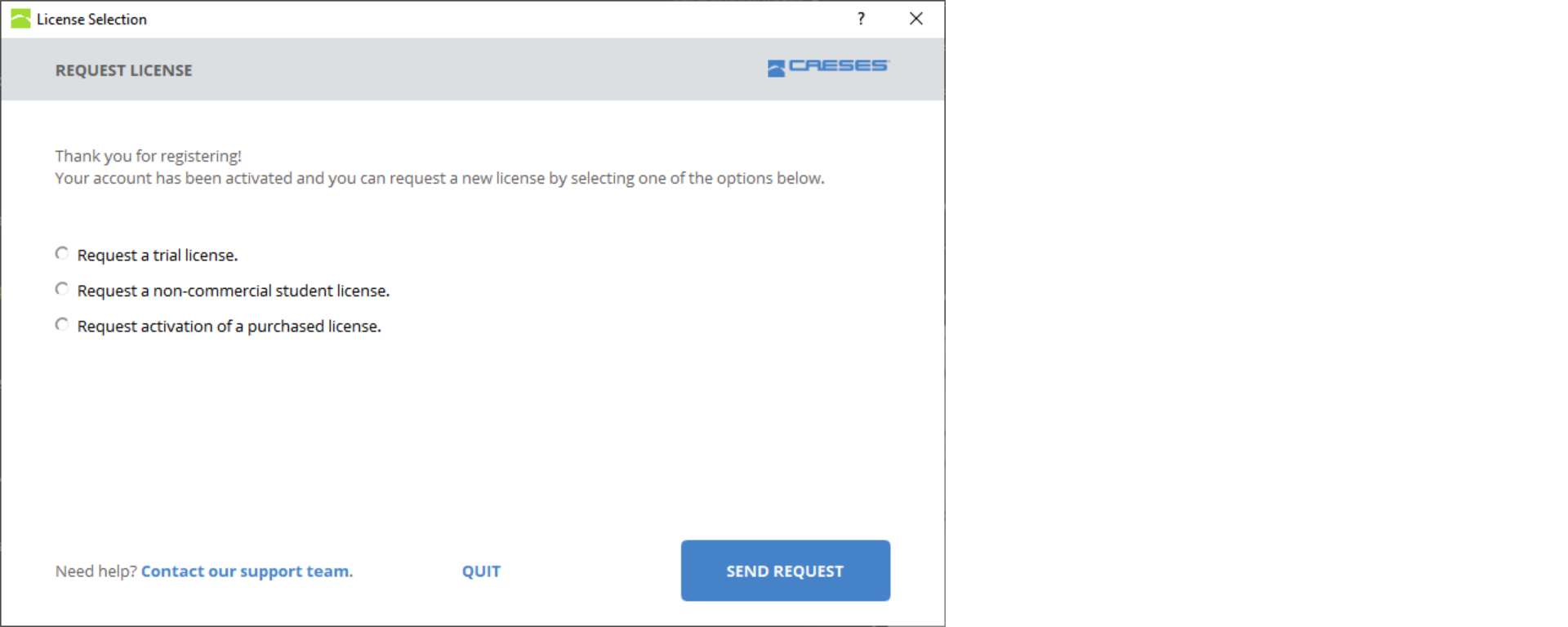
If you do not have an internet connection (offline usage), you will have to send us a unique hardware identifier of your computer via mail. To generate that file, you can click on the "export a license request file" and send it to our support team through our helpdesk.
License Types
CAESES can be used with a main GUI (graphical user interface) license, as well as a batch mode license, which offers the full functionality without access to the GUI.
Web Float License
A web-based floating license is a license, which is obtained from a remote license server hosted by FRIENDSHIP SYSTEMS (internet connection required). It can be temporarily converted into a license for offline use (checked out).
- It requires a CAESES user account for each person that wants to use the license, if you do not have an account, please see the Registration section.
- To access this license, it will have to be linked to your account. This can be requested by contacting the support team through our helpdesk.
- The webfloating license is not bound to a specific hardware and can be used by multiple users. The number of parallel users if defined by the number of nodes for each license. You can see the number of used nodes in the customer area with the license overview.
The web-based floating license can be checked out, this means that you can use the license offline for a period of two weeks, after which an active internet connection is required to renew the license. During this time, the checked-out node is blocked and cannot be used by any other user until it is returned to the license server (brought-back/released). You can check out the license by clicking Menu (☰) > License > Checkout Float License.

In some cases a web-based floating license node/slot does not get released/returned correctly to the server by the system after closing CAESES (or e.g. after a crash) and you get the error "no free webfloating slots available". You can reset the license node online if you login in the customer area. Please note that if you reset a node that is still in use, the CAESES instance which used that node will be closed. Checked-out offline license nodes cannot be reset.
How do I release/reset the stuck web float license node?
In this case you can manually release the blocked webfloating license node.
-
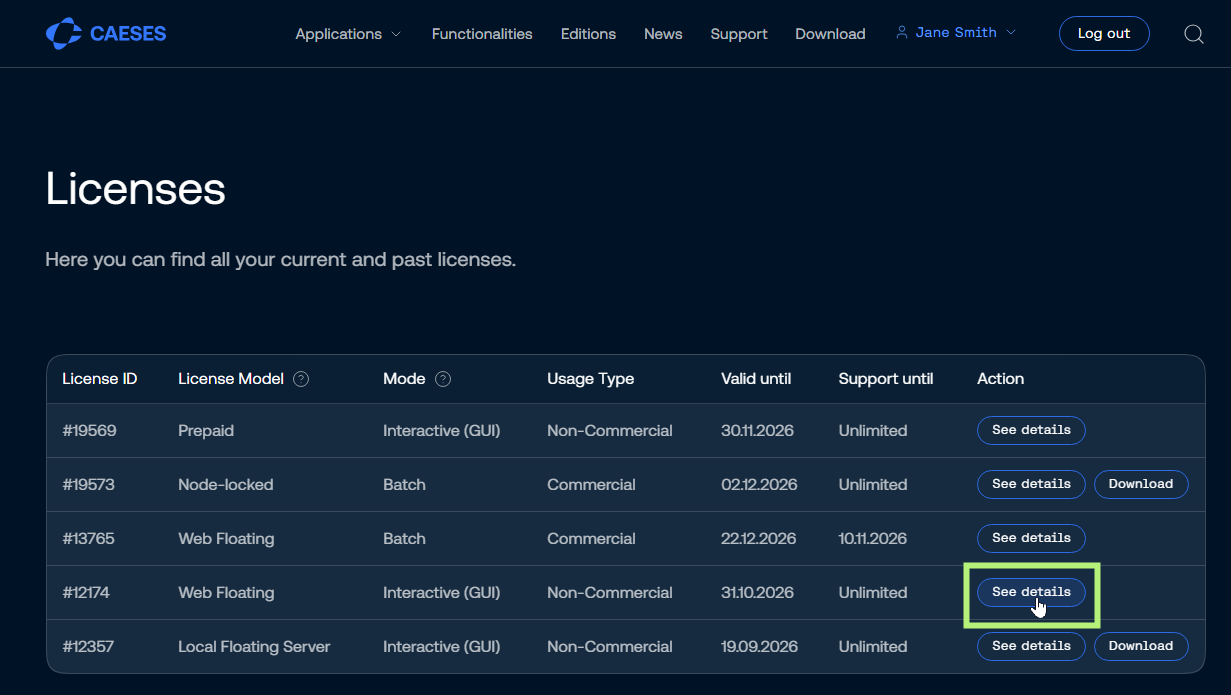
Therefore login to the license overview portal.
-
On the right side next to the license click on the See Details button:
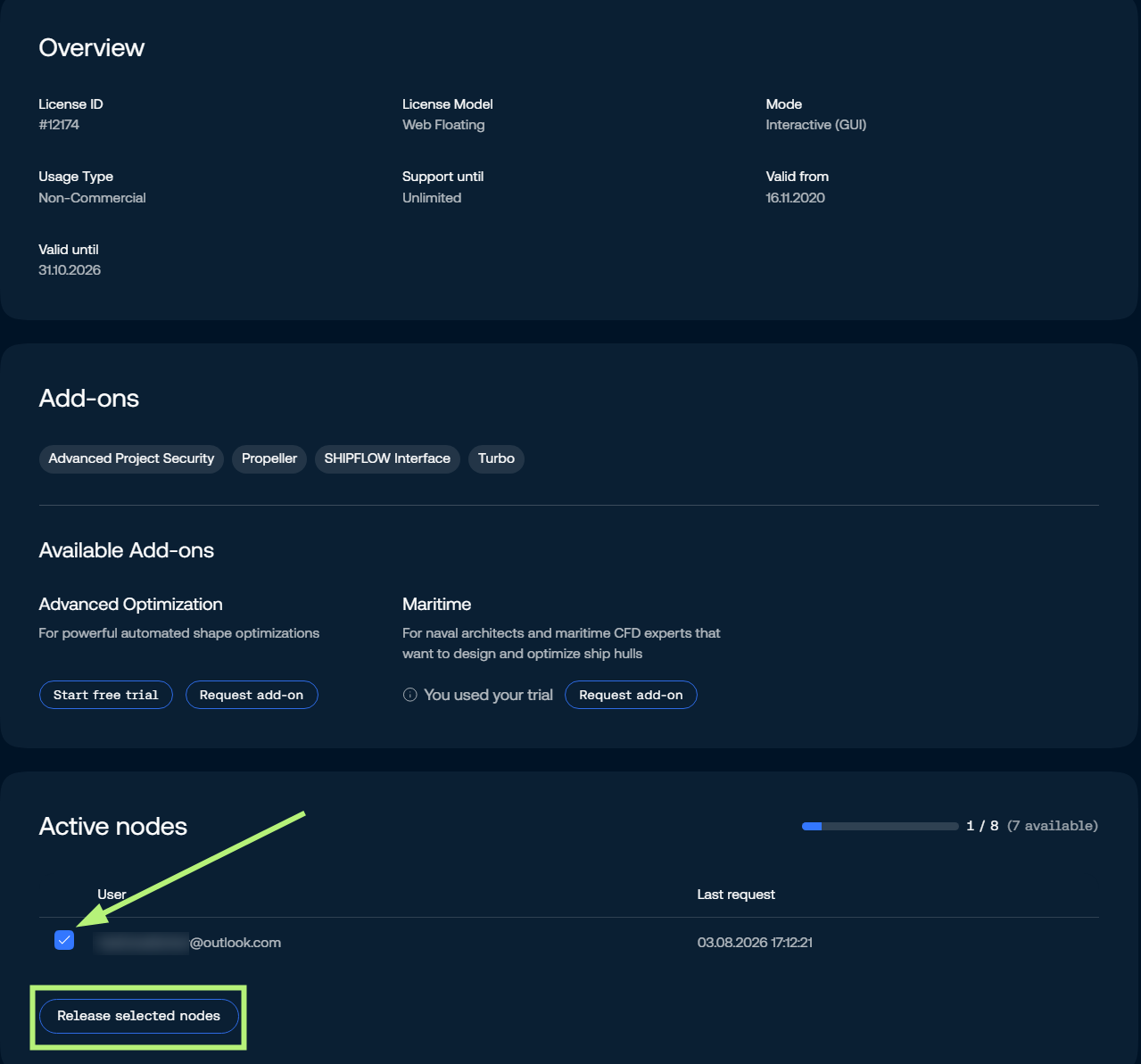
- After you entered the details view, check if the license is in use.
- Mark the license node you want to release by ticking the checkbox and click on the Release selected node button:
Node-Locked License
A node locked license is linked to one particular computer (=node)
To access your node locked license, you can either login in CAESES and request a download of your license or you can sign into your account on our website and download the license file (fslicense.dat).
Renewal
Node-locked licenses need to be renewed every few weeks. The interval depends on the license. If the computer has an active internet connection, this task will be done automatically in the background. Otherwise, please download a new license file from the customer area.
Change Hardware Map
If your hardware device changes, you can update the hardware information of a license yourself. To update your hardware map, click the change button next to the license you would like to use:
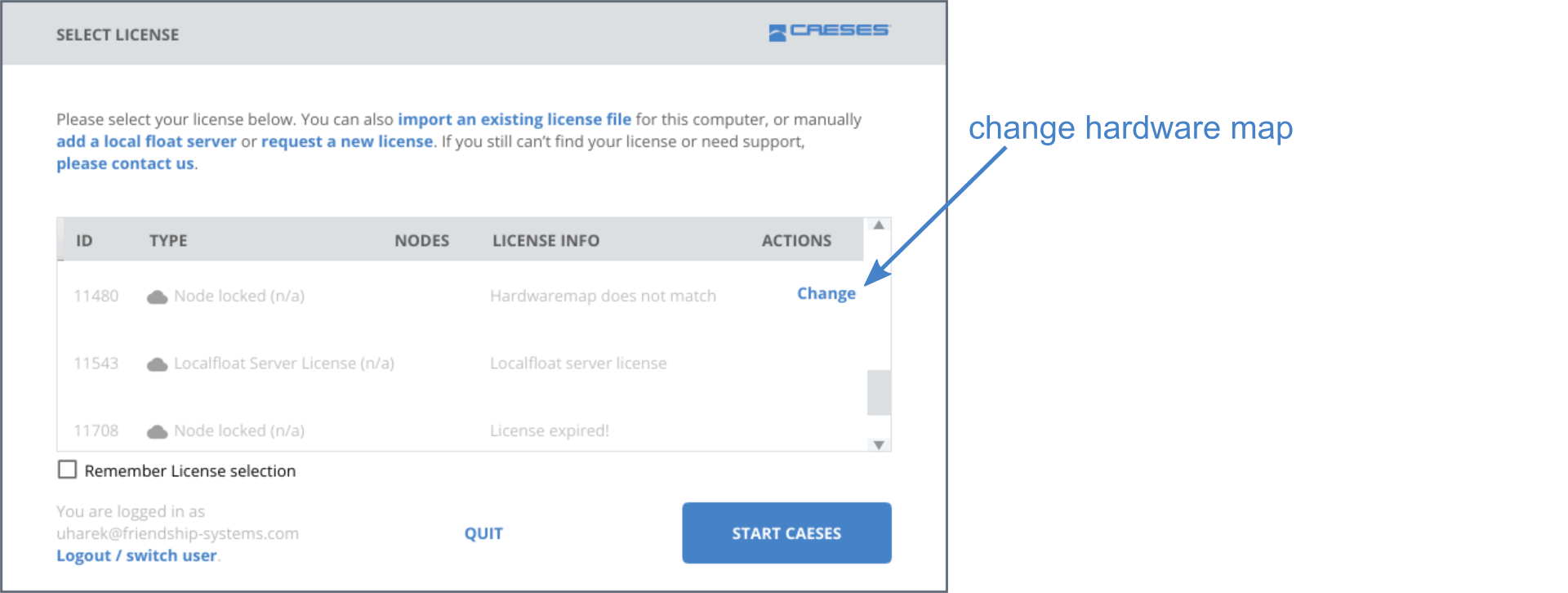
Please note that changing the hardware map can only be done once every 6 months. After that period, please contact us and explain the need for another hardware map license change.
Local Float License
A local float license is a floating license which is obtained from an on-premise (local) license server hosted by the customer.
If you purchased a license for the Local Float License Server of CAESES, please refer to the Local Float License Server Setup page to install it in your network.
Once the local float server is up and running, you can use the licenses provided by the server in your local network.
For the client computers, you do not need a CAESES user account.
The local float license server is either detected automatically and the licenses provided by the server will appear in the license list.
Alternatively, you can add the local float server manually by entering its IP-Address and name. For this, select the "add a local float server" link in the text above the license selection or the "Add local server" button at the startup page.
Batch License
You can use CAESES batch licenses (non-GUI) if you
- are running optimizations on a cluster and don't want to block your CAESES license while doing so, or,
- if you are using a third party optimizer and want to launch many CAESES instances in parallel to generate geometry variants.
A CAESES batch license offers the exact same functionality as the main license, except for the availability of the graphical user interface (GUI).
Case 1
You are running optimizations where the simulations for the generated design variants are done on a cluster. Typically, your CAESES GUI, from where you have started the optimization, is running on your workstation. With most of our licenses, if you have a single seat, you may open a second CAESES instance on that very same workstation, e.g., to work on another parametric model. You may not, however, open CAESES on another computer, e.g., if your colleague wants to work on another project while you are optimizing. One solution, of course, is to simply buy a second license seat. This might have additional benefits, but is also more expensive. The other solution is to complement your license by a batch license (or a few).
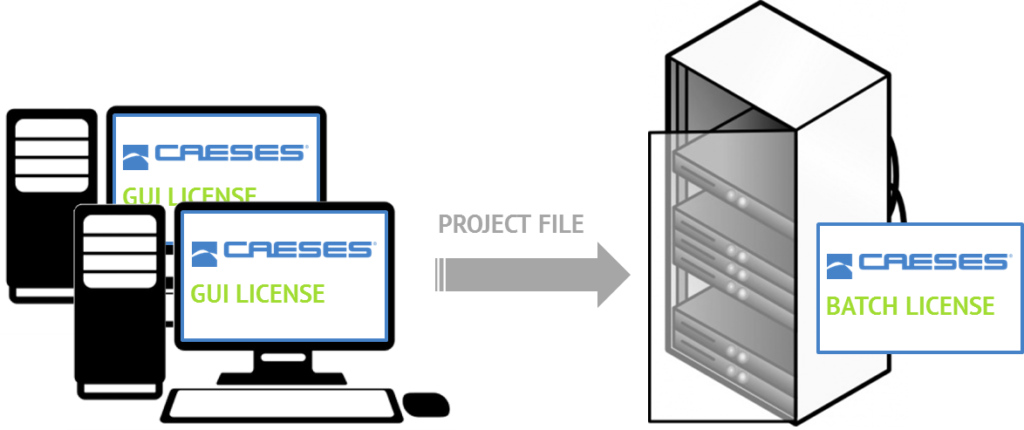
Move your project to the cluster and run it there
Simply prepare your optimization on your workstation, move the project file to you cluster, open and start it with the CAESES batch version, using the dedicated batch license. Your GUI license will not be bound to your workstation anymore and you can freely float it to arbitrary machines, while running the optimization. Additionally, potential data exchange overhead between your workstation and the cluster is unnecessary.
Case 2
You are using a third party optimization tool (optiSLang, HEEDS, Optimus, modeFRONTIER, …). When necessary, this tool will only start CAESES to generate and export a geometry variant from a previously prepared parametric model. Naturally, in this situation, CAESES will run in batch mode by default.
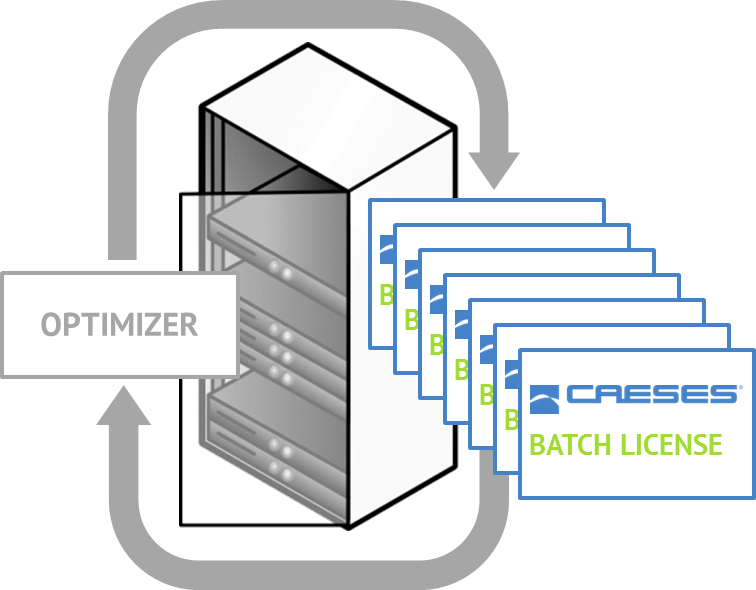
Run several CAESES instances for geometry generation at the same time – fully automated within an optimization
These frequent program start-ups should not interfere with your interactive CAESES license usage. Maybe, you already want to prepare the next project in the meantime, using your CAESES GUI license. Also, you may want to allow the optimizer to start many CAESES instances in parallel, to expedite the optimization process. Again, a package with a suitable number of CAESES batch licenses at a much more competitive cost than an equal number of regular licenses.
Non-Commercial and Commercial License Use
Non-commercial licenses are granted for academic teaching, academic research, students or trial periods for the evaluation of CAESES. A non-commercial project file uses the *.cdbc extension and can only be opened with non-commercial licenses.
A commercial license is intended for use in the context of commercial, professional, or any other for-profit purpose. Users with commercial licenses work with the *.cdb CAESES project files. A conversion package to convert *.cdbc to *.cdb files for commercial customers can be requested.
Student License
FRIENDSHIP SYSTEMS supports students! Hence, there is an offer for non-commercial academic edition for students and PhD candidates for free (limitations may apply). Student licenses currently comprise the entire functionality of CAESES without any limitations. The license is strictly intended for personal use and self-learning and may not be used for funded projects or University sponsored R&D programs. CAESES must be installed on a personal PC/notebook rather than on University computers.
- Download and install CAESES from our download area.
- During the registration process, choose “Free Student License” and follow the instructions.
- Make sure to upload a certificate of enrollment for verification (PDF or image), which is mandatory to obtain a student license.
Please send us a current certificate of your enrollment issued by your university. The document must contain the following information:
- your full name,
- name of the university,
- period of studies (including the end date of your enrollment).
- After we have received your certificate, we will examine your request details. It is possible that you will be contacted by FRIENDSHIP SYSTEMS or a local sales partner for further information. Free student licenses are granted at the sole discretion of FRIENDSHIP SYSTEMS. This offer may not be available in all countries or may be withdrawn without any prior notice.
Reset the License System Selection
You can reset all license-related settings by starting CAESES with the option ("Reset license system"). The license selection screen will be shown on startup of CAESES.
On Windows choose
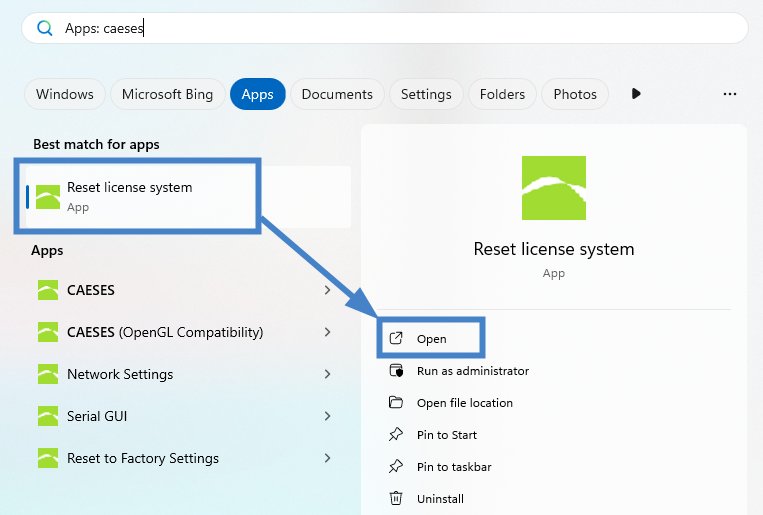
or use a command terminal (e.g. Command Prompt), navigate to the installation directory (e.g. C:\Program Files\CAESES\bin) and start CAESES with the --licreset option:
CAESES --licreset
On Linux open a terminal, navigate to the installation directory and start CAESES with the --licreset option:
./CAESES --licreset
- After resetting the license selection, you need to login with your CAESES account again.
- Choose the license from the list and start CAESES.
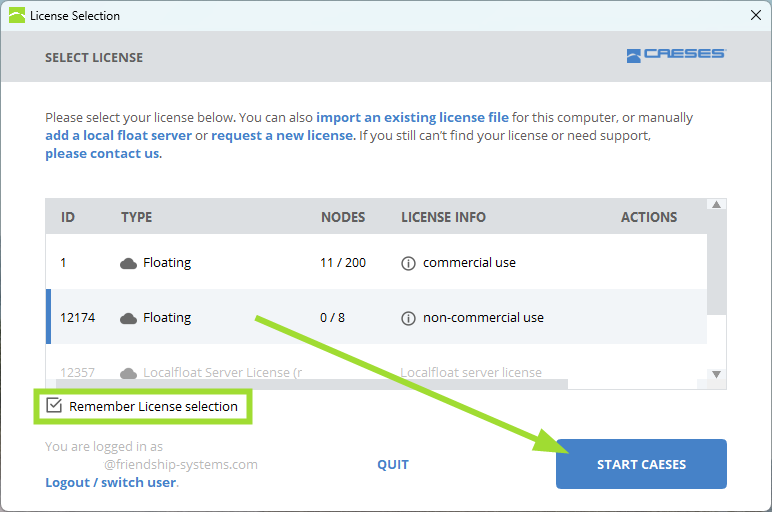
When the “Remember license selection” checkbox is enabled, CAESES will store your current license choice and automatically apply it at the next startup, so you won’t need to select a license again.
License Command Line Options
The following options exist for controlling the license options in batch mode:
--licreset- reset the license system--licid=LICID- start with license LICID--licselect- show selection dialog at startup--licwait=RETRY,WAITTIME- wait for license to become available, retry everyWAITTIMEseconds forRETRYtimes--licserial=EXPORTPATH- show the hardware ID of this system (export path optional, shows a dialog otherwise)--liclfl=LFLSERVER- start with given localfloat license server, if none is given use auto discovery--licfile=LICFILE- import given license file and start with that one--licsetupproxy- setup network settings--liclock- start CAESES with a license for which a lockID has been obtained before, see manual of the localfloat server for details.
License Environment Variables
The following license-related environment variables are parsed:
FS_FLOAT_USER=- username of caeses.com accountFS_FLOAT_PASSWORD=- password of caeses.com accountFS_LICID=- id of the license to useFS_LIC_SRV=- address of a localfloat server to useFS_LIC_FILE=- location of a license file to useFS_LIC_LOCK=- start CAESES with a license for which a lockID has been obtained before, see manual of the localfloat server for details.
Troubleshooting
If you encounter any issues during setup, please visit the Troubleshooting section of our documentation for step-by-step solutions and common fixes.