Software Connection and Automation
Besides geometry modeling, CAESES gives you the possibility to integrate and automate any 3rd-party tool that you need for your design work.
Geometry variants can be created and analyzed with a single click. Analysis results (e.g. values, pictures, 3D flow data) can be post-processed directly in the user interface of CAESES.
Software connections are needed to remove the manual interaction of the user, to finally run automated design studies and shape optimizations in CAESES.
Software Connector
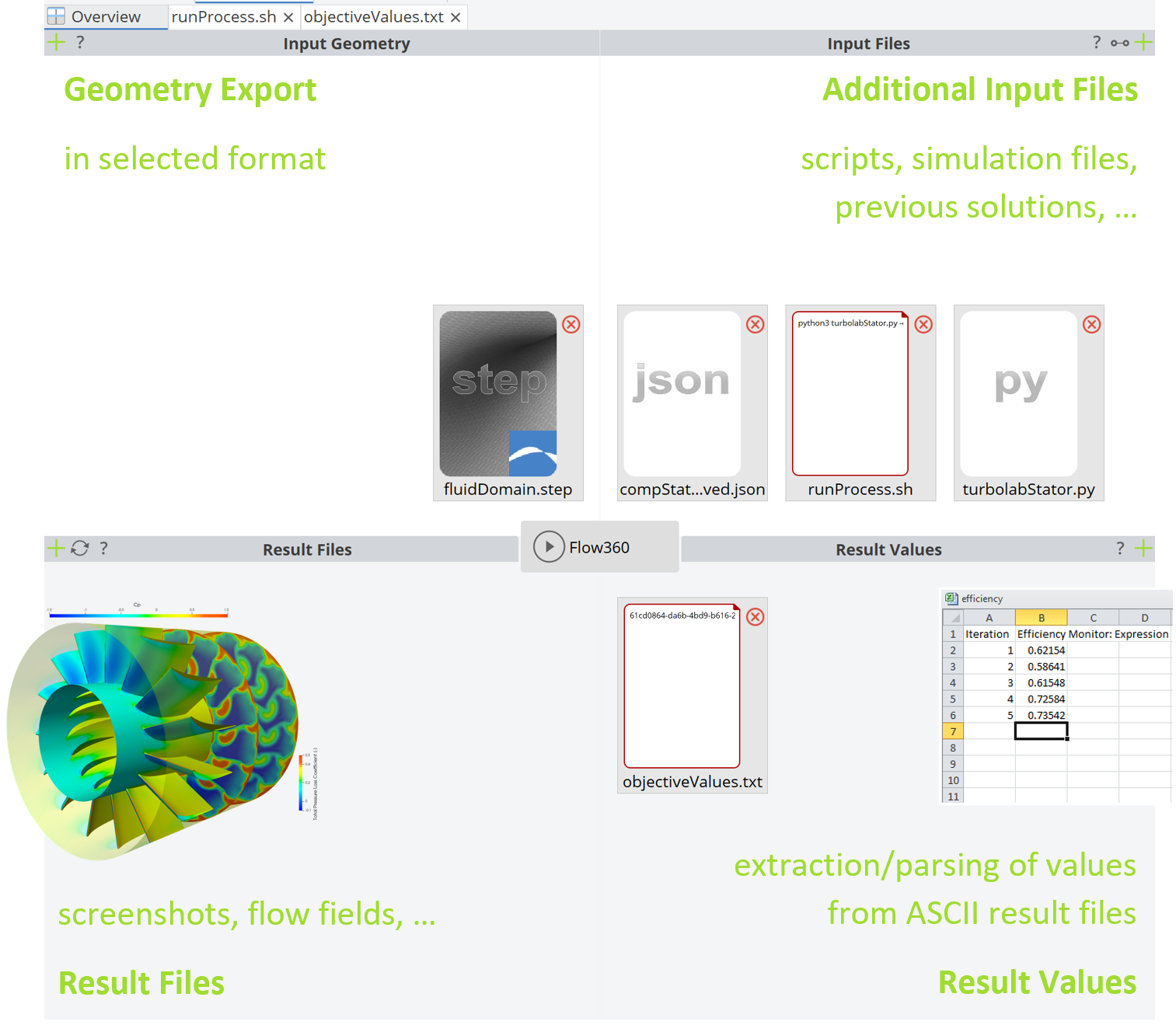
This is the main widget to connect other tools. The software connector is used to plug-in and automate any software that is able to run in batch mode. Typically, meshing and analysis packages are connected to CAESES to automate these tasks.
The software connector is used to plug-in and automate all your external tools. Any software that runs in batch mode can be controlled from within the CAESES user interface. Typically, meshing and analysis packages are connected to CAESES to automate these tasks, and to finally run design studies and optimizations.
Creation
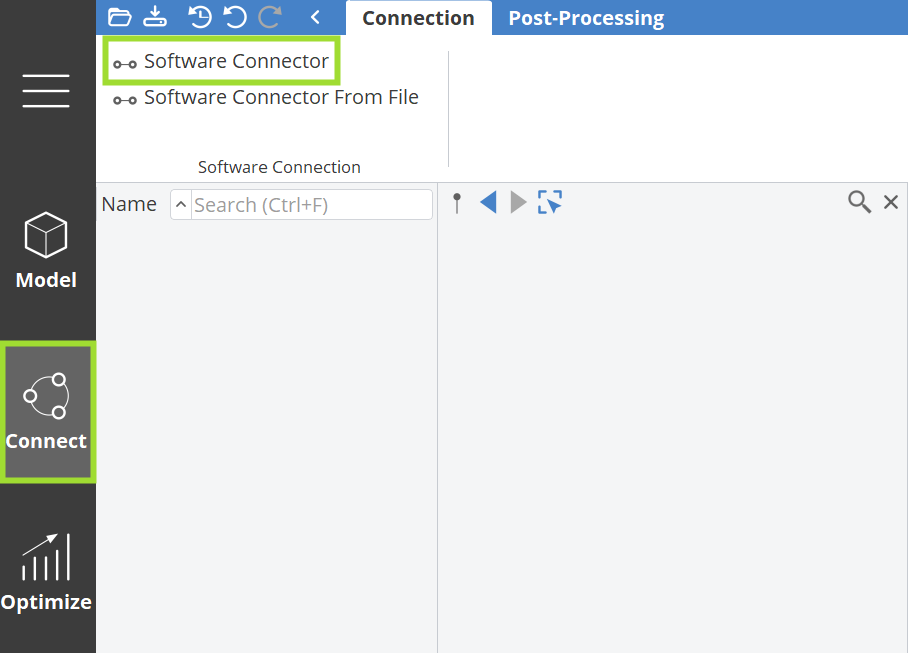
Go to the Connect workspace and choose Software Connector in the Connection tab to create a new connector. You can then add entries by clicking on the corresponding "+" icons of the different areas.
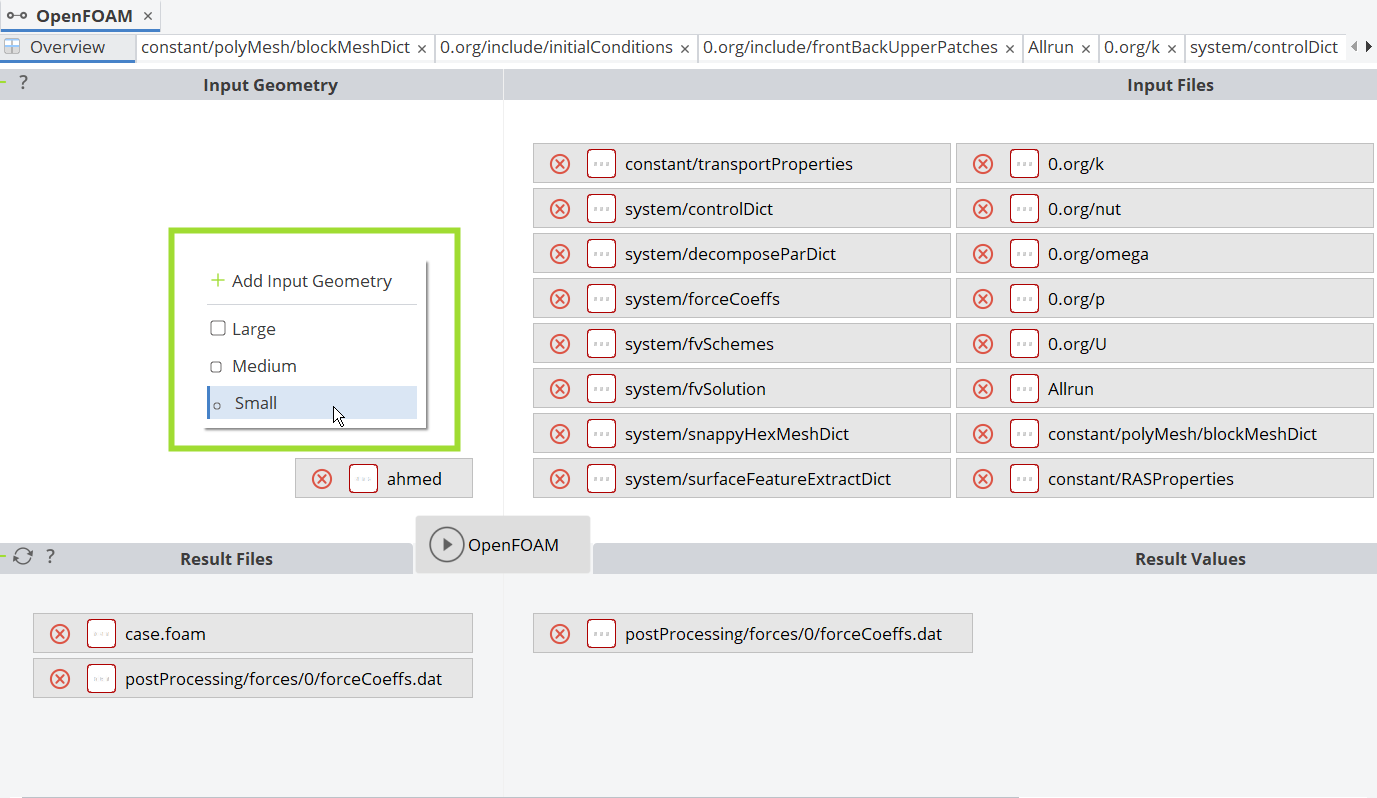
You can choose the icon size of the entries via the context menu (right-click in e.g. in the Input Geometry field). While larger icon sizes are nice if you have just a few entries, it is helpful for a better overview to have small icon sizes when you have many entries.
Input Geometry and Files
You can configure the input for the external tool, such as the geometry you want to export and some control files that you want to parameterize (e.g. a meshing or CFD setup that you have to manipulate for each new design candidate).
Output Values and Files
CAESES gives you capabilities to extract float values from result files to define objective functions and constraints. This is done in the section Result Values.
There is another section called Result Files which defines the data you want to assess for each design, such as 3D flow data, tables etc.
Computation
The computation in the center of the software connector widget (default name "Connector1") is basically the link to your executable, including optional arguments.
Slurmbridge
The Slurmbridge is a module of the CTC Server to submit runs to the Slurm queue of a HPC cluster through the user interface of CAESES. Design variants can be created in CAESES on a local PC and distributed to external hardware, to exploit all available resources. Results are transferred back to the local PC.