Parameters
Important values and expressions are stored in parameters. This allows you to re-use them at different objects while changing them only at a single location.
As an example, you can create a parameter for the length and use this length parameter at many locations in your project. This is how you parameterize CAESES projects, besides other mechanisms. It creates dependencies between objects.
Values and Expressions
Parameters can contain values such as 4, 23.45, -123.0, but also expressions such as sqrt(a+b) and curveA.getPos(tp).
Creation and Usage
In order to create a new parameter, choose
- Model > CAD > Parameters > Parameter.
In order to use a parameter at various locations, simply set it (e.g. drag & drop it) into the editor fields of the other objects.
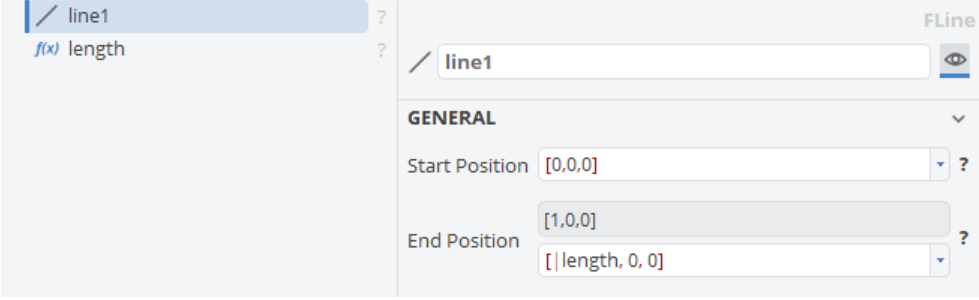
Note that this works only if the editor expects a float value (type FDouble). In the example from above, the x-coordinate of the vector is a float value so the parameter |length can be set.
Design Variables vs. Parameters
Design variables are similar to parameters, but can only hold values (only a single number) and no expressions. Design variables are used in design engines (see [the optimization section]). A design variable can be created via:
- Model > CAD > Parameters > Design Variable.
You can convert a parameter to a design variable by using the check box:
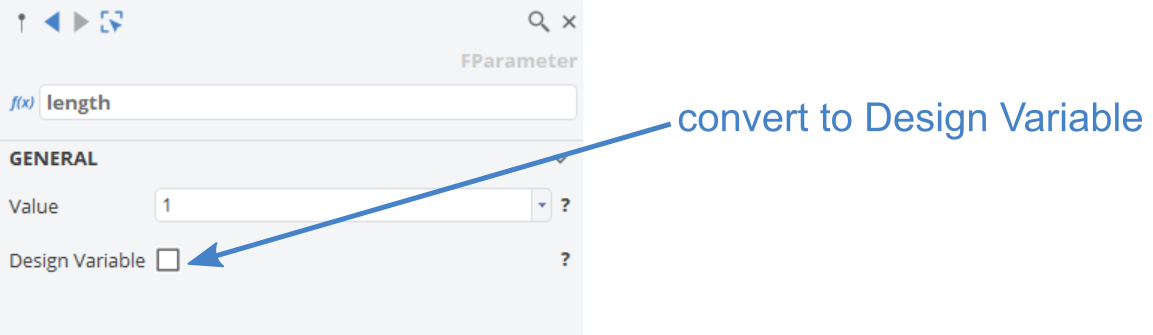
Note that in such a case, an expression would be converted to a discrete value. Both, Design Variables and Parameters can be limited via lower and upper bounds. In case of Parameters, these bounds are given as expressions, while for Design Variables only discrete number bounds can be set. In practice, this is more a technicality than an actual limitation, as you can always use a normalized Design Variable (i.e. ranging from 0 to 1) and then multiply it with a Parameter holding an expression wherever it is issued in the project.
Typically, you know what is
- a key value in your project (parameter), and what is
- a design variable (free variable), i.e., something that you want to vary, either manually or through optimization strategies.
Design Variable Bounds
You can also define lower and upper bounds for a design variable, to make sure you change the value only in a correct range, which e.g. does not violate your model. After you have specified some bounds, a slider will appear that you can use to change the current value:
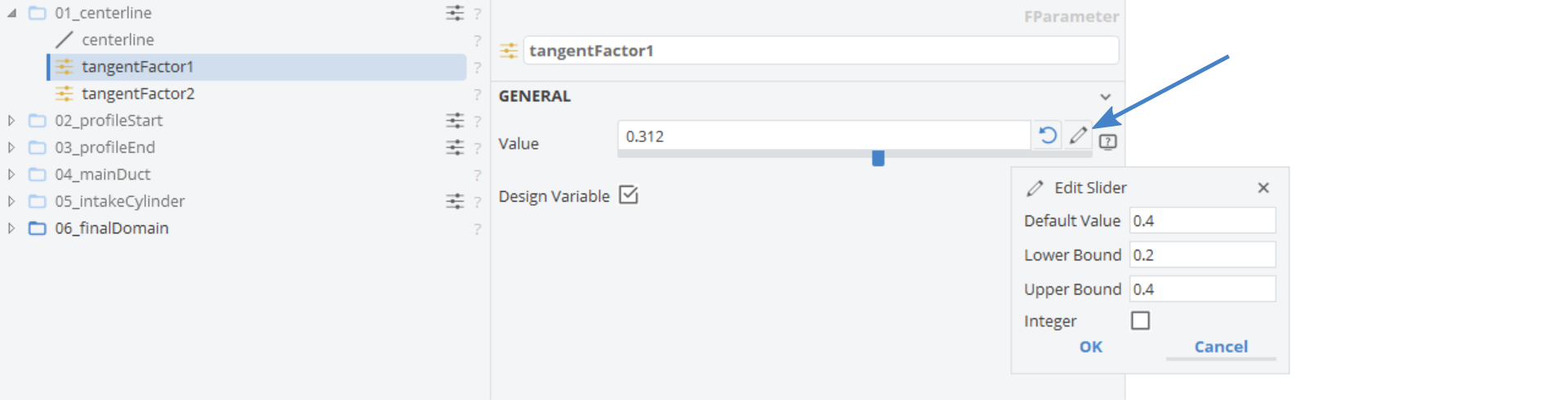
Design Variable and Parameter Overview
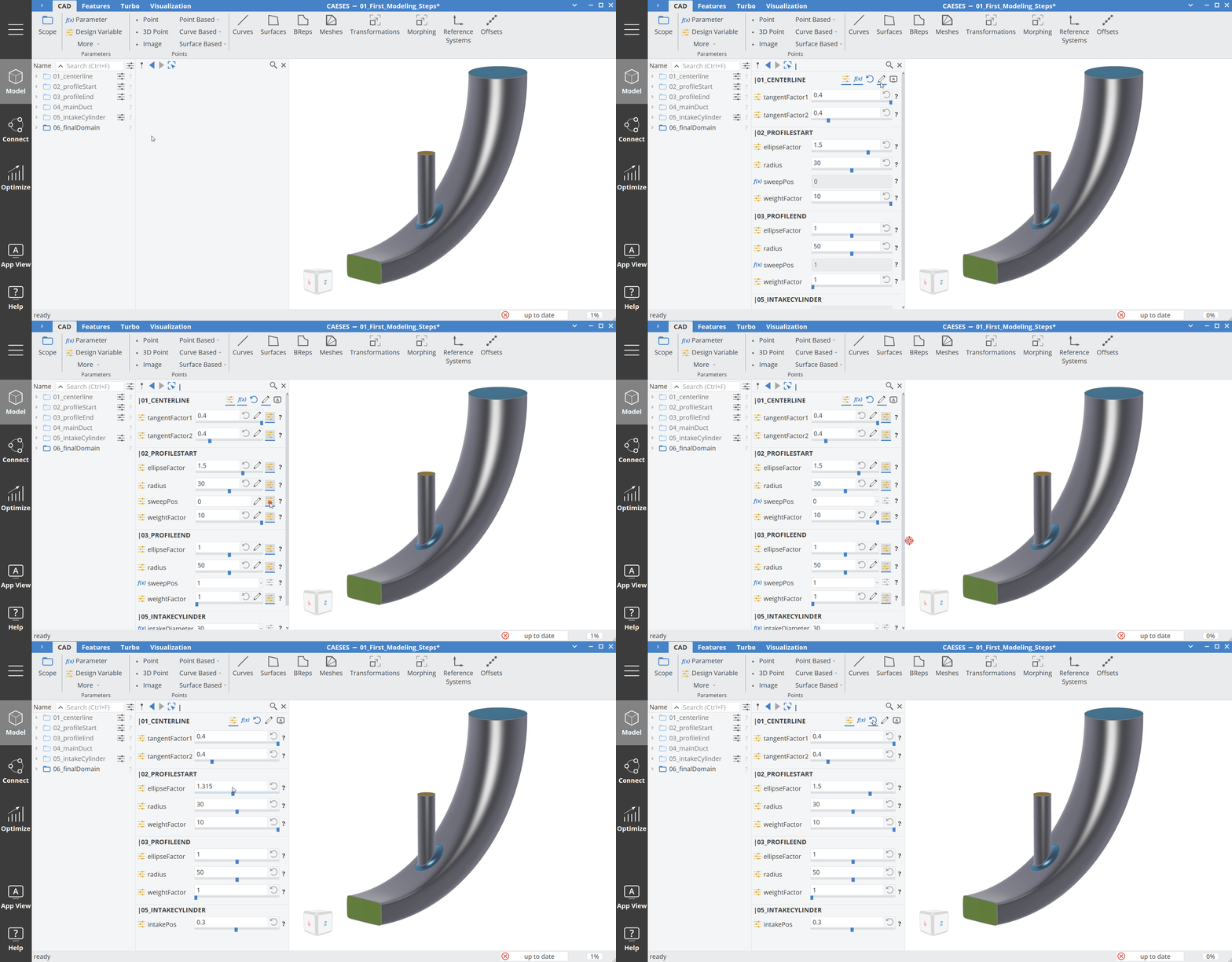
You can easily access an overview of all Design Variable or Parameters from a scope by selecting the Overview button next to the scope:
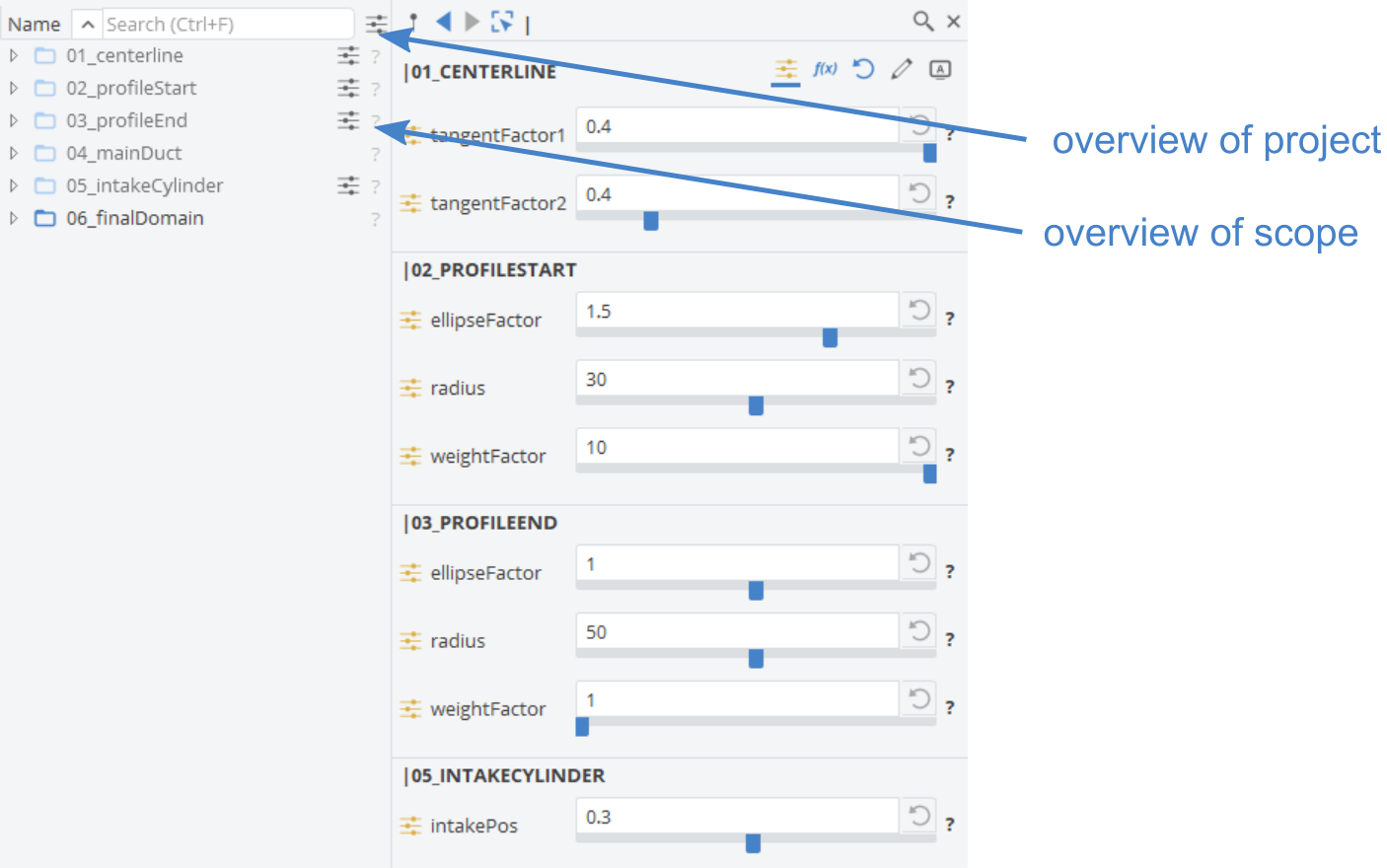
You can also show Parameters and edit Design Variable bounds: