Loops
In the previous tutorial you have been introduced to the feature programming language and the first control structures for executing code based on conditions. This tutorial teaches you the use of additional control structures that allow you to implement iterative algorithms by using the various options to implement loops.
As an example, an analyzer for IGES files is implemented. The number of curves inside an IGES file is counted and the length of the longest curve is extracted.
New Feature Definition
Remember: The Feature Definition (in the Features tab) is the “template” and represents the basis for the resulting Features (or feature instances in the CAD tab). The Feature Definition contains the (programmatic) description of the feature’s behavior.
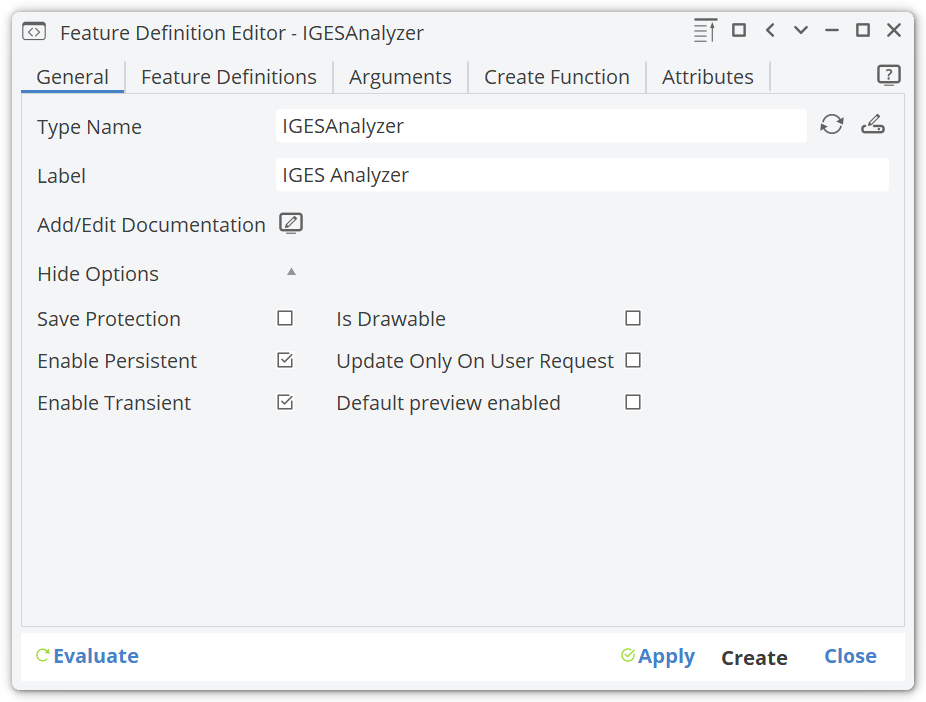
- Create a new definition by selecting Model workspace > Features tab > Create Definition
- Enter “IGESAnalyzer” in the Type Name field ( General tab).
- Enter “IGES Analyzer” in the Label field.
- Expand the options under Show Options and disable the Is Drawable checkbox.
Arguments
Our feature needs to know which IGES file it is supposed to analyze. Therefore, we introduce an argument that holds the file’s name.
- Select the Arguments tab.
- Select
FFileInfrom the pull-down list in the column Type and enter “file” as Name. - Deselect Allow Expression and select the Required checkbox (✓).
- Enter “Filename” into the column Label.

- Press the Apply button in the lower right corner of the dialog.
- Press the Create button (next to the Apply button)
- In the Pop-up Window press Create again to create a feature instance in the CAD tree.
- Go to the CAD tab to see the newly created feature and click on it.
- Rename “IGESAnalyzer1” to “analyzer”.
Download the IGES file containervessel.iges we will use to test our feature:
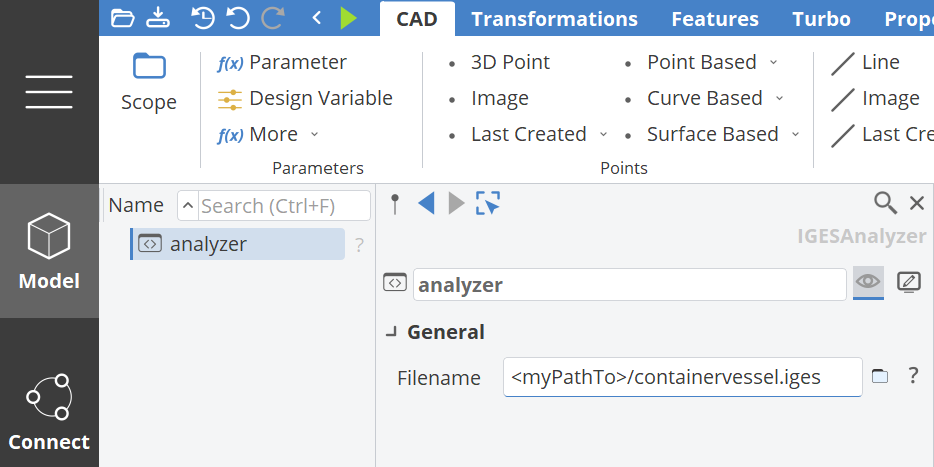
As you can see, the feature has one argument called “Filename”. Since we have used FFileIn as the Type and selected not to allow expressions, the input is a File Select Box with a button next to it which allows you to browse the file system. Choose the previously downloaded IGES file for the Filename input field of the feature.
Create Function
The feature now has the name and path of the IGES file it is supposed to analyze. Now we need to fill the Create Function to perform the actual analysis.
- Go back to the Feature Definition Editor.
- Select the Create Function tab.
- Paste the code below into the text editor – it will be explained line by line.
FFile f(file.getFileName())
if (!f.exists())
    echo("Invalid input file, file does not exist.")
    break()
endif

genericimport importer()
importer.import(file.getFileName())
fobjectlist imported(importer.getLastImportedObjects())
unsigned curveCount( 0 )
double maxLength(- 1 )
unsigned index( 0 )
while(index < imported.getCount())
    FCurve c(imported.at(index).castTo(FCurve))
    if(!(!c))
        curveCount += 1
        maxLength = max(maxLength, c.getLength())
    endif
    index += 1
endwhile

echo("Analysis result for file " + file.getFileName() + ":")
echo("Number of curves: " + curveCount)
echo("The longest curve is " + maxLength + " units long")
- Press Apply.
Run the Analyzer
The feature can now be run. Note that it does not “update” and start automatically (e.g. it is not a Drawable object that needs to be updated for visualization). Let’s create and trigger the feature:
- Go back to the CAD object tree and select the feature “analyzer” again. If it is already selected, deselect it and select it again (this refreshes the feature interface in the object editor).
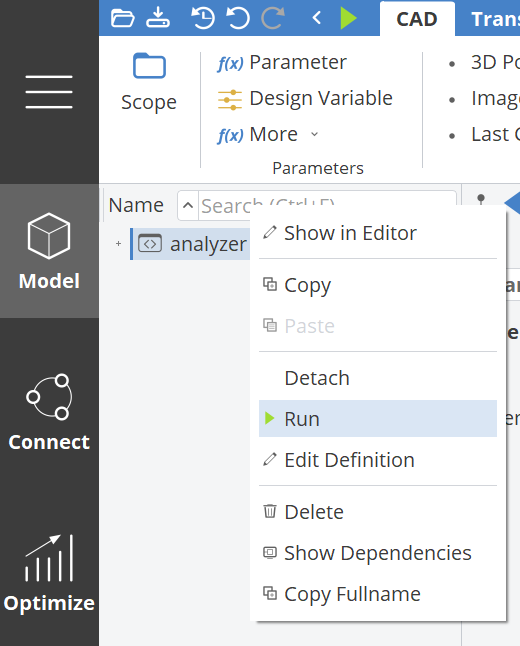
- Right-click the feature analyzer and choose Run from the context menu.
The output of the code will be shown/printed (echo) in the console.
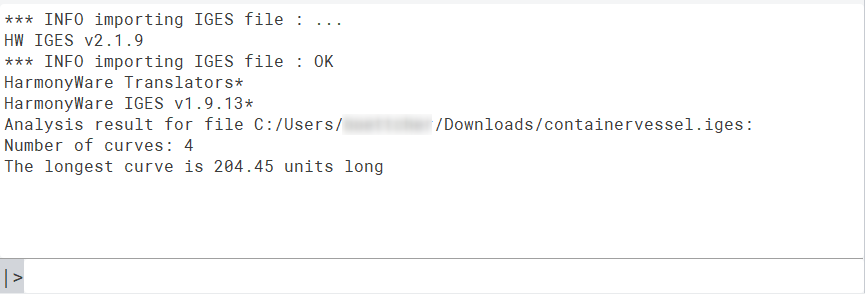
If you do not see the console in the graphical user interface, right-click on the black workspace bar on the left and choose Console to display the console window.
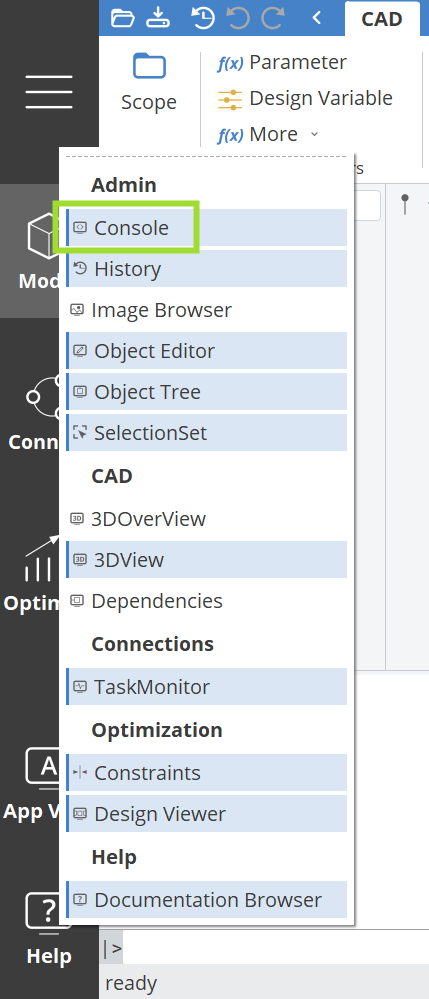
Now let us take a look at the code line by line.
Validating the Input
Let’s have a look at the first couple of lines. They perform a check of whether the given filename denotes a valid file. To do so, it uses the already known if/else - statement.
First an object of the type FFile is created with the given name f. Objects of that type can be used to manually read and write files. In order to make sure that our file exists, we use an if - statement. The command exists() checks whether the given filename denotes an actual file. If that fails (i.e. the command returns false ) we can be sure that the following import would fail, so we inform the user that there is a problem with the file and exit the feature by using the break() - keyword.
FFile f(file.getFileName())
if (!f.exists())
    echo("Invalid input file, file does not exist")
    break()
endif
Importing the IGES File
Now that we know that the given filename actually denotes an existing file, we import it using the provided IGES interface.
genericimport importer()
importer.import(file.getFileName())
fobjectlist imported(importer.getLastImportedObjects())
The first line creates an object that is able to read IGES files called importer. The command import() does the actual import of the given file. In the last line the objects that were imported are stored in a list (type FObjectList ). This type of object is a container for objects of arbitrary types. So any type of object can be stored inside such a list (e.g. FCurve, FPoint, FDouble ,...). Since imports can return various object types, they provide such a list that contains all objects that were imported.
Prepare the Iteration
Now that we have the imported objects inside a list (called imported), we can start iterating through them. To prepare this iteration, we define some variables that store the iteration results and some which help the process of iterating.
unsigned curveCount( 0 )
double maxLength(- 1 )
unsigned index( 0 )
These lines define three variables. The first two will hold the result of our analysis, while the
third one holds the current index that we are currently looking at. As the name suggests, the
variable curveCount will be used to count the number of curves inside our object list. The
variable maxLength stores the length of the longest curve that is present. The variable index is
the counter variable that holds which object in the list we are currently looking at.
Iterating using While
Now the actual iteration starts. This is done by using a while - statement.
The basic syntax is as follows:
while (<condition>)
// these lines will be executed as long as <condition> is true
endwhile
A while-condition basically reads like this: “Execute the following lines as long as the given condition is true”.
Similar to the if - statement, the condition needs to be a boolean expression that can be evaluated
as either true or false. If it is true, the lines up until the endwhile-keyword are executed. The
condition is then evaluated again. This continues until the condition is no longer true.
In our case the condition checks, whether the index variable is smaller than the total number of entries in the list of imported objects. As long as that is the case, the body of the while - statement is executed.
Indexing in lists starts at index 0.
Dissecting the While Body – Part 1
Now let us take a look at the steps performed for every element inside our list:
FCurve c(imported.at(index).castTo(FCurve))
First of all, we need to know whether the object at the current index is a curve. We take the object at the current index by using the objectlist’s at() command. The returned object is then checked whether it is a curve. This is done by using the castTo() command. That command is available for any object and will try to convert it to the type given as an argument to the command. If the conversion fails the command returns NULL (i.e. no valid object). Since we are interested in curves, we try to convert the object to an FCurve. The success of that conversion is checked by the next line.
if(!(!c))
This applies the already well-known if - keyword. However, the condition needs some explanation. An object can be checked whether it is NULL , by using the ! operator (read: NOT-operator). Since there is no YES-operator, we emulate such an operator by double negation. So if the inner ! operator returns false (i.e. object c is not NULL ) the outer ! operator returns true, which shows us that c is a valid object of type FCurve.
Dissecting the While Body – Part 2
Now that we know, that we found a curve, we increment the variable that counts the number of curves in the IGES file
curveCount += 1
The += operator is the shorthand version of writing
curveCount = curveCount + 1
So it takes the current value of the variable curveCount, increments it by the number given and stores the result back into the variable curveCount.
Finally, we need to check whether the current curve is the longest curve:
maxLength = max(maxLength, c.getLength())
The command max compares its two arguments and returns the larger one of the two.
whileThe last line inside the body of the while - statement is very important:
index += 1
Again, the += operator is used to increment our index variable. This is very important, as the
index variable is part of the while ’s condition. If we forget to increment it, the loop will be
running forever... Eventually an internal safety net will become active, that allows stopping the loop’s execution after a certain number of times (100000). However, it may take a while before that limit is reached, so make sure to increment the index variable properly.
Now, execution will jump back to the while - keyword, evaluate the condition and keep on executing the body until the condition is evaluated to false. After the loop is done, the result of the analysis is printed to the console using the already known echo() command.
Using Foreach
The foreach - statement allows you to write the previous example in a more concise way. Take a look at the altered code:
FFile f(file.getFileName())
if (!f.exists())
    echo("Invalid input file, file does not exist.")
    break()
endif

genericimport importer()
importer.import(file.getFileName())
fobjectlist imported(importer.getLastImportedObjects())
unsigned curveCount( 0 )
double maxLength(- 1 )
foreach(FCurve c in imported)
    curveCount += 1
    maxLength = max(maxLength, c.getLength())
endfor

echo("Analysis result for file " + file.getFileName() + ":")
echo("Number of curves: " + curveCount)
echo("The longest curve is " + maxLength + " units long")
In this sequence, the while - statement was replaced by foreach. That control statement automatically iterates over a given object list and executes its body for all objects inside the list that have the given type. Each of those objects can be accessed using the name given inside the parentheses of the foreach - statement. In this way, the index variable is no longer needed and the manual check of whether the current object is a curve is also not needed. So the basic syntax is as follows:
foreach(<Type> <objectname> in <objectlist>)
endfor
Conclusion
In this tutorial you have learned how to use the while and the foreach statement for iterating over lists. The third statement to create iterations is the loop-statement. As opposed to the while-statement it does not run as long as a given condition is true, but for a fixed number of times. Besides the given use-case of iterating over lists, such statements are commonly used to implement iterative algorithms.
There are more ways to define loops, see the following two short examples (they just plot a message into the console window):
unsigned n( 100 )
loop(n)
    echo( "This is loop " + $$i )
endloop
$$i is a reserved expression that gives you the current loop number, in this example
the values 0 to 99.
You can also use goto statements:
unsigned n( 0 )
myLoop(n):
echo( "This is loop " + n )
n += 1
if( n < 100 )
    goto(myLoop)
endif
The label “myLoop” is arbitrary; you can use any label that is then referenced in the goto
statement. Do not forget to increment your counter n+=1 in such a statement.
CAESES Project File
If you want to take a look at the finalized model you can find the resulting CAESES project file loops.cdb here: