Fulfilling Geometry Constraints
The optimization engines of CAESES can also be used for generalized optimization tasks, such as finding the closest distance between objects, smoothing a curve, or keeping the volume of a geometry object constant while changing its shape. The latter will be shown in this tutorial.
We will create a cuboid which has 3 design variables “height”, “width” and “length” for its dimensions. Whenever we change the x- and z-dimension of the cuboid, the y-coordinate should be adjusted automatically so that a constant volume is kept. This is a generic possibility in order to keep your geometry variants feasible with regard to given geometry constraints. Prominent examples for this are the shape optimization of a fuel injector where the volume is kept constant or ship hull optimization where a specific displacement needs to be kept and so on.
Create the Cuboid
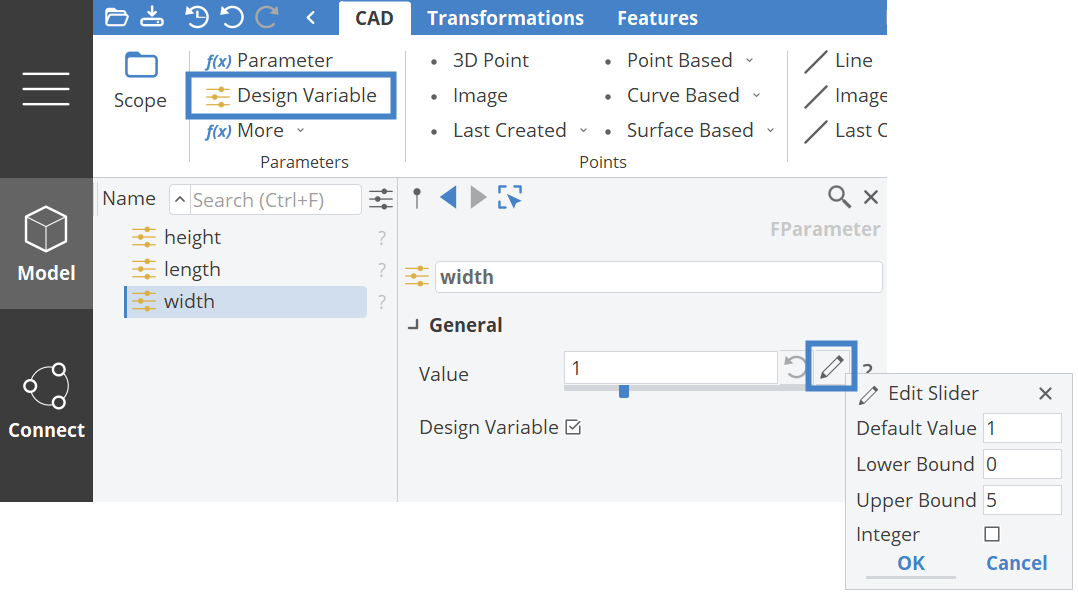
We start by creating some design variables.
- Save the project (Ctrl + S).
- Create a design variables called “width”.
- Set the default value of the design variable to
1, the lower bound to0and the upper bound to5. - Copy and paste the
widthdesign variable twice and rename the newly created copies to "height" and "length".
Let's create a cuboid and set the design variables in the next steps.
- Create a cuboid via Model workspace > CAD tab > BReps > More > Cuboid
- Change the name “brep1” to “cuboid”
- Set
widthfor X-Extension. - Set
lengthfor Y-Extension. - Set
heightfor Z-Extension. - Play around with the values of the design variables. The cuboid should change its shape accordingly.
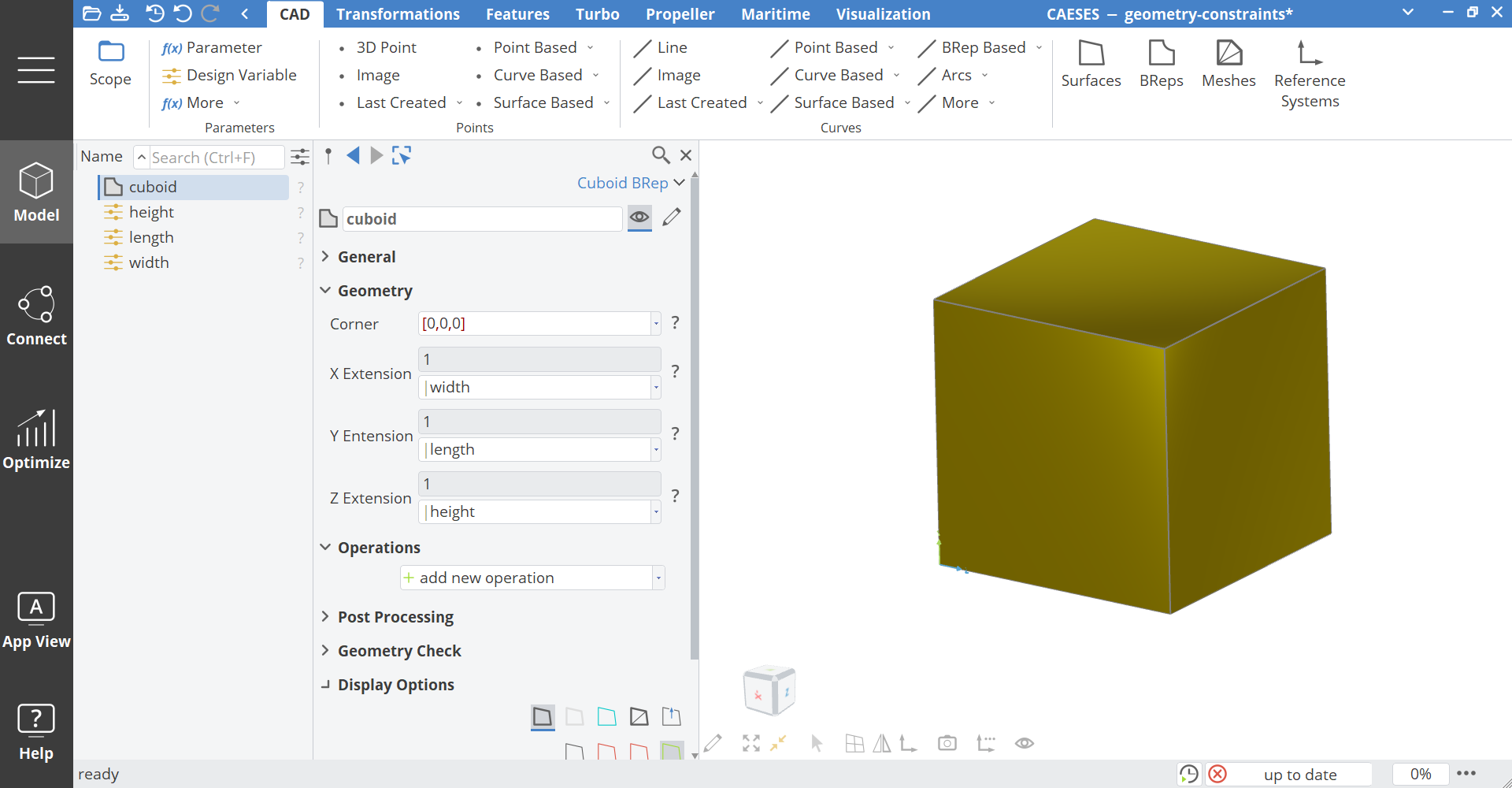
Remember all surface normals need to point either inwards or outwards. The normal vectors can be activated in the Display Options of the surfaces


Create Parameters
For the optimization task, we need to specify some required values and put them into parameters.
- Create a parameter and name it “current_volume”.
- Drag and drop the BRep
cuboidinto the parameter “current_volume” value field and add.getVolume()to the expression.
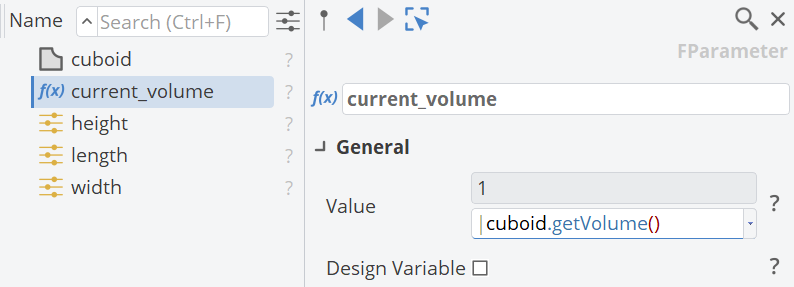
Now it should display the volume of the cuboid.
- Create a parameter for your “target_volume” and set the value to
5.5. - Create another parameter “deviation” and set the value to
abs(target_volume - current_volume).
The expression abs() (short for "absolute") ensures a positive value.

- Create another parameter.
- Change the name to “errorfunction”.
- Set the value to
deviation^2.
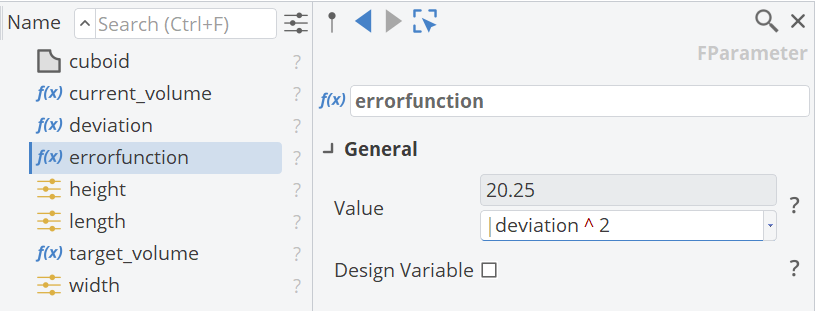
BRep, Trimesh and Solid provide the command .getVolume(). It can be used in a parameter or in a feature definition.
Setting up the Optimization
The length shall be adjusted automatically such that a specific volume is kept. In this step, we set up the optimization to ensure a constant volume.
- Switch to the Optimize workspace
- Create a Brent design engine via Optimize > Single Objective Optimization > Brent.
- Set
lengthas design variable from the drow-down menu. - The upper and lower bound should be set automatically from the bounds defined at the design variable. (If you did not define bounds, set the lower bound to
0and the upper bound to5.) - Set the parameter
errorfunctionas evaluation and change the Objective tomin, since we want to minimize the error between the target and current value. - In the object editor for the Brent click on the category heading General to show more options. Deactivate the creation of variants by unchecking the option Variant Creation.
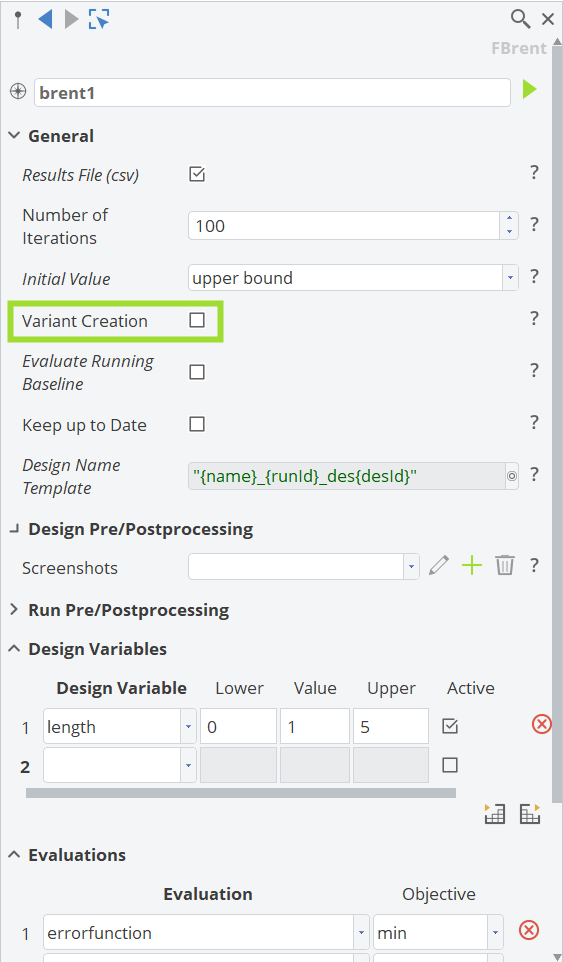
It is a fast one-dimensional optimization algorithm. It is the recommended design engine for this type of optimization problem. For more information take a look at the documentation (simply select the Brent in the object tree and press “F1” the type documentation will be opened in the Documentation Browser of CAESES).
Create a Design Engine for Shape Variation
Now we create another design engine that shall generate simple variants of the cuboid. The optimization engine from the last step is now linked to this variation as a pre-processing command.
- Create a Sobol design engine via Optimize > Design Space Exploration > Sobol
- Set Variants to
10. - Set
widthandheightas design variables (their bounds should be set automatically). - Do NOT set the
lengthdesign variable for the Sobol. The length is modified by the Brent design engine to meet the target volume for all created variant. - Set
current_volume,target_volume,deviationanderrorfunctionas evaluations. - Since the Brent design engine created in the previous step should be triggered for each
variant of the Sobol variation, simply set it as Design Pre-Processing command by entering
brent1.run()(to show the italic printed attributes like Pre-Processing Commands click on the category heading of Design Pre/Postprocessing)
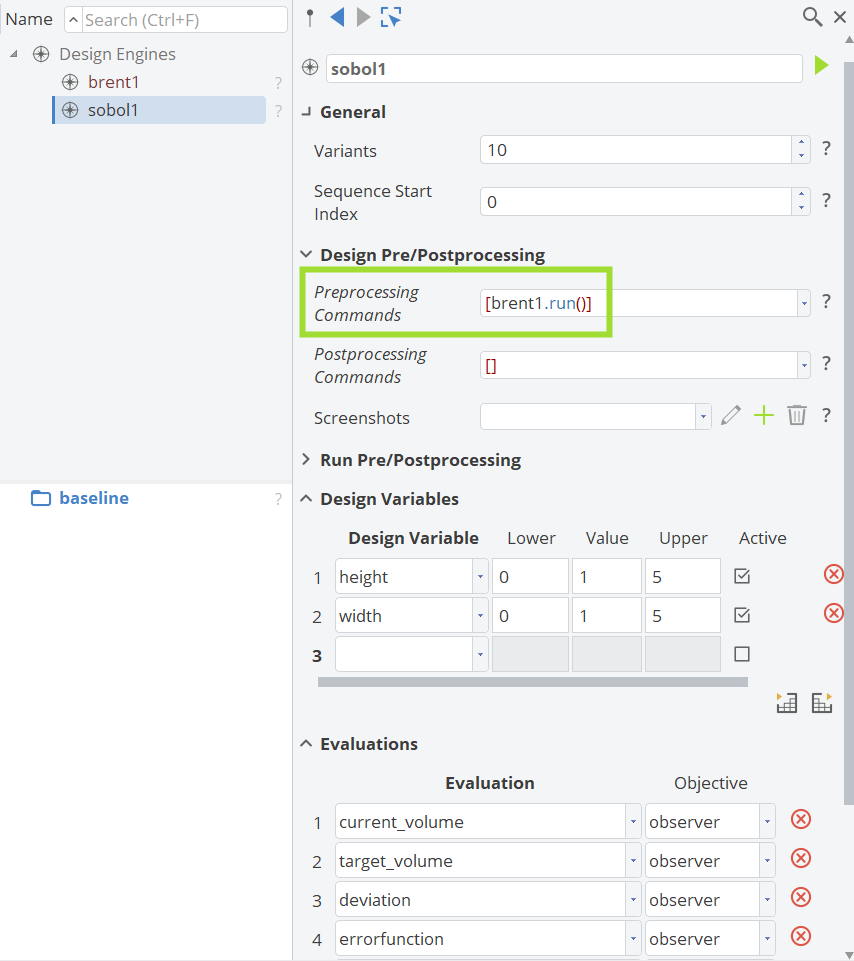
Now the brent engine will keep the volume constant for each variant according to our target_volume value.
Running a Variation
We will run the Sobol variation, and create a screenshot collection in order to compare the designs in the design viewer.
- Run the Sobol design engine by clicking the play button.
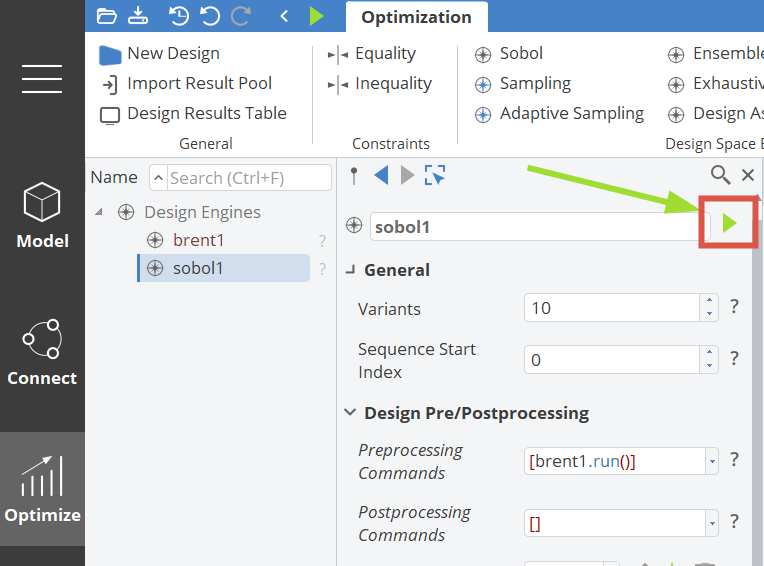
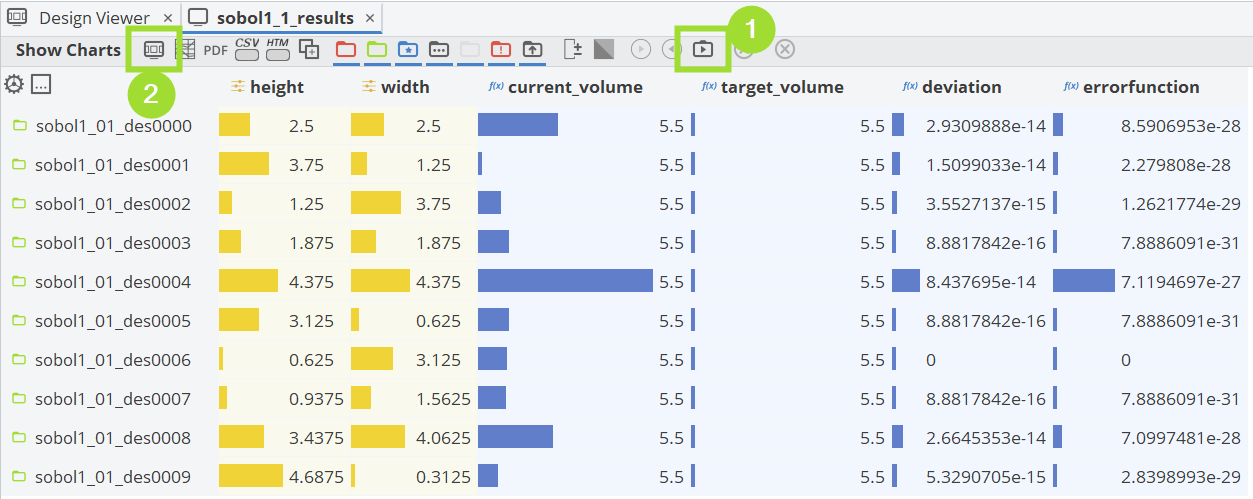
In the design results table, you can see that the volume is kept constant at your target_volume, while the shape gets varied.
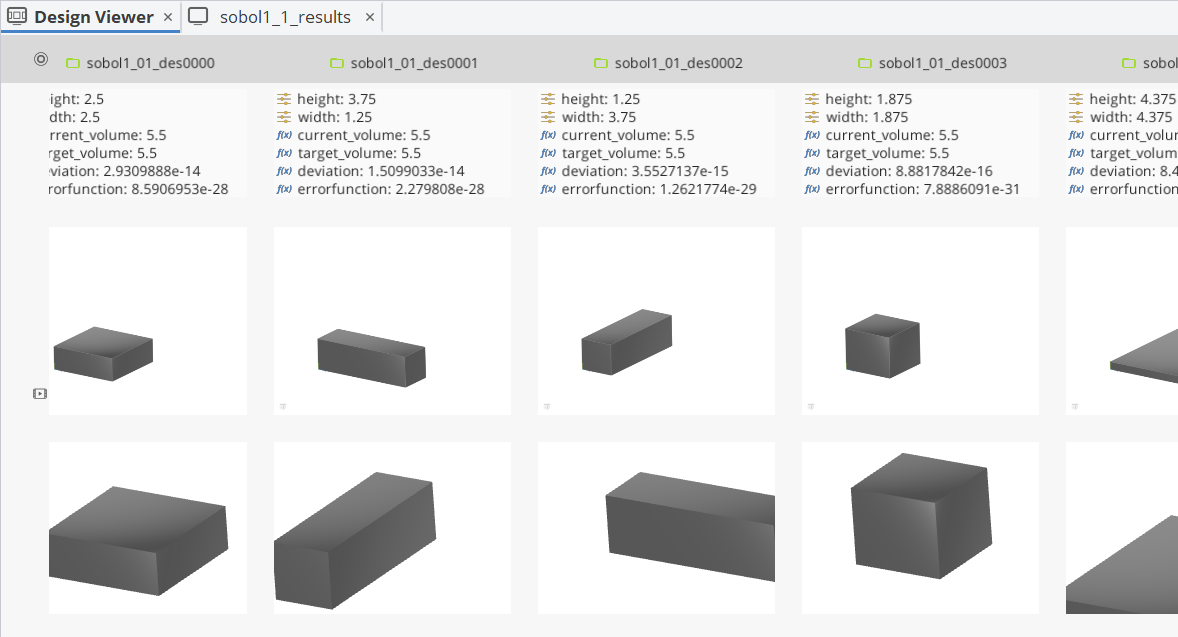
To compare the shape we run a screenshot collection:
- Create a screenshot collection and configure the different screenshot views(1).
- Click on the design viewer button (2).
CAESES Project File
If you want to take a look at the finalized model you can find the resulting CAESES project file fulfilling-geometry-constraints.cdb here: