Solver Input Files Configuration
This is the area where you define which file needs to be copied into the run directory of each new design. Typically, control files for batch mode runs are configured and parameterized in here.
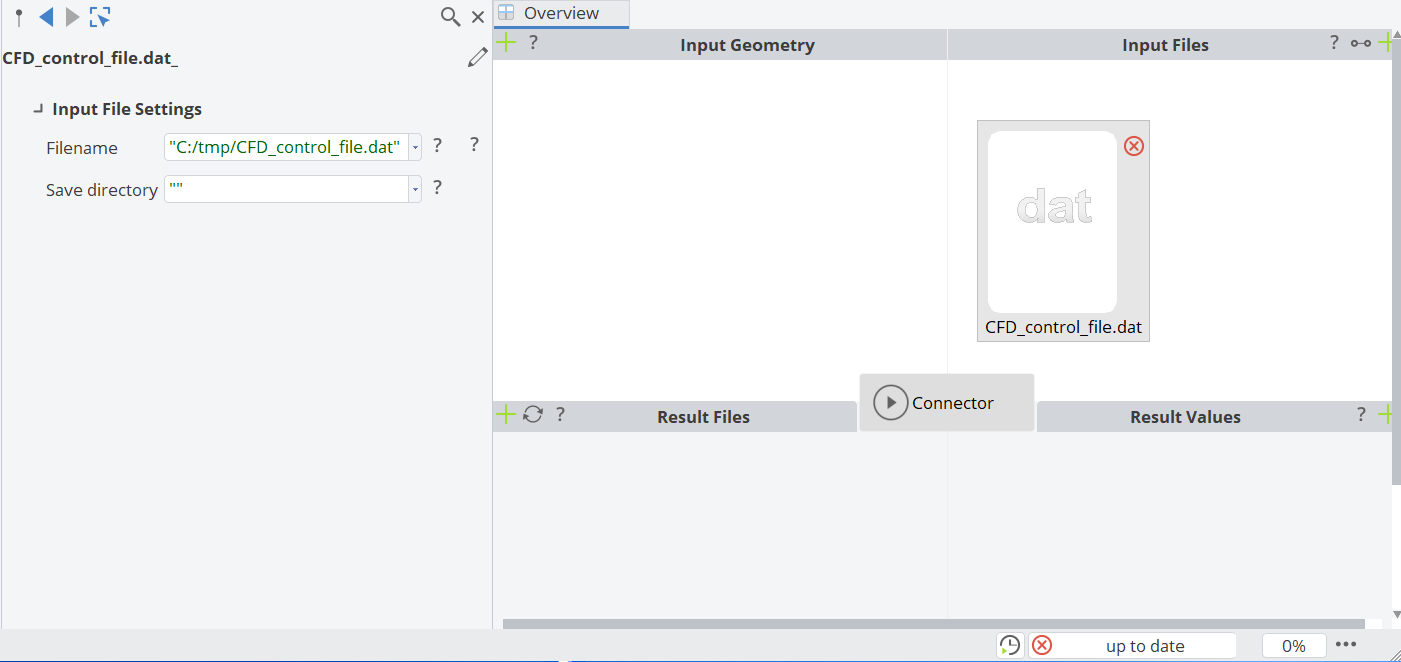
Creation
Click on the plus icon in the upper right corner of the area to add a new entry.
Copy
If you simply add a file in this area, it will be copied to the run directory of either the baseline design (if you run a manual process) or into the run directory of the design engine run. These files are typically needed by external tools to control the batch mode run.
Parameterization
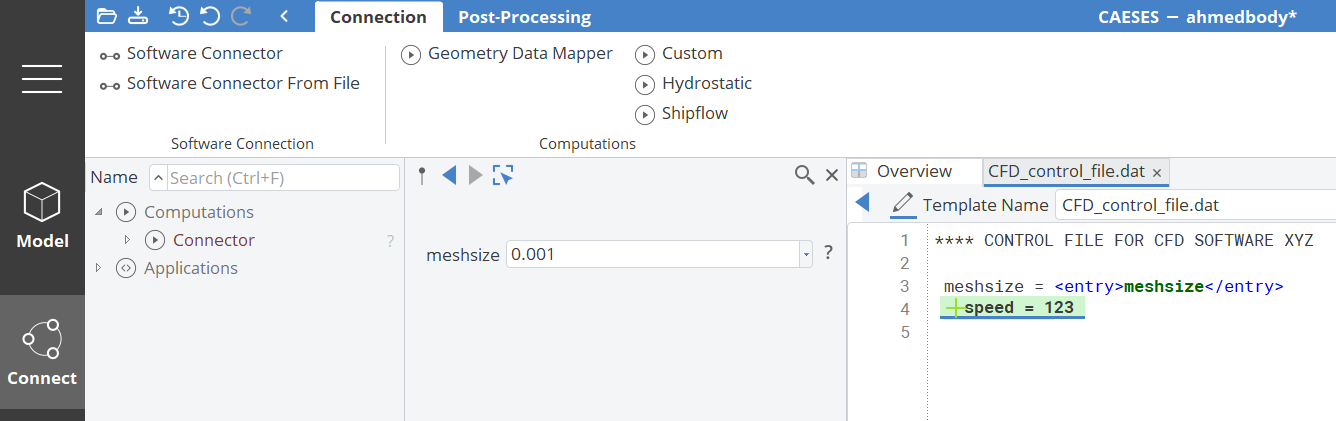
You can additionally manipulate the file before copying it into the run directory. Just double-click on the entry icon in order to edit it.
Here you work within an internal copy and not in the original file anymore. A new tab opens up and you are able to replace fixed numbers or strings by means of parameters. Numbers are auto-detected, and you can create an entry for each if needed.
Direct Editing
You can also directly edit the file by using the edit icon in the upper left corner of the widget, next to the label "Template Name".
Preview of Input Files
Once you have parameterized the input file, you can check how it looks at any time by using the preview capability. This will open another tab and shows the file along with the current values.
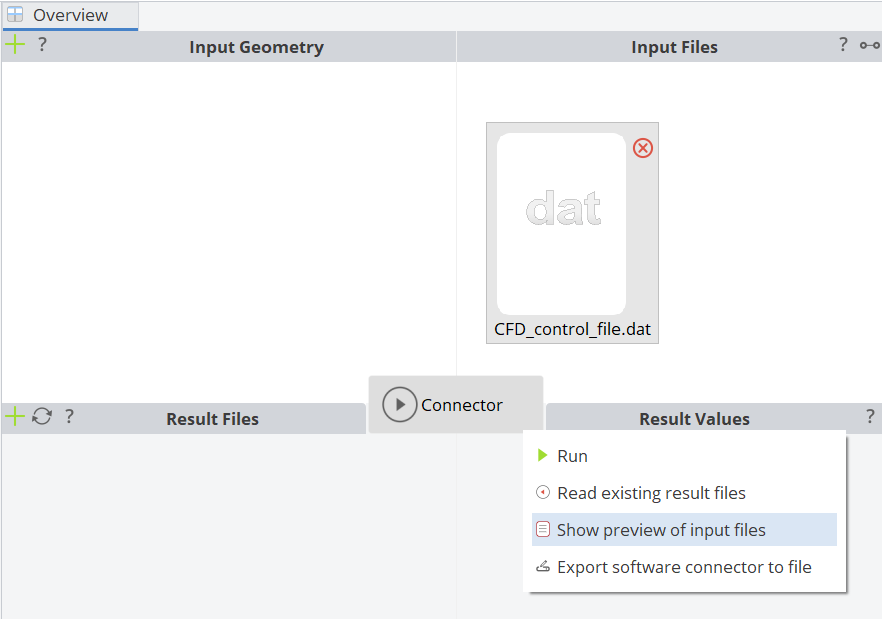
During design studies and optimizations, you can use design variables to vary values of input files. Note also that the file icon has a red border now when you edit it. This helps you to immediately see which files you just copy, and which ones you manipulate.