CFD Computation Setup
The computation basically holds the information about the executable and the arguments. It is the central object of the software connector and triggers your external software.
Setting up the Computation
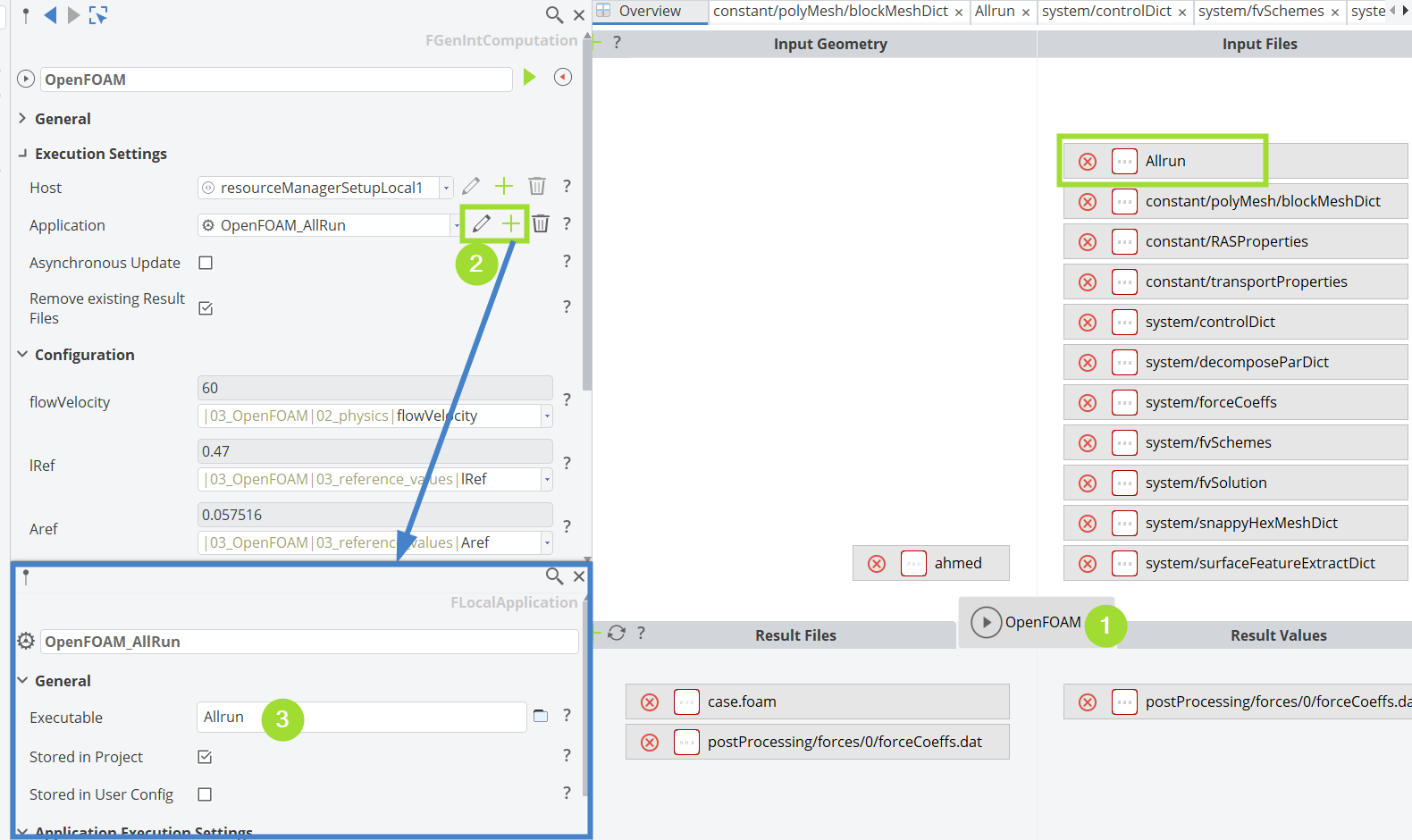
There are many options and settings that can be of interest for very specific setups. However, the most important steps are:
- Click on the center object to select it.
- Create a new application or choose an existing one.
- Choose an executable.
Constraints
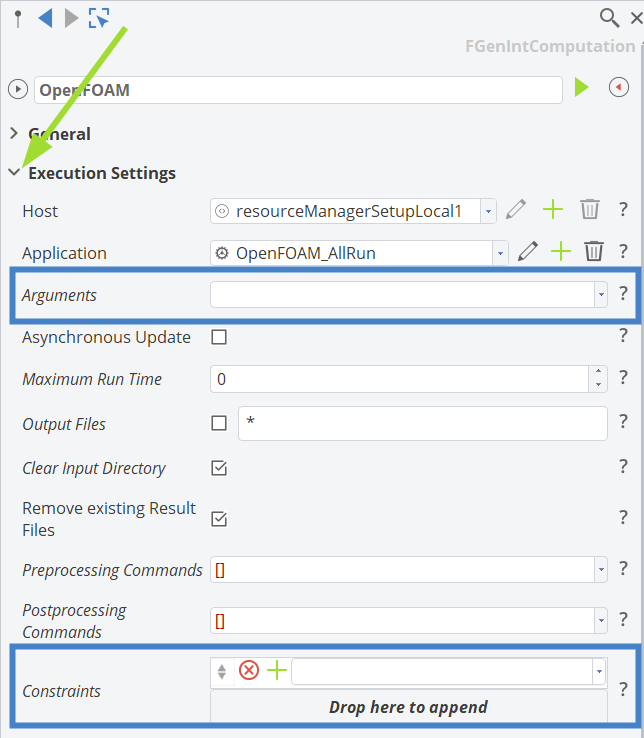
You can optionally insert a list of constraints that are checked prior to the execution of the software connection computation.
The computation will not run if any of the constraints, set in the Execution Settings, is violated. This helps you to avoid expensive simulation runs for infeasible designs.
Expand the Execution Settings to set Arguments or Constraints.
See the optimization overview section to read more about the setup of constraints.
Resource Manager Setup
In most cases you use a local setup which is the default, so there is no action required. Only if you use the Slurmbridge module of the CTC server (to submit computations on HPC clusters) you would need to switch it here.
Asynchronous Update
This setting tells CAESES whether synchronous or asynchronous runs are possible for this computation. This is relevant for sampling strategies, for instance, where you often want to run designs in parallel. This also depends on your license pool for the external software.
Executable
Note that the executable file can also be dynamically generated and copied into the run directory through the "Input Files" area of the software connector.
Running the Computation
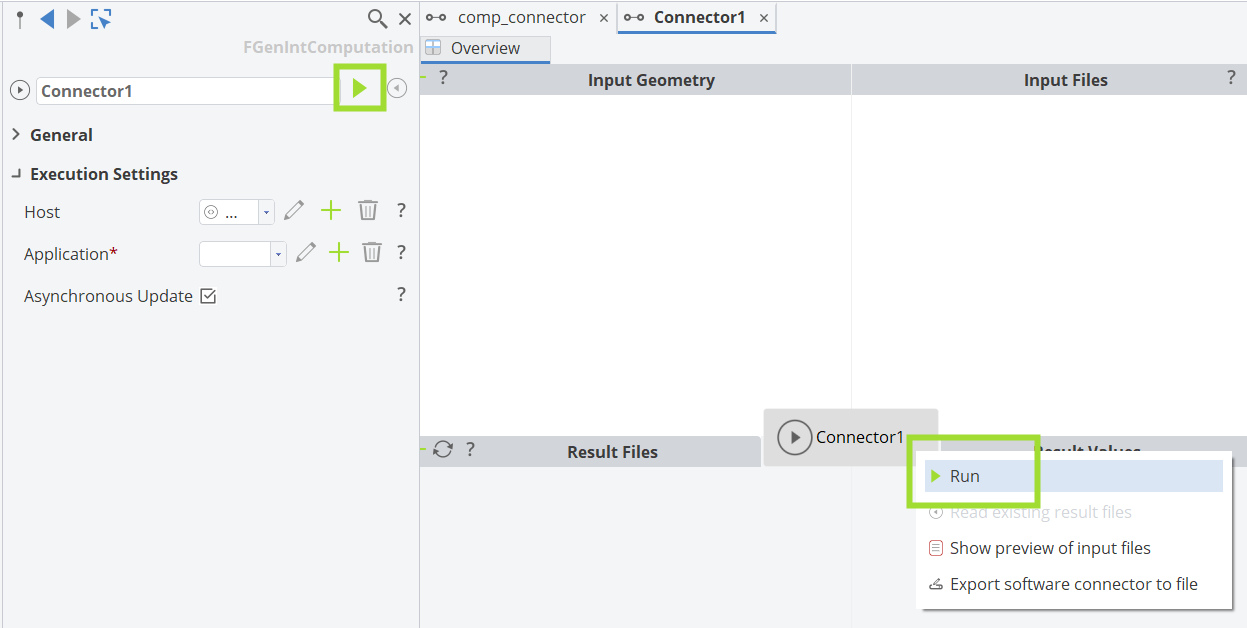
You can use the context menu of the center object to run the computation. There is also a green run icon at the top of the selected computation, in the object editor.
Results
After a manual run for the baseline design, you'll find the results for post-processing in the Connect workspace in the Post-Processing tab in the ribbon.