Slurm BridgeNewThis content is new.
The Slurm Bridge module included in the CTC Server replaced the SSH resource manager. It acts as SLURM (Simple Linux Utility for Resource Management) bridge, enabling CAESES to:
- Submit jobs to Slurm queues
- Monitor job states
- Cancel jobs
- Allow monitoring of jobs via a lightweight web interface
Configuration
The Slurm Bridge uses the following additional configuration section in the CTC Server configuration file.
[SlurmBridge]
datadir/core-data-dir- Base directory used by the CTC Server to manage runtime data.
- Default: datadir setting in the
[Core]section. - Contains subdirectories:
work/→ scratch directory for CAESES input data and Slurm job executionscripts/→ stores user-defined bash scripts that are submitted to Slurm usingsbatch
removeInputDir- Controls handling of existing job input directories.
1→ Always remove and recreate the directory for a new job0→ Keep existing directory; if it exists, append a numeric counter (e.g.,_1,_2, …)
oversubscribe- Enables or disables Slurm oversubscription.
0→ Oversubscription disabled1→ Oversubscription enabled
[...]

[SlurmBridge]
datadir=/mnt/data/slurmbridge
removeInputDir=0
oversubscribe=1

[...]
Adding an Application
Applications are automatically generated from the bash scripts located in the scrips directory in the datadir. To add a new application, create a bash script in that folder, that will be passed to squeue and restart the CTC server.
Usage with CAESES
- In CAESES, add a new Host for the Resource Manager in the Execution Settings of the software connector. Set the SSH Resource Manager Address to
http://<hostname>:<port>/RPC2and enter your CTC Server credentials.
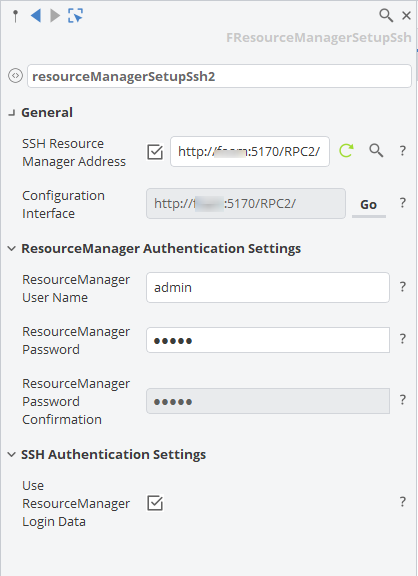
- Configure it to connect to your running CTC Server.
- Additional Slurm-specific parameters will become available when this option is selected.
In this example,
allrun.shis the script configured on the CTC Server. 16 Cores shall be used for the simulation with on thread per core/CPU (16 tasks times 1 CPU/task). All CPUs are on the same node. Further, no particular priority is given to this job (nice) nor is a particular node prescribed. For further information please refer to the documentation of your Slurm installation.
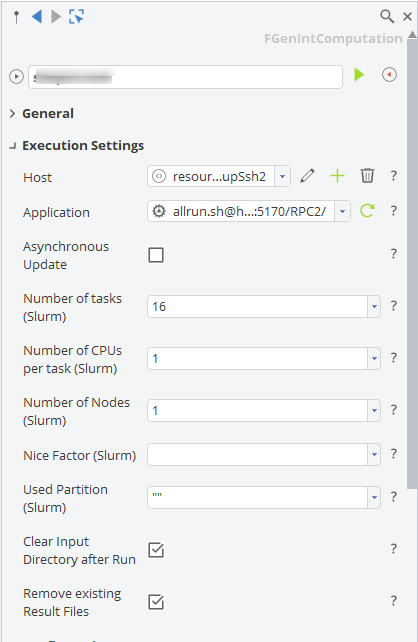
- Job submission is then handled via CAESES.
CAESES requires valid CTC Server credentials to submit and monitor jobs. Default credentials are admin / admin, but you should change the password immediately for security.
Job Directory Structure
When jobs are submitted, directories inside the work/ folder in the datadir are created automatically. The naming follows a deterministic pattern to allow multiple users and CAESES sessions to run in parallel without conflicts.
Naming Scheme
The job directory name is built step by step:
-
Project name → Base identifier
-
CAESES instance ID → Appended with an underscore. Every time CAESES is started, it generates a new unique ID.
<projectName>_<instanceID> -
Design engine name and ID (if applicable) → Appended to distinguish design engine jobs from project-level jobs.
<projectName>_<instanceID>_<designEngineName>_<instanceID> -
Design name → Final part of the directory name.
<projectName>_<instanceID>_<designEngineName>_<instanceID>_<designName>
MyProject_1234_DE1_1234_DesignA
Behavior with removeInputDir
-
If
removeInputDir=1→ Existing directories are removed and replaced. -
If
removeInputDir=0→ Directories are reused if empty; otherwise, a numeric counter is appended:MyProject_1234_DesignAMyProject_1234_DesignA_1MyProject_1234_DesignA_2...
Execution
- Input files from CAESES are copied into the job directory inside
work/. - Slurm jobs are executed via
sbatchusing scripts from thescripts/directory.
Job Submission to Slurm
When CAESES submits a job through the Slurm Bridge, the plug prepares arguments for Slurm and sets them via the environment variable JOB_ARGS before invoking sbatch.
Argument Mapping
-job-name=<name>- The name of the job in the form
<ProjectName> - <DesignName>, all spaces in the name will be replaced by_.
- The name of the job in the form
-ntasks=<tasks>- Number of tasks configured via the Number of Tasks input field in CAESES.
--nodes=<nodes>- Number of nodes added if the Number of Nodes field is greater than
0.
- Number of nodes added if the Number of Nodes field is greater than
--cpus-per-task=<cpus>- CPUs per task added if the CPUs per Task field is greater than
0.
- CPUs per task added if the CPUs per Task field is greater than
--partition=<name>- Partition added if a partition name is specified.
--oversubscribe- Oversubscribe added if the
oversubscribeoption is set in the configuration.
- Oversubscribe added if the
export JOB_ARGS="--job-name=Test_-_baseline -n 16 --nodes=2 --cpus-per-task=4 --partition=short --oversubscribe"
sbatch $JOB_ARGS my_job_script.sh
Job Tracking
-
After submission, Slurm Bridge records the Slurm Job ID returned by
sbatch. -
Job state queries are executed by the CTC Server using:
squeue --job <jobID> -
Cancel requests are handled by:
scancel <jobID>
All results are passed back to CAESES and can be viewed using the webinterface. Slurm logfiles slurm-???.out are saved to the Job Directory itself. After the job finishes, they are copied back to the host on which CAESES is running.
Local Data Storage
The Slurm Bridge maintains a local configuration in the CTC Server database in the installation folder.
- Stored in SQLite format
- Includes:
- Job counter (tracks submitted jobs)
- Mapping of CAESES job IDs to Slurm job IDs
- Ensures that if CAESES crashes or is restarted, existing Slurm jobs can still be tracked and controlled
- Other local runtime configuration data
This database ensures that job numbering and state mappings remain consistent between sessions, supporting crash recovery and reliable monitoring.
Authentication & Permissions
- The CTC Server communicates with Slurm via the command line interface.
- The user account running the server must have permission to run Slurm commands such as
squeue,scontrol,sbatch, etc. - No direct password/SSH key handling is needed — permissions are inherited from the user environment.
Web Interface
The Slurm Bridge includes a comprehensive web interface for real-time job monitoring, management, and cluster utilization tracking.

Access & Authentication
- URL:
http://<hostname>:<port>/static/slurmbridge - Port: Configured via
Core/port(default:5170) - Bind address: Configured via
Core/bind_address - Protocol: HTTP (no HTTPS support yet)
- Authentication: Required for all access
Job Monitoring Features
Real-Time Job List
- Automatic refresh for live updates
- Jobs are organized in a sortable, filterable table
- Job grouping by run name with collapsible groups (click run name badge to expand/collapse)
Job Information Display
Each job entry shows:
- Job ID: Internal CTC Server job identifier
- Slurm ID: SLURM job identifier for tracking in the cluster
- Start Time: When the job was submitted
- Project Name: CAESES project name
- Design Name: Name of the design being evaluated
- Status: Current job state with color-coded badges
- Job Directory: Full path to the job working directory
- Allocated Nodes: Number of nodes assigned by SLURM
Job States
Jobs can be in the following states (with visual color coding):
- new - Job created but not yet submitted
- running - Currently executing on the cluster
- queued - Waiting in SLURM queue
- tobesubmitted - Prepared for submission
- finalized - Execution complete, results ready
- finished - Successfully completed
- failed - Execution failed or was cancelled
- unknown - Status cannot be determined
- waiting for input - Waiting for user input or data
Filtering & Search
Column Filters
Each column has an individual filter field:
- Project Name: Text search to filter by project
- Design Name: Text search to filter by design
- Status: Dropdown with all available states
- Job Directory: Text search for directory paths
Job Management
Individual Job Operations
- Cancel Job: Click the cancel/trash icon on any job row
- Confirmation dialog prevents accidental cancellation
- Cancels the job in SLURM and removes it from the queue
Bulk Operations
- Multi-select: Use checkboxes to select multiple jobs
- Bulk Remove: Remove all selected jobs at once
- Remove All Failed: One-click button to remove all jobs in "failed" state
- Can be applied per run or globally across all runs
Removing a job from the web interface performs two actions:
- Cancels the job in SLURM using
scancel - Removes the job from the CTC Server queue
Table Customization
Column Management
- Show/Hide Columns: Dropdown menu to toggle column visibility
- Column Reordering: Drag and drop column headers to reorder
- Column Resizing: Drag column borders to adjust width
- Persistence: Column settings are saved in your browser session
Sorting
- Click any column header to sort ascending/descending
- Multi-column sorting supported (hold Shift while clicking)
User Management
Password Management
- Change Password: Access via user menu in the top navigation
- Opens a dialog to change your password securely
- Current password verification required
User List (Admin Only)
- View all registered users in the system
- Access via user menu or settings
- Current version supports only the admin user
Logout
- Click the user icon in the top navigation
- Select "Logout" to end your session
- Redirects to the login page
Troubleshooting
Cannot Access Web Interface
Symptoms: Browser cannot connect to http://<hostname>:<port>/static/slurmbridge
Solutions:
-
Verify the CTC Server is running:
systemctl status ctc-server -
Check the port configuration:
- Review
Core/portinctcconfig.ini(default:5170) - Ensure no other service is using this port
- Review
-
Check bind address:
- If
Core/bind_address=127.0.0.1, the server only accepts local connections - Change to
0.0.0.0to accept connections from other machines
- If
-
Firewall rules:
- Ensure firewall allows connections on the configured port
- Example:
sudo ufw allow 5170/tcp
-
Network connectivity:
- Verify you can reach the host:
ping <hostname> - Try accessing from localhost first:
http://localhost:5170/static/slurmbridge
- Verify you can reach the host:
Authentication Failed Errors
Symptoms: Login fails with "Invalid credentials" or "Authentication failed"
Solutions:
- Verify credentials: Default is
admin/admin - Check if password was changed: Ask the administrator for current credentials
- Review authentication logs: Check
<logpath>/ctcserver.logfor authentication errors - Database issues: Verify
ctcserver.dbfile exists and is readable - Clear browser cache: Old tokens or cached login data may cause issues
Jobs Not Appearing in Queue
Symptoms: CAESES submits jobs but they don't appear in the web interface
Solutions:
-
Check CAESES connection:
- Verify Resource Manager address:
http://<hostname>:<port>/RPC2 - Confirm credentials match CTC Server credentials
- Test connection from CAESES
- Verify Resource Manager address:
-
Verify SLURM is working:
squeue # Should show SLURM jobssinfo # Should show cluster status -
Check CTC Server logs:
- Location:
<logpath>/ctcserver.log - Look for submission errors or SLURM communication issues
- Location:
-
Database permissions:
- Ensure the service user can read/write
ctcserver.db - Check directory permissions in
datadir
- Ensure the service user can read/write
-
Refresh the web interface:
- Jobs auto-refresh every 300ms
- Try clearing filters (click reset/clear filter button)
- Check if jobs are grouped under a run name (expand the group)
Jobs Stuck in "New" or "tobesubmitted" State
Symptoms: Jobs remain in initial state and never transition to "queued" or "running"
Solutions:
-
SLURM submission errors:
- Check
<logpath>/ctcserver.logforsbatcherrors - Verify the bash script in
scripts/directory is executable - Test manual submission:
sbatch <script_path>
- Check
-
SLURM permissions:
- Ensure the service user can run SLURM commands
- Test:
squeue,sbatch,scancelas the service user
-
Resource constraints:
- Check if requested resources exceed cluster capacity
- Review SLURM logs:
/var/log/slurm-llnl/slurmd.log
-
Directory permissions:
- Verify
datadir/work/is writable - Check job directory was created successfully
- Verify
Web Interface Shows "Unknown" Job Status
Symptoms: Jobs display status as "unknown" instead of actual state
Solutions:
-
SLURM communication issue:
- CTC Server cannot query job status from SLURM
- Verify SLURM is running:
systemctl status slurmd
-
Job no longer in SLURM queue:
- Job may have completed or been cancelled externally
- Check SLURM history:
sacct -j <slurm_job_id>
-
Permissions issue:
- Service user may lack permission to run
squeue --job <jobID> - Test manually as service user
- Service user may lack permission to run
-
Database sync issue:
- Restart CTC Server:
systemctl restart ctc-server - This resyncs job states with SLURM
- Restart CTC Server:
Log File Locations
For debugging CTC Server and Slurm Bridge issues:
- CTC Server logs:
<logpath>/ctcserver.log(configured inCore/logpath) - Default log location:
<installation_dir>/bin/logs/(iflogpathnot configured) - SLURM job output:
<datadir>/work/<job_directory>/slurm-<jobid>.out - SLURM system logs:
/var/log/slurm-llnl/(distribution-dependent) - systemd service logs:
journalctl -u ctc-server
Check these logs for detailed error messages and diagnostic information.