Project Security
CAESES provides an Advanced Project Security feature that allows administrators to protect project files from unauthorized access, restrict editing of feature definitions, and prevent clipboard-based extraction of project content.
Two security modes are available:
- Security Passphrase Mode — Access to the project is controlled by a shared passphrase. Users who know the passphrase can open the file, while admin-level operations require a separate admin passphrase.
- Restrict to License ID Mode — Access to the project is restricted to a predefined list of license IDs. Only users running CAESES with one of the allowed licenses can open the file.
Both modes support additional protection options to lock feature definition editing and restrict clipboard usage.
Activating Project Security
To open the Project Security dialog, go to Menu (☰) > Project > Options > Project Security:
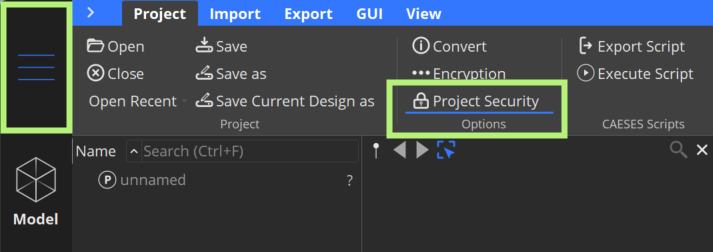
A dialog will appear asking whether to save the project file first. After saving the Project Security dialog opens, where you can select the desired security mode and configure its settings.
The showProjectSecurity() command is available to administrators at any time to review or modify the security settings of the current project.
Passphrase Mode
In this mode, a Project Access Key (passphrase) is required to open the project. A separate admin passphrase grants elevated access for administration tasks such as editing feature definitions.
Configuration
- Open the project file.
- Go to Menu (☰) > Project > Options, click on Project Security and save the file when prompted.
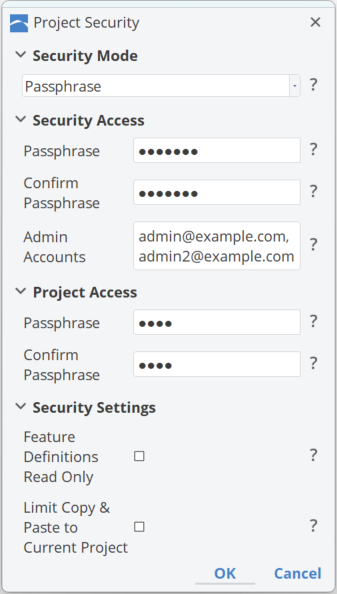
- In the Project Security dialog, select Passphrase as the Security Mode.
- Fill in the required fields:
- Security Access Passphrase — The password (security key) that grants administrator access to the project security settings.
- Admin Accounts — Email addresses of CAESES user accounts with access to security settings (administrators).
- Project Access Passphrase — The passphrase required by all users to open the project file.
- Configure the protection options as needed (see Protection Options below).
Opening a Passphrase-Protected Project
When a user opens the project, they are prompted to enter the Secret Key (Project Access Passphrase). Only the correct key grants access. Entering an incorrect key prevents the file from opening.
To perform admin operations (e.g., editing feature definitions), the administrator must open the Project Security dialog again using showProjectSecurity() and provide the admin passphrase.
Regular users who know only the Project Access passphrase key can open and work with the project, but they cannot edit feature definitions or perform other admin-level tasks if the corresponding protection options are enabled.
License ID Mode
In this mode, the project can only be opened by users whose CAESES installation is associated with one of the allowed license IDs. Any user running CAESES with a license number not in the list will be denied access.
Configuration
- Open the project file.
- Go to Menu (☰) > Project > Options, click on Project Security and save the file when prompted.
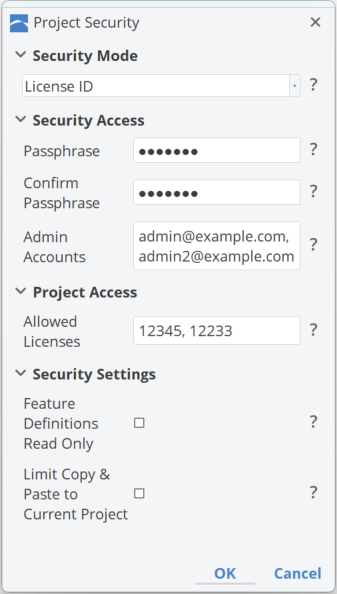
- In the Project Security dialog, select License ID.
- Fill in the required fields:
- Security Access Passphrase — The password (security key) that grants administrator access to the project security settings.
- Admin Accounts — Email addresses of CAESES user accounts with access to security settings (administrators).
- Project Access Allowed Licenses — A list of license IDs (comma separated) that are permitted to open the file.
- Configure the protection options as needed (see Protection Options below).
Opening a License-Restricted Project
When a user attempts to open the project, CAESES checks the current license number against the allowed list:
- If the license number is in the allowed list, the project opens normally.
- If the license number is not in the allowed list, a message is displayed indicating that the file could not be opened, and access is denied.
The license number check happens automatically at file open. No passphrase entry is required from the user — access is determined solely by the license ID.
Protection Options
Both security modes provide the following additional options that restrict what regular (non-admin) users can do with the project:
Make Features Read Only
When enabled, only the administrator can edit Feature Definitions. Regular users who attempt to open a feature definition editor will find it locked.
To verify this behavior: select a Feature Definition in the object tree and click the Edit button (Associated Feature Definition). The feature definition editor will not open for non-admin users.
Limit Clipboard Usage to Current Instance
When enabled, Feature Definitions cannot be copied from the secured project and pasted into another project instance. This prevents extraction of proprietary (feature) logic via the clipboard.
To verify this behavior: right-click a Feature Definition and select Copy, then switch to another open project and press CTRL+V. The feature definition will not be pasted in the target project.
Use both protection options together to comprehensively protect the intellectual property embedded in your feature definitions and project setup.