3D View
The selection behavior has been adapted to facilitate picking objects in the 3D view. Make sure to read the documentation of the new Selection behavior.
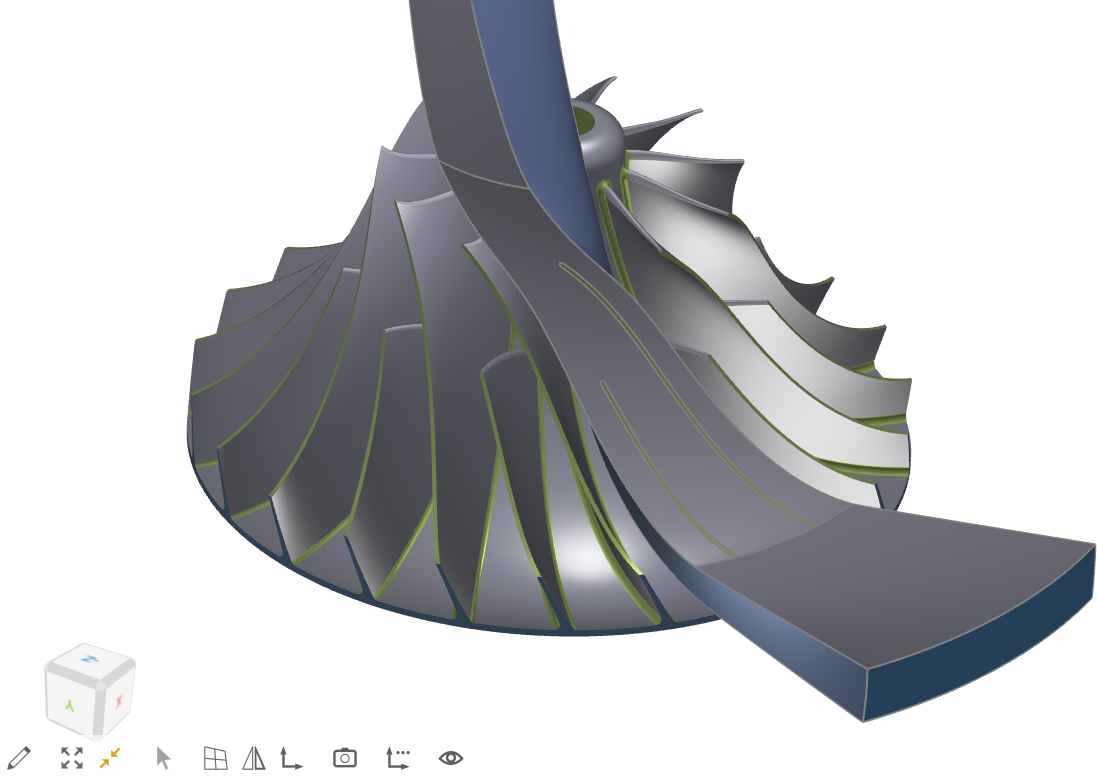
The 3D view is a global view and displays all (visible) geometry objects from the Model workspace, as well as results from external simulations.
Abbreviations
Please note the following abbreviations for the next sections:
| Abbreviation | Button |
|---|---|
| LM | Left mouse button |
| MM | Middle mouse button |
| RM | Right mouse button |
Zoom
You can zoom into your geometry and back by using the following mouse and keyboard actions:
| User Action | Result |
|---|---|
| Mouse wheel | Direct zoom |
| Shift + LM from upper left to lower right | Zoom in |
| Shift + LM from lower right to upper left | Zoom out |
Pan
In order to move the entire scene, do the following:
| User Action | Result |
|---|---|
| Keep MM pressed | Moves the scene |
Rotation
The center of rotation is computed by means of your current cursor positions. This position is snapped to the closest geometry location.
| User Action | Result |
|---|---|
| Keep RM pressed | Rotates the scene |
SelectionNewThis content is new.

5.3.0The highlevel selection was introduced in CAESES Version 5.3.0.By default, only those objects in the 3D view can be selected that are also listed in the object tree. Those are typically all user-created objects like a ruled surface, a 3D Point, a BRep, a B-spline curve, etc. We refer to those objects as highlevel-objects.
In contrast to highlevel-objects there are sublevel-objects which are parts of highlevel-objects, e.g.
- the edges or corner points of a surface,
- the edges or faces of a BRep,
- the start and end point of a curve.
In order to be able to select its sublevel-objects a highlevel-object can be brought into subselection mode. In this mode, only the respective sublevel-objects are accessible.
The subselection mode can be toggled by pressing Ctrl + Alt while the mouse is hovering (No click!) over an object (the currently highlighted object). Alternatively, you can mark one or more entries in the selection set and click on the subselect button at the bottom of the widget. The toggled subselection mode can be deactivated by pressing Ctrl + Alt or the button in the selection set again.
Feature attributes that are marked as "Accessible" are considered highlevel-objects. The feature instance itself is not considered a highlevel-object. However, if an attribute is additionally marked as "Type Provider", hovering/selecting this attribute in the 3D view will highlight/select the entire feature. This will also affect the subselection-mode, such that the type-providing attribute will be subselected.
In order to select objects in the 3D view, check out the following actions:
| User Action | Result |
|---|---|
| Hover over geometry | Shows the objects (and highlights the first one) under the cursor that may be (sub-)selected |
| Ctrl + Mousewheel | Cycles through the objects under the cursor while highlighting the current object that may be (sub-)selected |
| Ctrl + Alt | Brings the currently highlighted object in subselection mode (if available for this object type) |
| LM | Selects the currently highlighted object |
| LM from upper left to lower right | Selects all objects that are completely within the rectangle |
| LM from lower right to upper left | Selects all objects that are only touched by the rectangle |
| Ctrl + LM | Adds or removes objects to the selection set |
3D View Buttons
The 3D view comes with a set of buttons which allow you to filter your visualization, as well as to jump into principal views. If you move your mouse in the 3D view the buttons appear at the bottom of the window. If you hover over the buttons, you receive more information about their functions. The most important ones are described below.

Zoom Reset
In the lower left corner of the 3D view you find two important icons to reset the zoom or to zoom into the selected geometry.
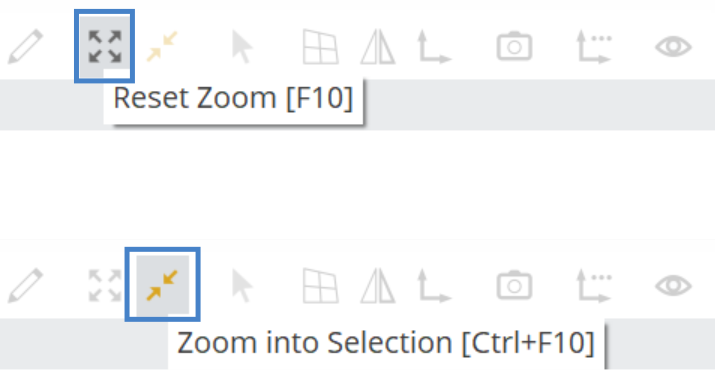
Whenever your geometry gets lost, use these two buttons to bring it back. If you still cannot see anything, then additionally check the visibility property of your objects, and the 3D view filters as well.
Principal Plane Views

Use the View button to switch between global X-, Y- or Z-views or enter the blade view.
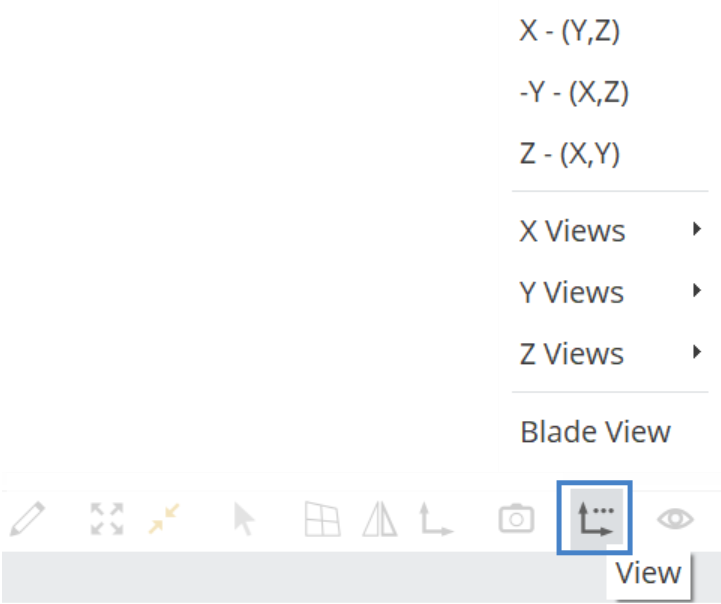
Alternatively, use the corner coordinate cube in the lower left corner of the 3D window to switch between the global X-, Y- or Z-view, by clicking on the faces. (If you cannot see the cube, right-click in the 3D view and choose Show Corner Coordinate System from the context menu.)

When you switched into such a view, use the arrow keys of your keyboard (←→↑↓) to rotate around the central coordinate system.
Type Filter
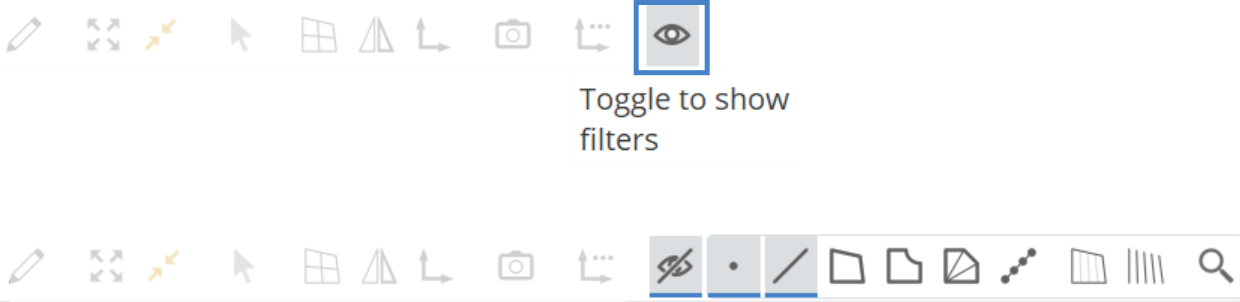
Sometimes you are interested in seeing only points, curves or surfaces, BReps, or a combination of them. In order to remove specific types from the 3D view, you can switch on the type filter. To do so, toggle the filter icon to show the different kinds of filters. Activate the filters by clicking on the type icons you would like to remove or hide from the 3D view, e.g. points and curves.
Name Filter
Click on the magnifying glass to enable the exclusive view and filter out objects from the 3D view, that do not include the string you type into the field.
You can use the name filter to only visualize e.g. the centerline curve by typing cent or centerline into the field. Any object that contains this string will be visualized. If you want to exclude objects which contain such a string use an exclamation mark (!) in front of the string, i.e., !centerline.

Scopes are folder-like objects that group objects and allow you to structure your CAESES project. Objects in CAESES have a name which is composed of the local object name in the scope plus the path starting from the root scope. As an example, a curve with a name centerline can be located in a scope called setup. The full name of the curve would be |setup|centerline.
The name filter for the default 3D view and 3D overview belong to the global window setup and are not project specific. If you open another project, the same name filter string will be set. If you create a project specific new window, the name filters set in the newly created view are saved in the project.
Render and Light Settings
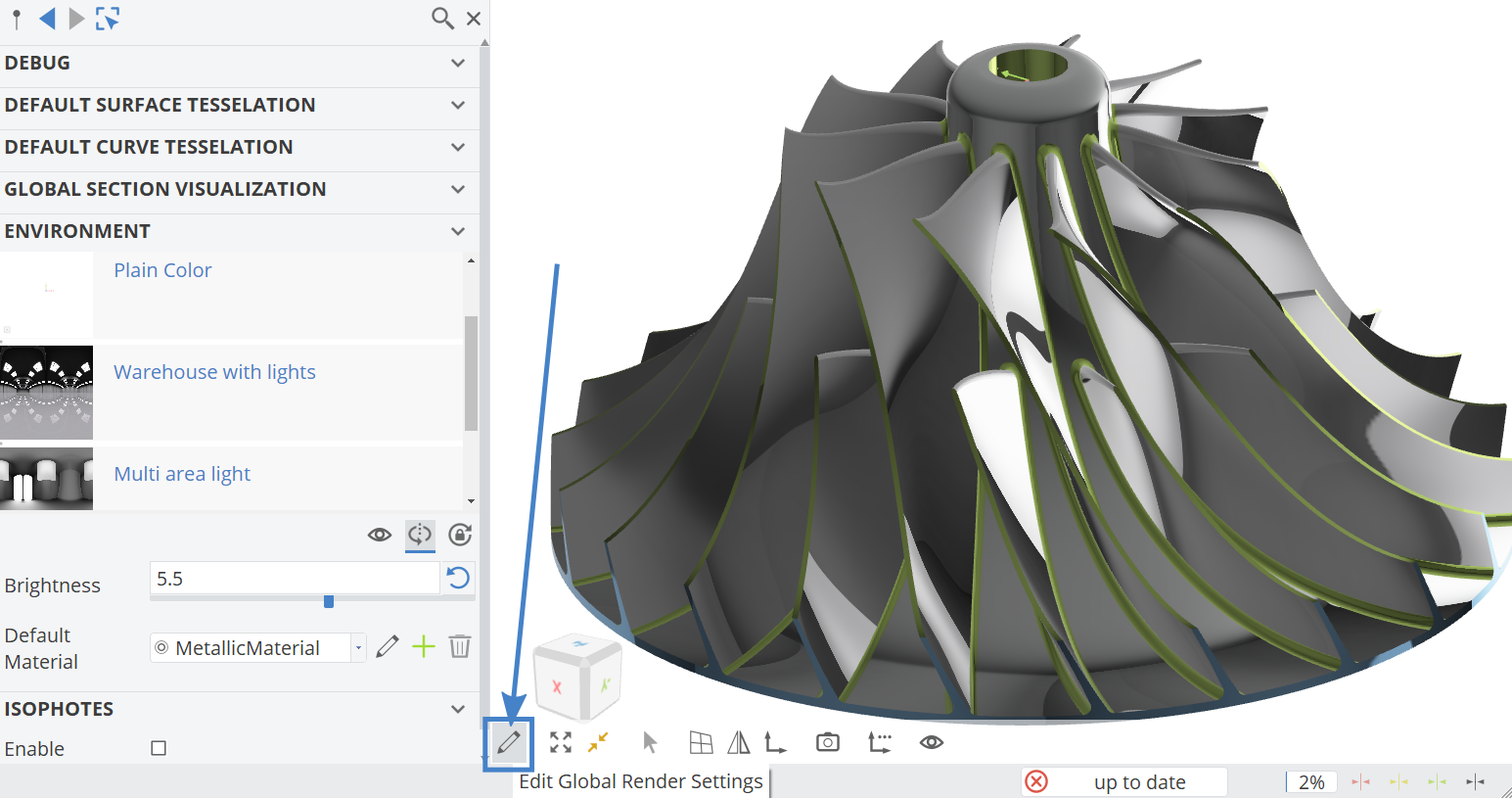
The first button in the 3D view allows you to set the global render settings for your model. You can set an environment, adjust the light and define a material. The Metallic Material in combination with the Multi area light setting gives your model a more realistic look.
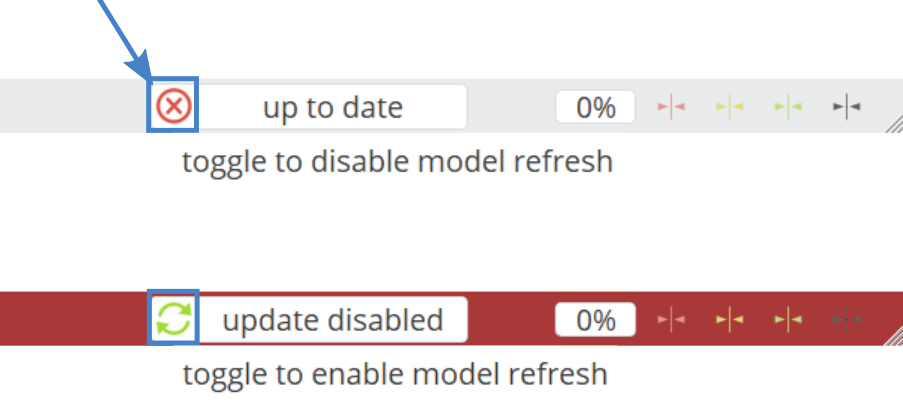
Disable Model Refresh
Complex models sometimes come with extensive update times for each adjustment you make. You can pause the update process of a model by clicking the red button on the left of the progress bar. This is especially useful if you have long update times and you want to set several parameters at once without updating the model after each change.