Context Menu Actions
The context menu (or pop-up menu), is a graphical user interface (GUI) feature that appears when performing a right-click mouse action on different elements and areas of the GUI.
CAESES offers many useful actions through the right-click context menu that help with the layout of the GUI, sorting objects in the object tree, exporting geometry, creation of features, ...
Window Overview
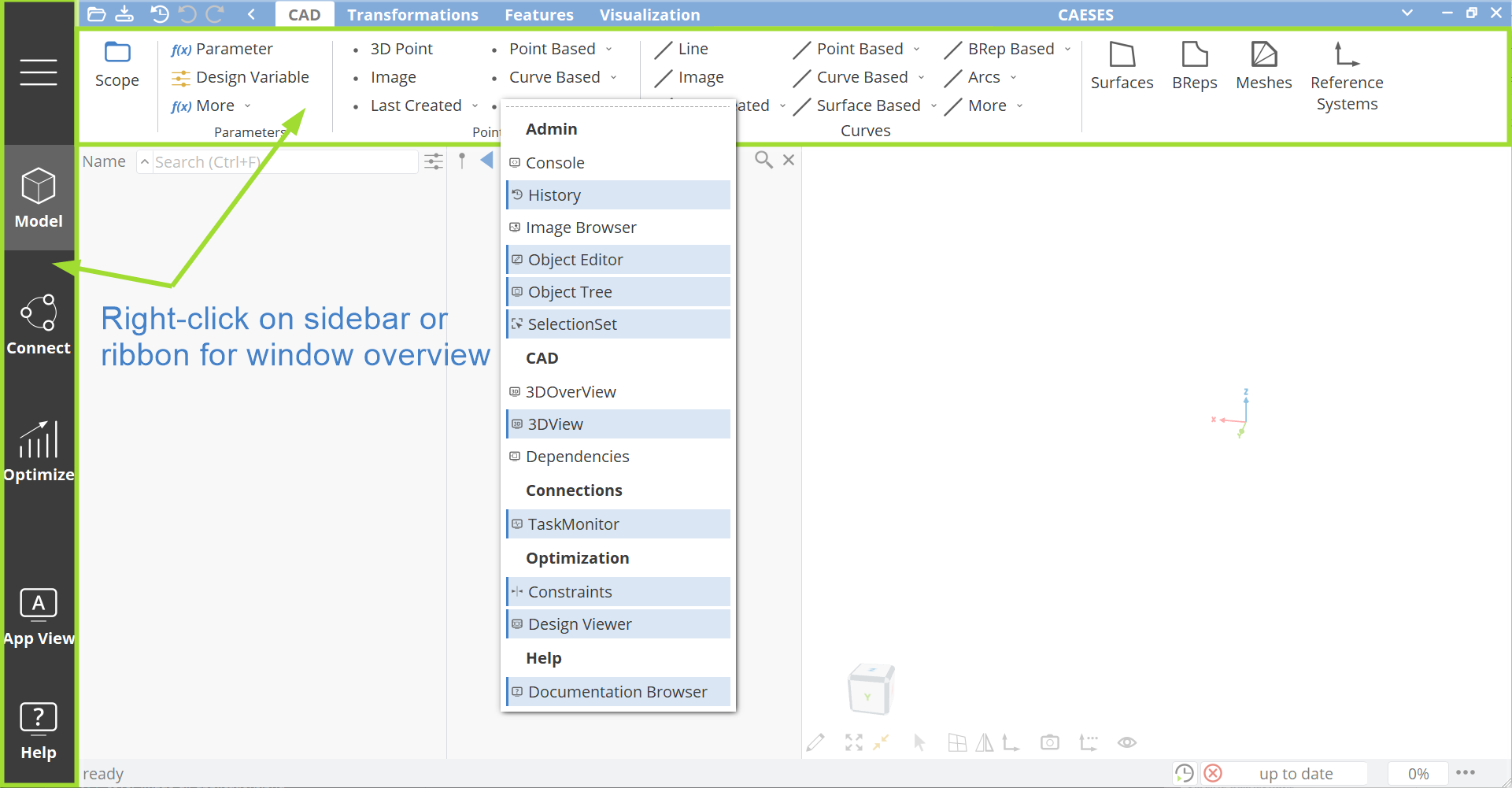
If you right-click anywhere on the dark workspace sidebar on the left or anywhere on the ribbon, an overview of all windows pops up. Choose from the list which window to display in the current workspace.
3D View Context Menu
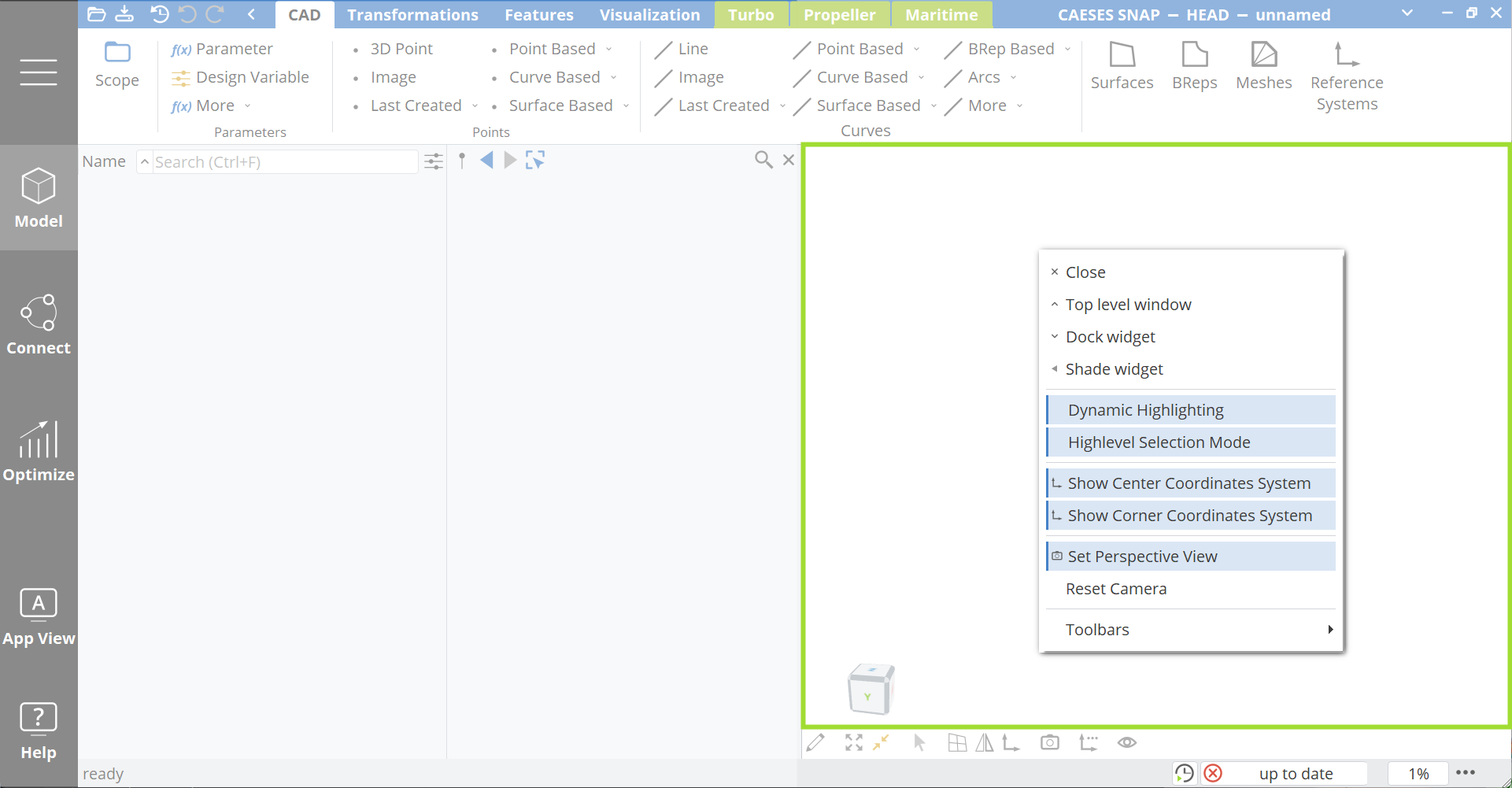
A right-click within the 3D window offers a set of quick actions to:
- Change the 3D window position (close, top level window, dock or shade widget)
- Enable/disable the dynamic highlighting (color change when hovering over objects in the 3D view)
- Enable/disable the Highlevel Selection Mode
- Hide/show the center coordinates system
- Hide/show the corner (cube) coordinates system
- Enable/disable the Perspective View (to create a more realistic representation of a 3D scene)
- Reset the camera
- Display and enable the selection toolbar (only usable when Highlevel Selection Mode is disabled)
Object Tree Context Menu
The context menu offers handy functionality to quickly sort, export, duplicate, show/hide, select, adjust or edit objects in the object tree in CAESES.
- Show in Editor: Open the object editor of the selected item
- Copy: Copies the item (alternatively: use Ctrl+C)
- Paste: Pastes the item into the selected scope (alternatively: use Ctrl+V)
- Visible: Shows or hides the objects in the 3D view (only for
FDrawables) - Delete: Deletes the object
- Show Dependencies: opens the Dependency Viewer to track other dependent objects
- Copy Full Name: Copies the full path name, e.g.
|compressor|impeller|04_segment|02_boundaries|side1Brep
Export GeometryNewThis content is new.
You can quickly export any kind of geometry objects like points, curves, surfaces or BReps by choosing the Export option from the context menu (select the object and right-click in the object tree).
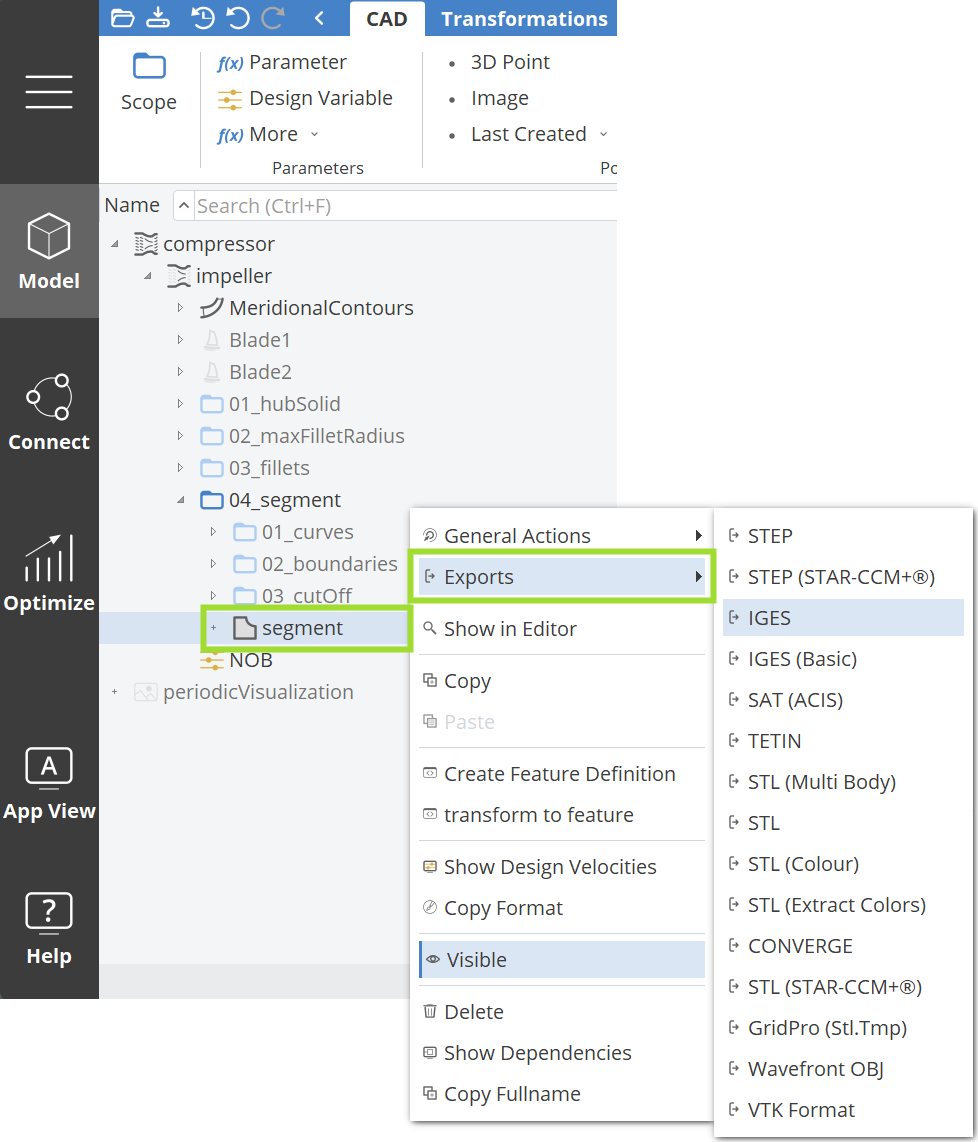
You can export multiple objects in one combined file, e.g. in one STEP file, when you select multiple objects at once (by holding the Ctrl key), right-click one of the selected objects and choose the desired export format.
Target SearchNewThis content is new.
You can select one or multiple design variables and parameters and choose Parameter Actions > Target Search. It helps to adjust the value of a design variable within its specified bounds such that the parameter value of the dependent matches the target value.
Sort in TreeNewThis content is new.
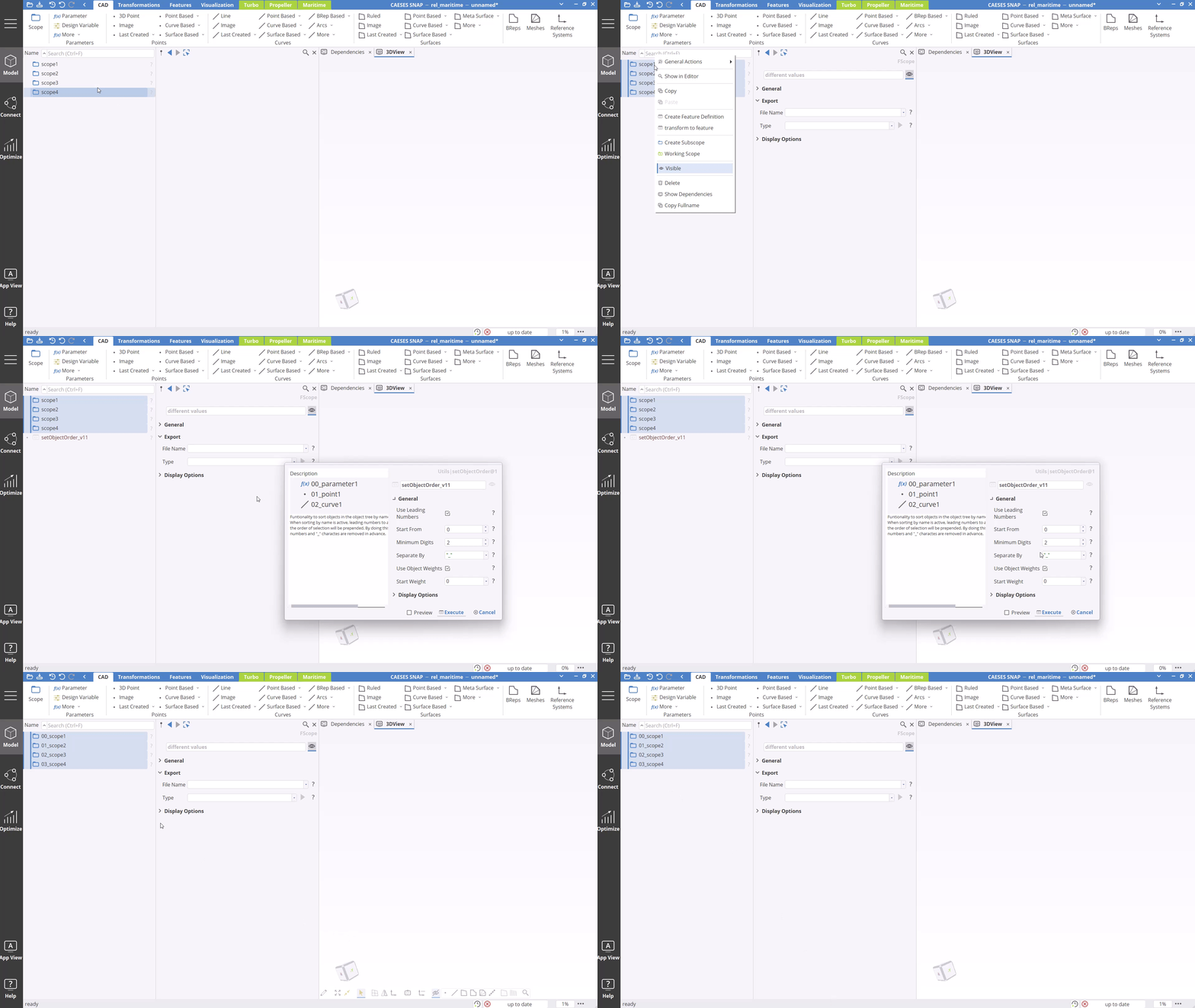
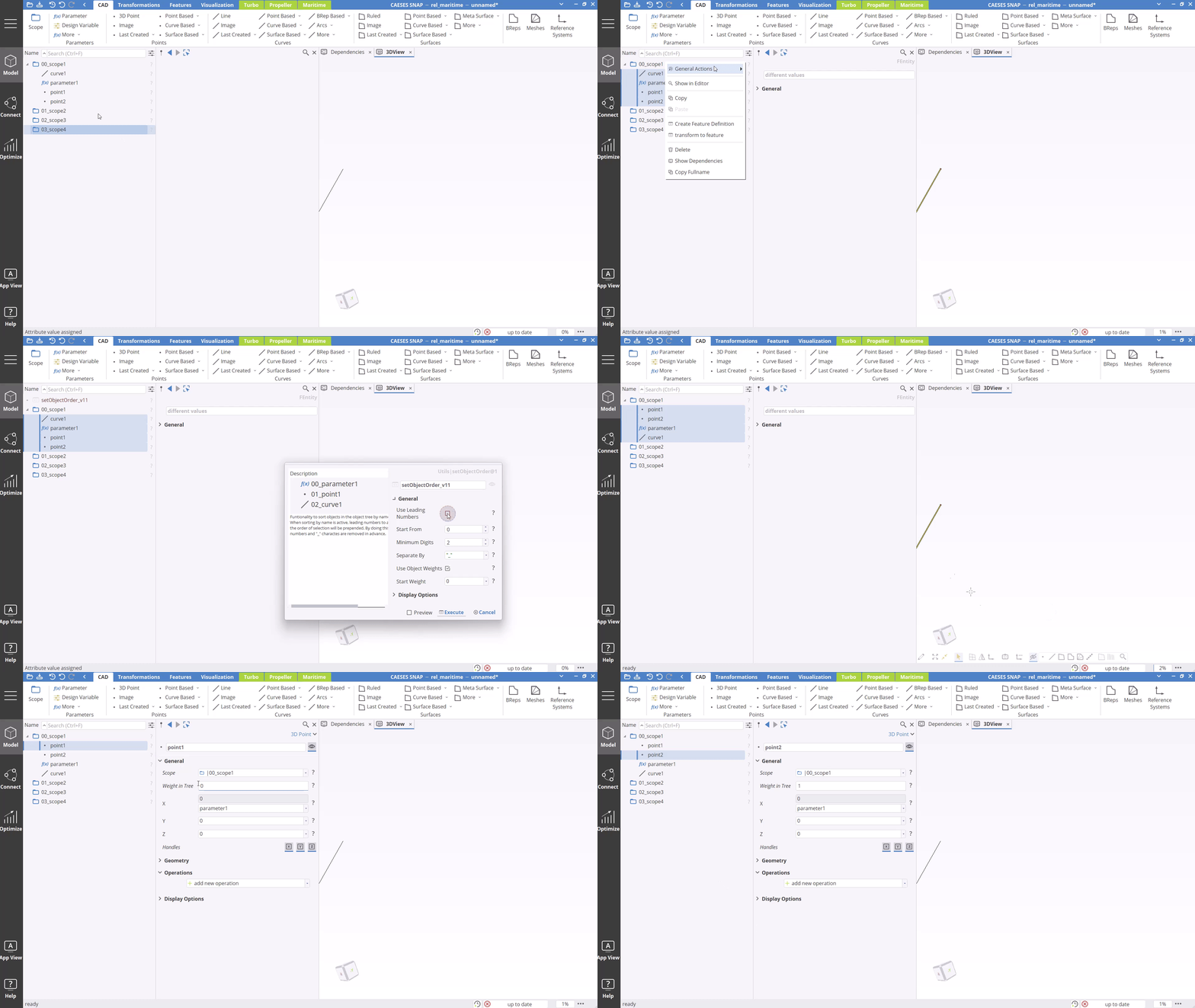
Setting the name or the weights manually for a lot of objects can be a little tedious. That is why you can also (while holding the Ctrl key) select the objects in the order they should be sorted in the tree and then execute the function General Actions > Sort Objects in Tree from the context menu (with a right-click on any of the objects). Here you have the option to define the sorting either by Leading Numbers or by Weights. If you choose the Leading Numbers option, make sure to change the ordering in the object tree to consider names only, by clicking on the Name heading in the object tree.
Surface Selection ActionNewThis content is new.
In case you want to select a large number of surfaces, e.g. from an imported geometry, you can make use of the context menu options that facilitate the selection. The following options are available:
- Deselect Close to Centerplane
- Deselect Normal to Centerplane
- Select Close to Centerplane
- Select Normal to Centerplane
- Select All by Color
- Select All in X-Plane
- Select All in Y-Plane
- Select All in Z-Plane
- Show/Hide Parent Surfaces
Feature Instance Context Menu
The context menu for feature instances allows you to:
- Detach a feature instance and trigger a transient execution, which results in the creation of all accessible attributes of the feature definition.
- Run the feature and trigger the execution
- Edit Definition: open the feature definition editor