Object Visibility
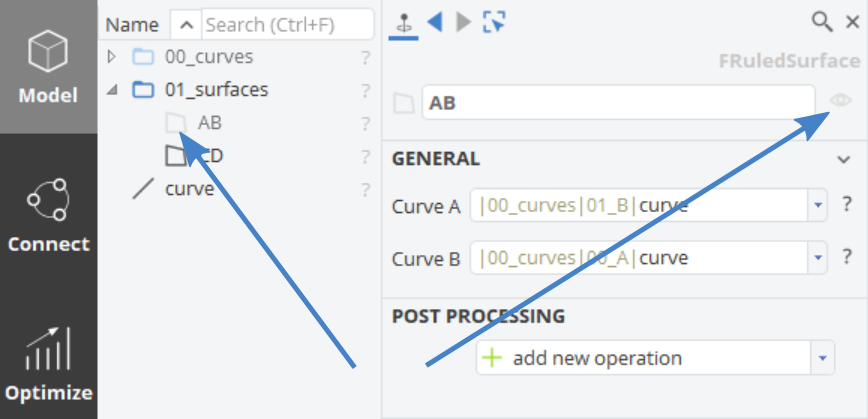
Each geometry object in CAESES has a visibility that can be switched off and on. There are two options:
- Click on the "eye" icon in the upper right corner of a selected object (in the object editor)
- Click on the type icon in the object tree.
In both cases a click on the icon turns it into a greyed out one in the object tree, to indicate invisibility.
You can also use a command in feature definitions to set the visibility:
object.setVisible(true) and object.setVisible(false)
Scope Visibility
Remember that invisible scope icons turn from a blue color into a pale light blue scope icon.
If a scope is set invisible the full content of the scope is invisible as well.
3D View Filters
It is important to mention the filters of the 3D view again, see also the 3D view documentation here:
The filters of the 3D view can have the same effect, i.e., they do not display your geometry objects even though your object is set to visible.
So, in case you do not see your objects, check all these filters and reset the zoom by using the corresponding button in the lower left of your 3D view.

Note that the name of an invisible object is written with a light grey font color in the object tree, if either:
- the object itself is set invisible (greyed out type icon in the object tree), or
- the scope (or any up-level scope) that includes the object is set invisible (pale blue scope icon), or
- a 3D view type filter is activated, that hides your object.