Object Tree
This is the area where all created objects can be found and selected, to configure their properties.
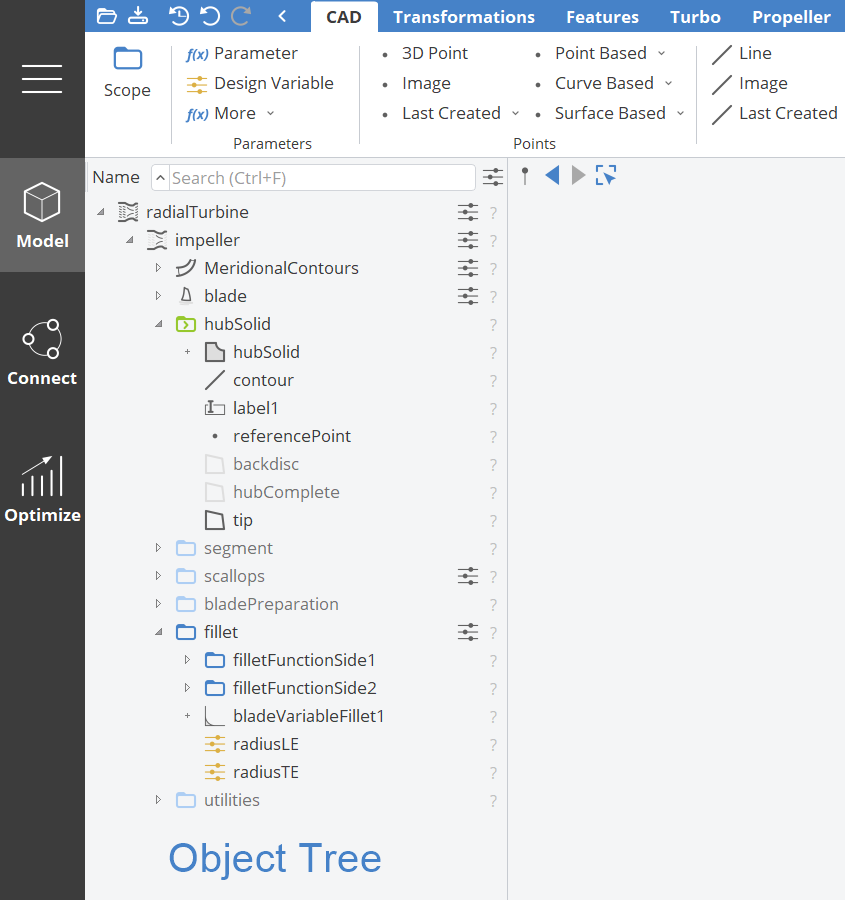
What is shown in the Object Tree depends on the selected
- workspace (black vertical navigation on the left) and
- tab (horizontal navigation tabs on blue title bar).
Object Tree in Model Workspace
In the Model workspace → CAD tab all geometry objects can be found in the Object Tree. Scopes (similar to folders or directories) help you to structure your project. You can rearrange objects and scopes at any time. All dependencies are kept automatically.
If you click on a scope icon, it turns pale blue so that all objects in this scope are invisible in the 3D view. Another click sets the scope to visible again. See the Scope section for more information.
Sort Objects in the CAD Tree
By default, the objects in the tree are ordered primarily by type and secondarily by name. You can click on the Type heading to switch the sorting from ascending to descending. Alternatively, you can change the ordering to consider names only. Therefore, click on the Name heading. You'll find the same mechanism of switching from ascending to descending, but applied to names only.
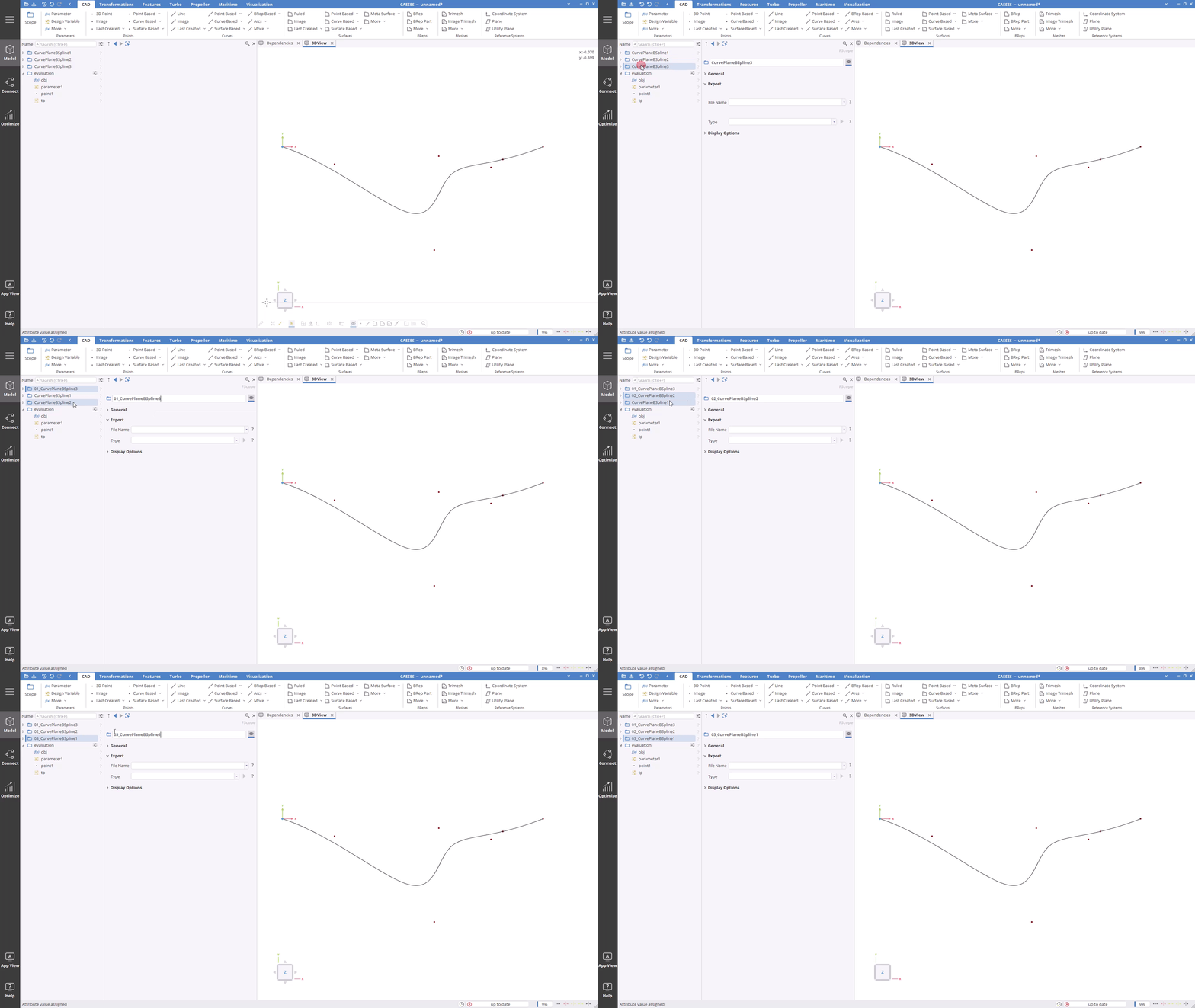
Additionally, all objects have a "Weight in Tree Attribute", which you can find under the General category of the object. The weight is an additional property to sort the objects in the tree and it has higher priority than the name. By default, all weights are set to -1, so if you don't change the weight, the objects are sorted by name. However, if you change the weight, the order in the tree is adjusted, so that the objects with the smallest weight are at the top of the tree, while higher weights are moved to the bottom of the tree.
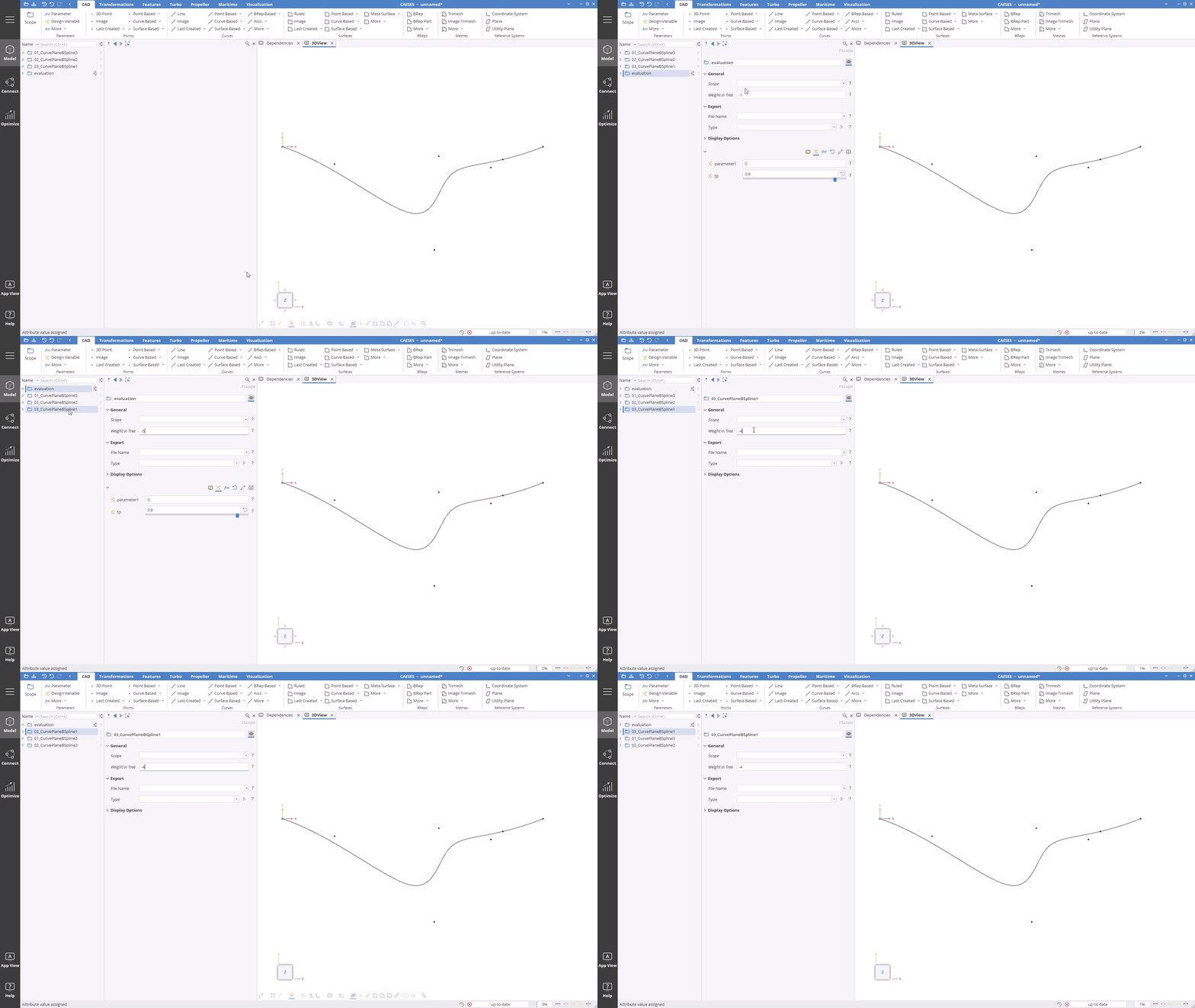
A quick and easy way to sort objects in the object tree is the context menu functionality Sort Objects. Check the context menu section for more details.
Feature Definitions
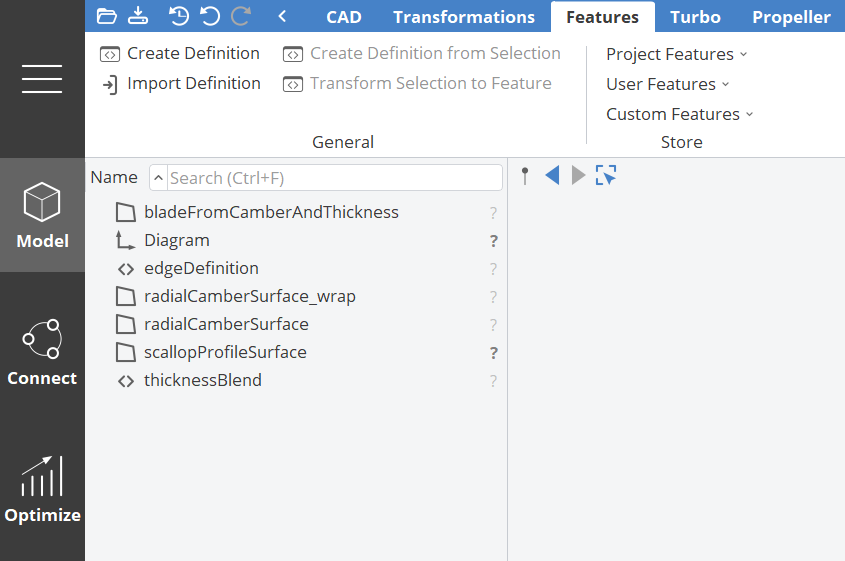
In order to see all of the Feature Definitions in the Object Tree, switch to the Features tab in the Model workspace.
Object Tree in Connect Workspace
In this area all objects are located if you connect external software (e.g. 3rd-party meshing or simulation tools) to CAESES. In addition, the results of an external tool can be accessed from here and configured for post-processing.
Data connections such as importing and visualizing volume meshes or STL data are also listed in here.
Object Tree in Optimize Workspace
In this area, the sampling and optimization engines are given, as well as the constraints. When you run studies, all generated designs are shown in here.
Search and Filter in Object Tree
Search for objects by name, type or substring to filter them in the object tree.
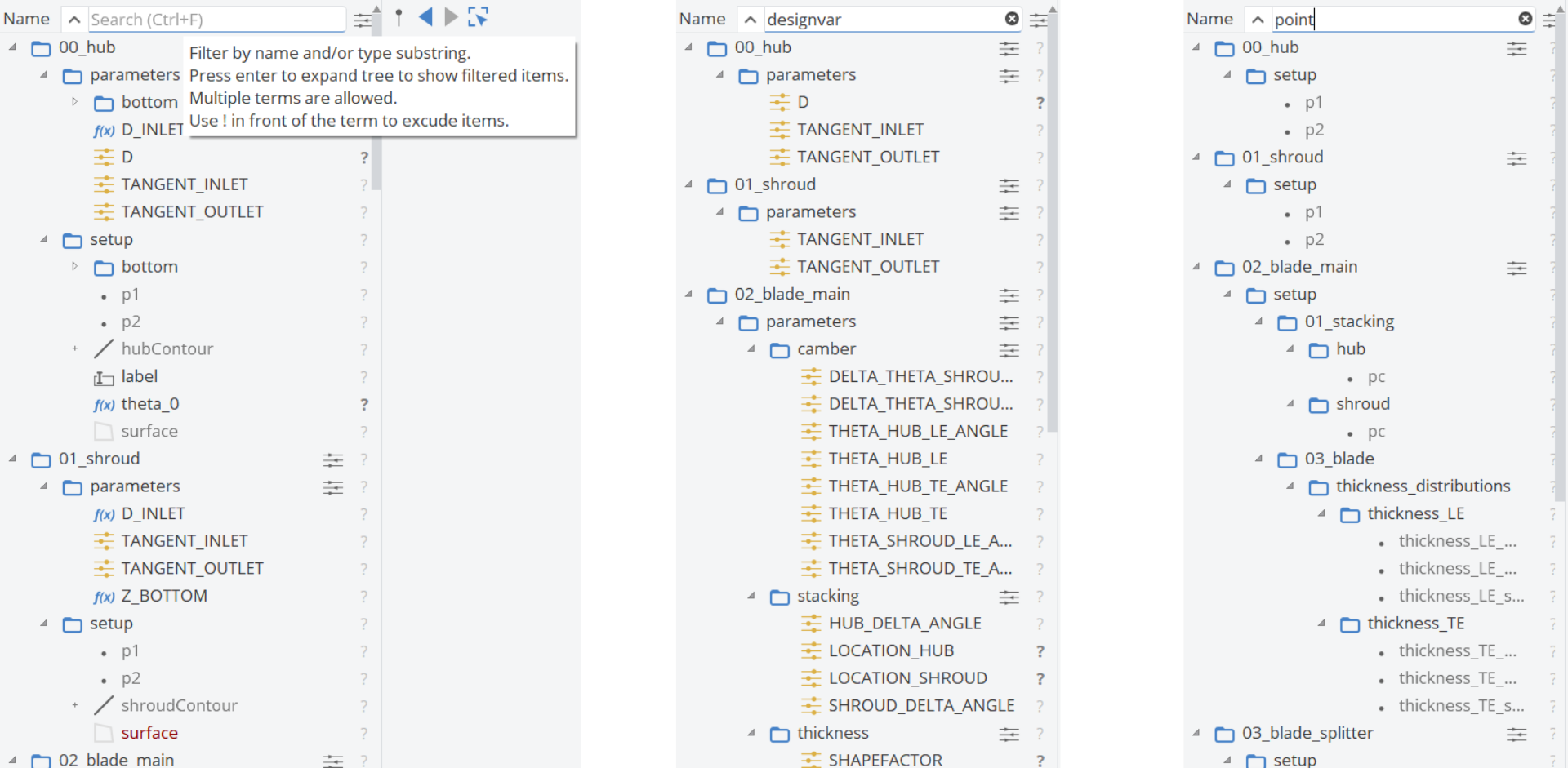
When using the Search functionality in the Object Tree you can display the geometry objects from any workspace or tab location. So, you can use also use this search option when you are not in the Model workspace. That way you could easily search for the right surface or BRep you'd like to export in the software connector.
Copy & Paste
You can select and copy & paste objects in the object tree, using e.g. Ctrl+C and Ctrl+V.
If you select a scope before pasting objects, they will be automatically pasted into the selected scope.
Object Types
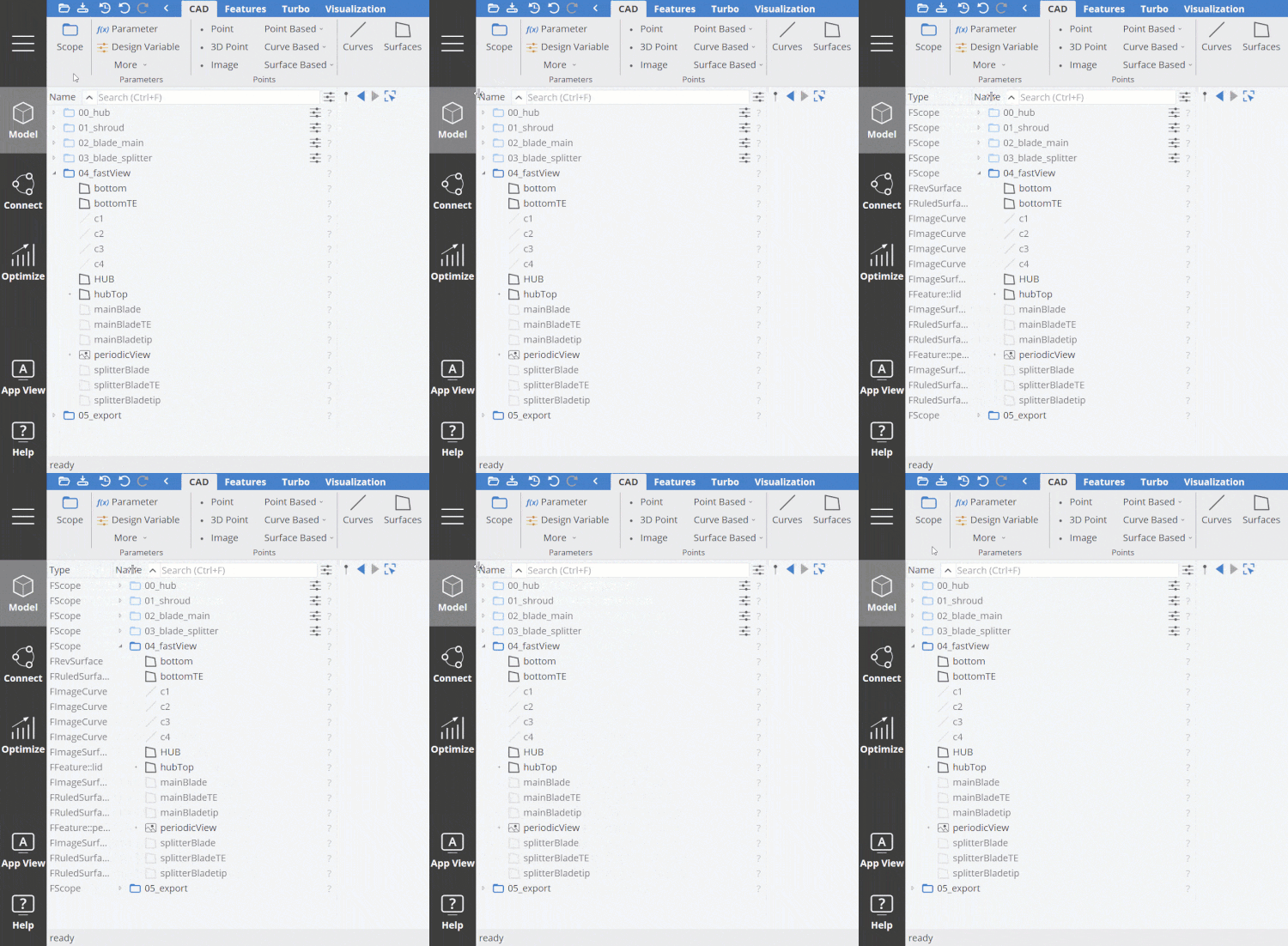
On the left of an object in the tree you find its type. This column can be hidden. To make it visible click on the left side of the Name column and move it to the right. This is often helpful information e.g. if object icons are similar, to know what type your object has.
Object Documentation
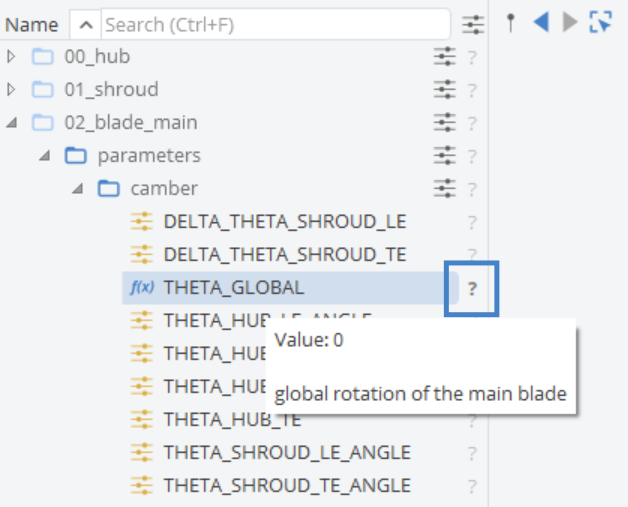
There is a documentation icon (?) on the right-hand side of the object where you can add user documentation. For instance, you could add a comment to a parameter or a point etc., which explains the purpose and meaning of it. This documentation is shown as tooltip when you hover with your mouse over an object in the tree.
Design Variables Overview
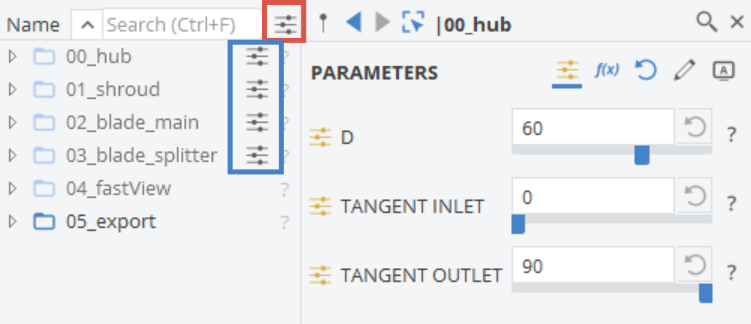
If you have Design Variables or Parameters in your project, the corresponding Scope gets an additional Design Variable icon on the right-hand side. If you click on it, a quick overview of your Design Variables is shown. As a result, you do not have to search in all sub-scopes to find or modify your variables, so this is a fast way to your model controls.
To get an overview of all Design Variables or Parameters in your project, click on the Design Variable icon next to the Search Filter.