Patterns
CAESES offers various possibilities to arrange BReps in specific patterns. This short introduction shows, how to apply the linear, as well as the rotational pattern.
Linear Pattern
In addition to the Periodic BRep operation, a new pattern is introduced called the Linear Pattern operation. This operation offers the possibility to quickly and intuitively arrange BReps along a linear pattern. The following short tutorial shows how to use the newly featured operation.
Quickly generate repetitive linear patterns, grid structures in a plane or even in three-dimensional space.
Creating a BRep
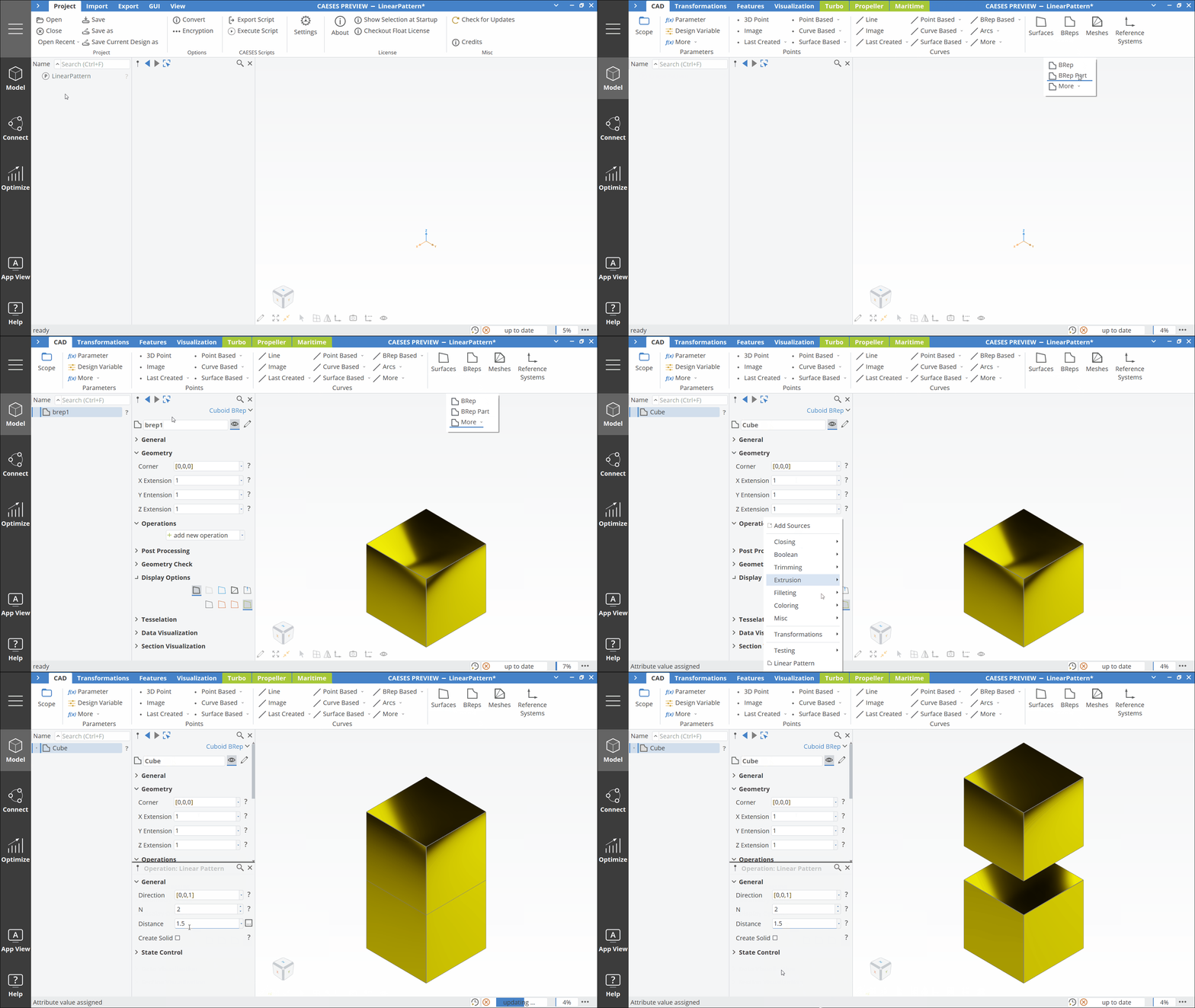
Start by creating a BRep. In this example we simply use the pre-defined BRep Cuboid, which can be found inside the top ribbon in the Model Workspace by navigating to CAD > BReps > More > Cuboid. After creating the BRep and renaming it to "Cube", let's navigate to operations inside the object editor and select Linear Pattern, which is located under Transformations.
How to Use the Linear Pattern
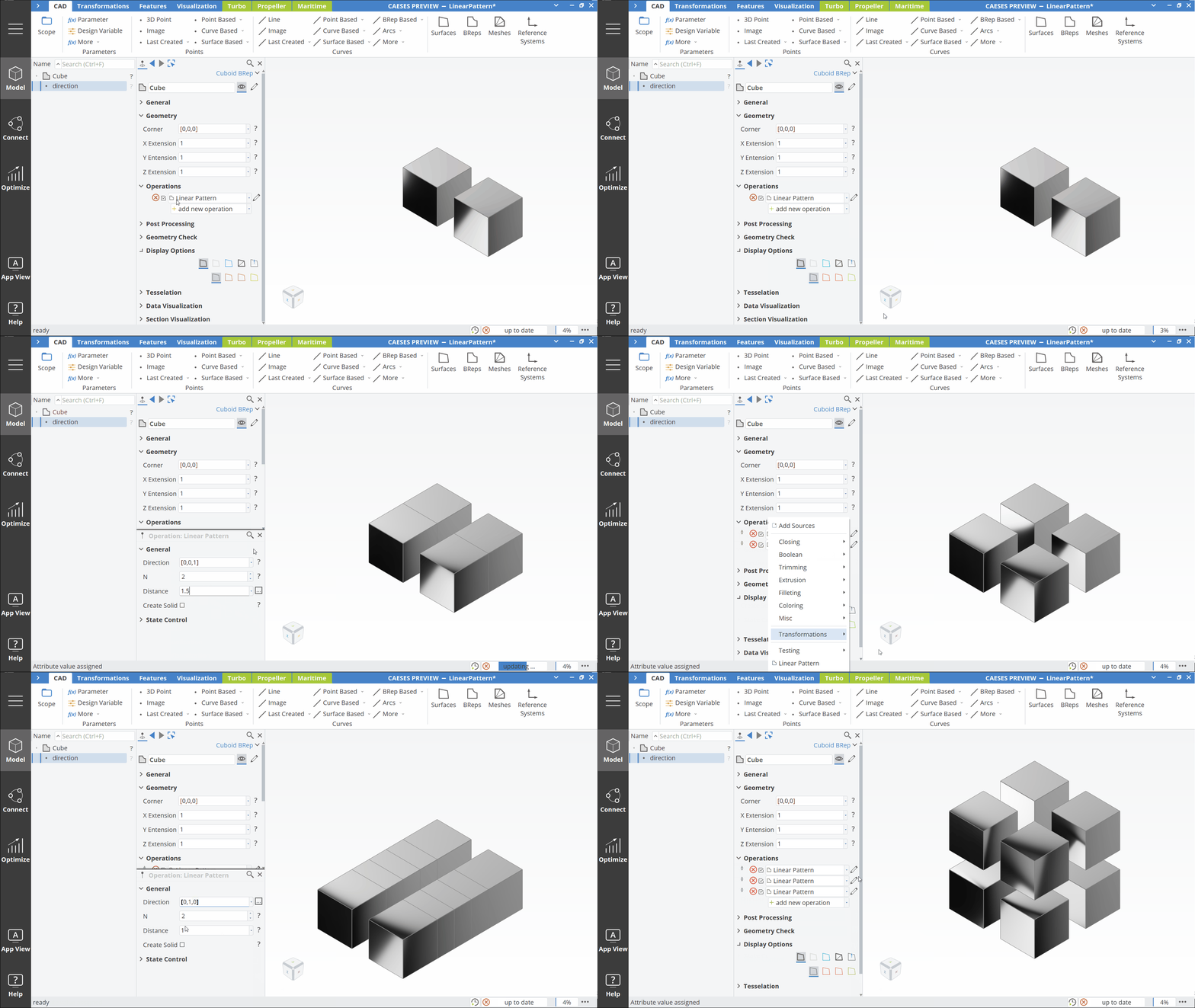
To adjust the direction, along which the BRep should be projected, adjust the directional vector inside the window Direction. The number of projected objects from the BRep can be specified in the window N and to determine the distance between objects, simply change the default entry to the desired value. Note that the distance value is defined from the first edge of the original BRep towards the first edge of the projected object along the direction of the directional vector. If objects are overlapping each other due to the distance value being too small, one can toggle the option Create Solid to create a solid. This will unite the different geometries with each other, transforming it to one combined solid geometry.
Link a 3D Point
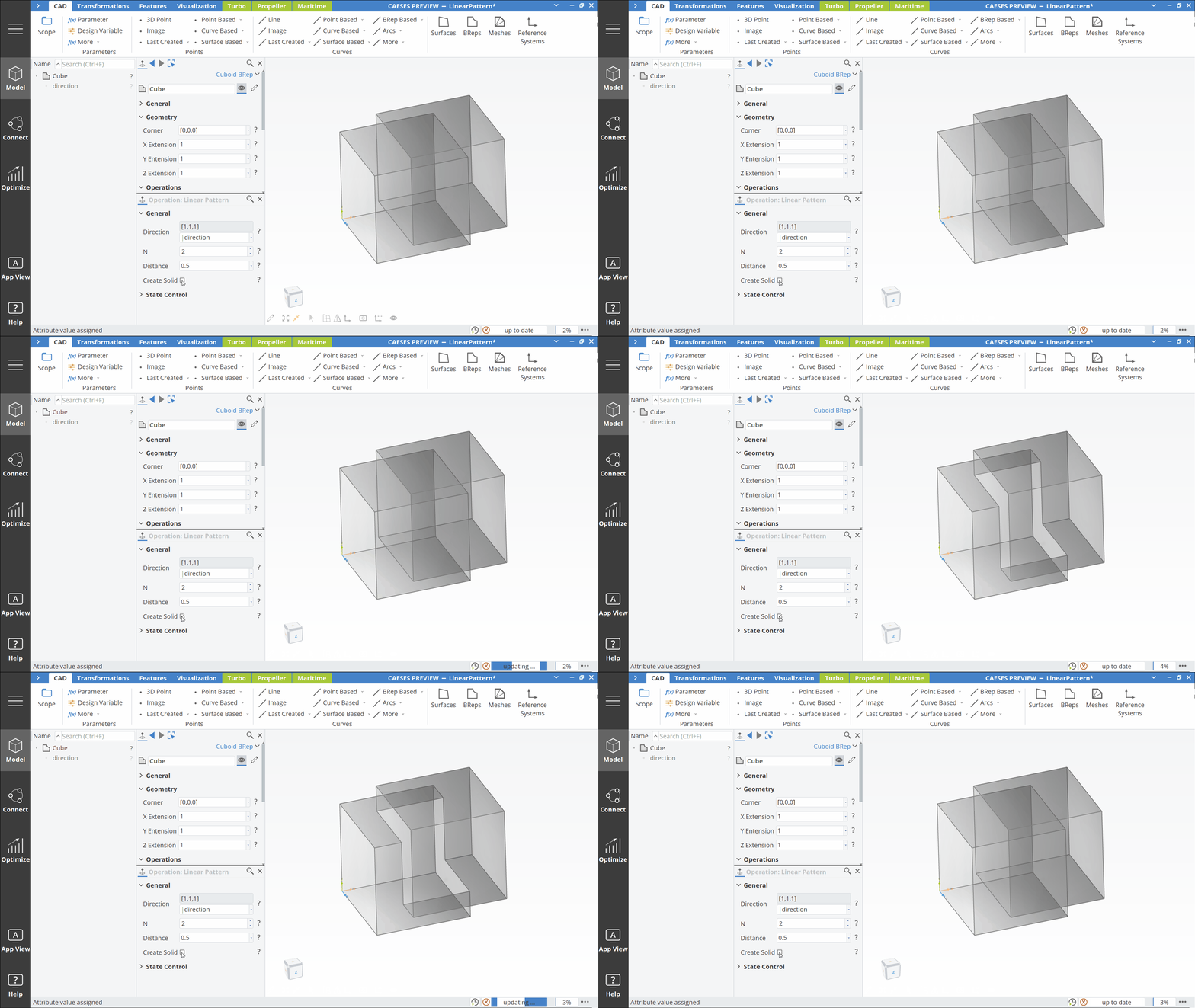
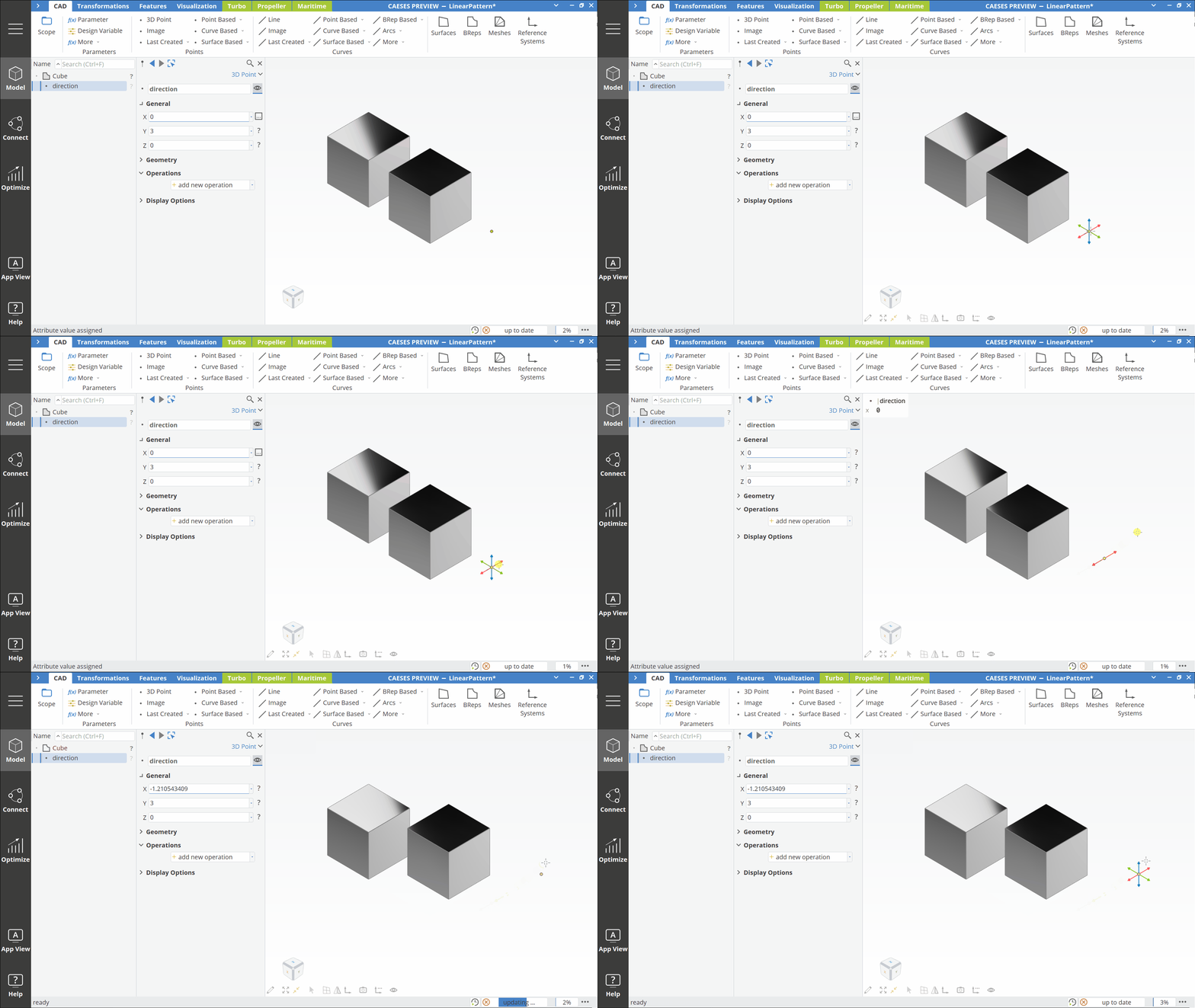
Another way to intuitively change the direction of the linear pattern is to create a 3D Point and drag it to the desired location. To drag a point in the 3DView window, simply select the point inside the window and drag it along one of the principal axes.
Grid Structures
It is also possible to apply this operation more than once, which creates grid structures in a plane or even in three-dimensional space.
Rotational Pattern
The rotational pattern operation arranges quickly and intuitively BReps in a circular or rotational pattern. This pattern functionality is often used when creating rotationally symmetrical objects, like it is often the case for turbomachinery objects.
How to Use the Rotational Pattern
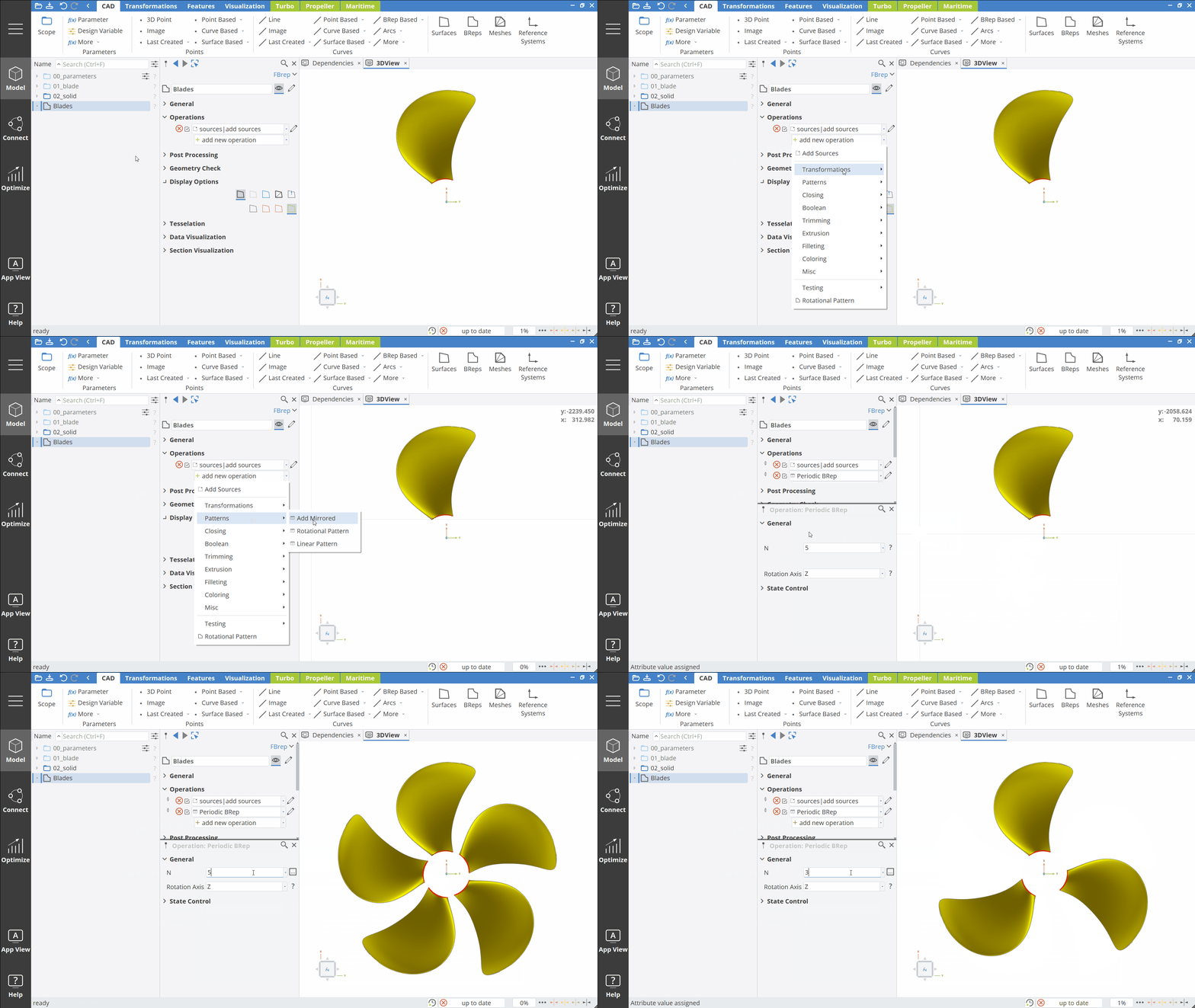
The blade geometry, which is used in the following demo is taken from the Propeller Setup Sample and can be found in the Help Section.
First, a single blade BRep is created. Subsequently, this BRep is used as a source object for a new BRep named Blades in this example, in which the rotational pattern operation is applied. To execute the operation Rotational Pattern, navigate to add new operation > Patterns > Rotational Pattern. Inside the newly opened operation dialogue in the object editor, the number of rotated(duplicated) objects can be adjusted by changing the default value to the desired value. To change the rotational axis, simply select one of the principal axis from the drop down menu when clicking on the field next to Rotation Axis.