Points
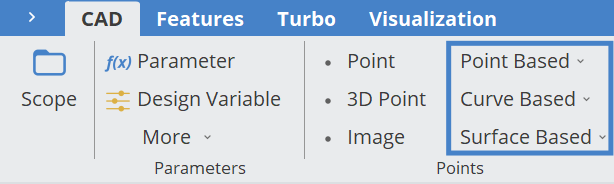
CAESES provides a few different point types which can be found in the menu
- Model > CAD > points.
All of them return an FVector3 (a vector [x,y,z]). For instance, you can create a 3D point and set it at a line that expects two input vectors (of type FVector3) for the start and end position.
Point Types
The different point types are grouped by the inputs to create the points. These are:
- Point Based
- Curve Based
- Surface Based
FPoint
This point is the most basic type. Every other Point type is in the hierarchy below this type. The functionality of this type is to provide a Creation Method, which can be dynamically switched, which is why it also called as dynamic type.
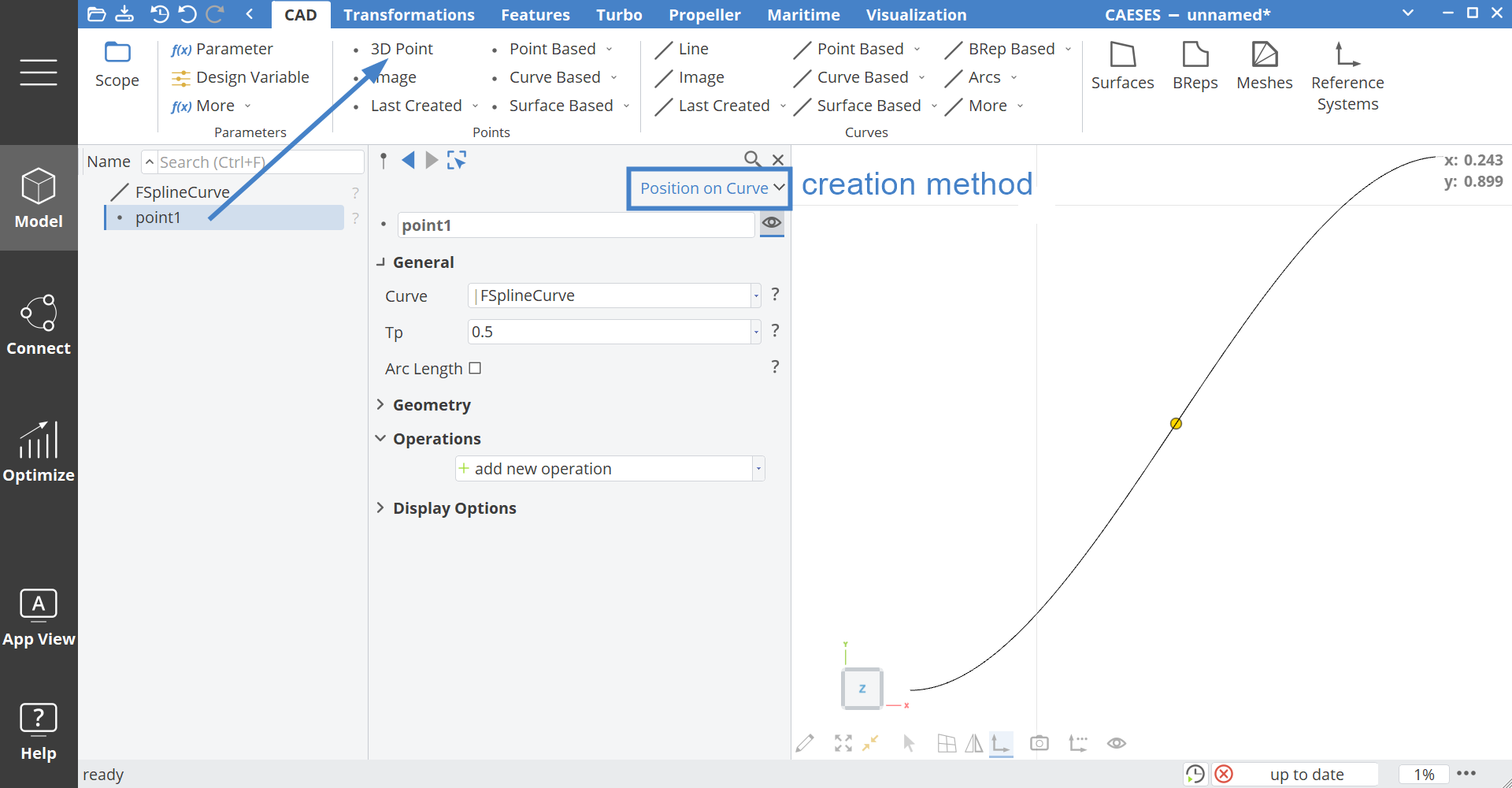
When the Creation Method is switched, all dependencies to this point will be preserved.
3D Point
The 3D point is the most used one. You can find it in the menu
- Model > CAD > points > 3D point
which also creates a new 3D point.

Interactive Modeling
In the 3D view, drag the red, green or blue arrows of a selected point in order to move it. If you press the CTRL-key while dragging a point, a new point gets created. Note, that there are additional options in the Object Editor under General that allow to enable/disable individual Point Handles. Check the Interactive Modeling section for more examples.
Access to Coordinates
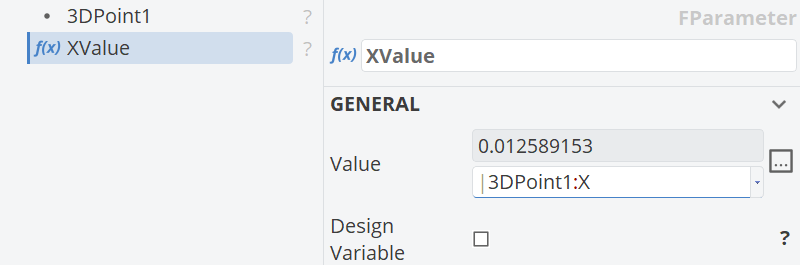
If you like to use the x, y or z-coordinates of the point e.g. in parameters or expressions, you can simply access the e.g. x-value through the expression p1:x for a point with the name p1.
Point Based
These points are based on other points or 3D vector coordinates:
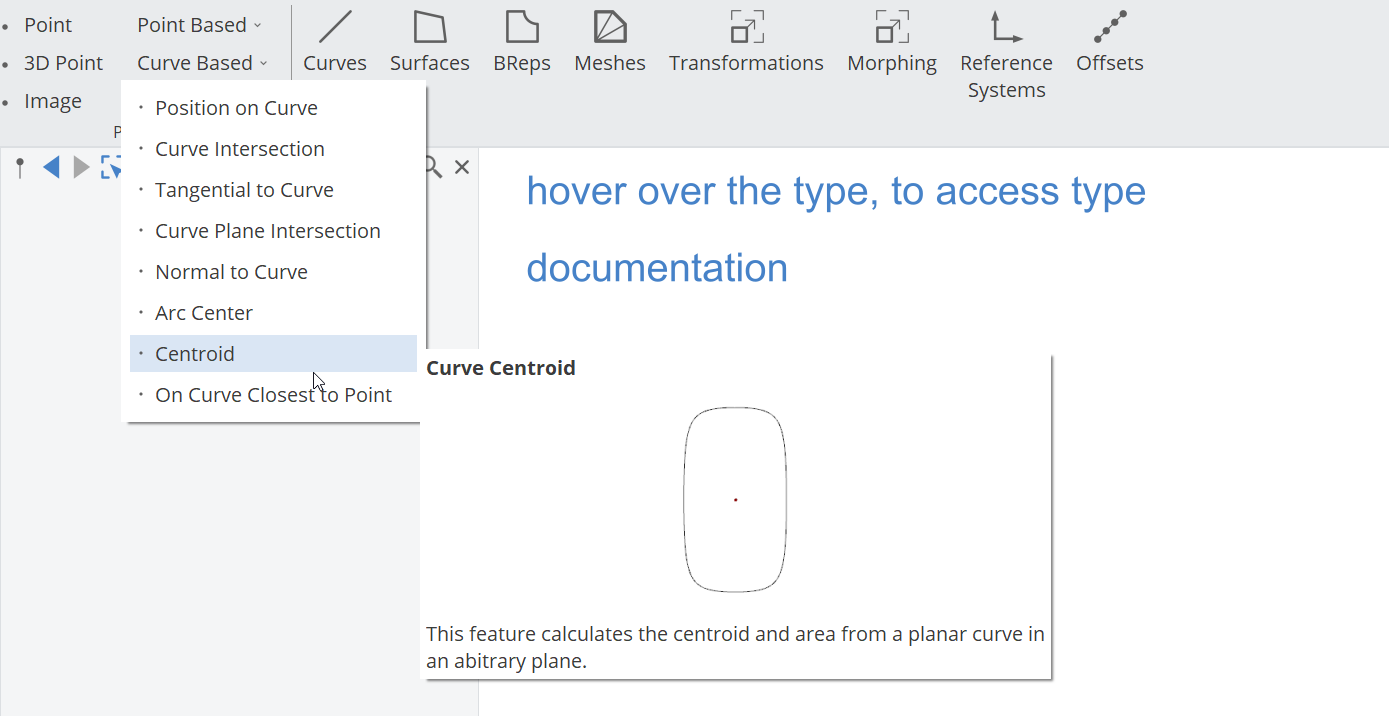
Curve Based
These points are based on curves:
- Position on Curve
- Curve Intersection Point
- Tangential to Curve
- Normal to Curve
- Arc Center
- Centroid
- On Curve Closest to Point
- Curve Control Point
- Curve Plane Intersection
- Principal Plane Intersection
Surface Based
These points are based on surfaces:
- Position on Surface
- Normal to Surface
- On Surface Closest to Point
- Surface Intersection Point
- Projection Point
Operations
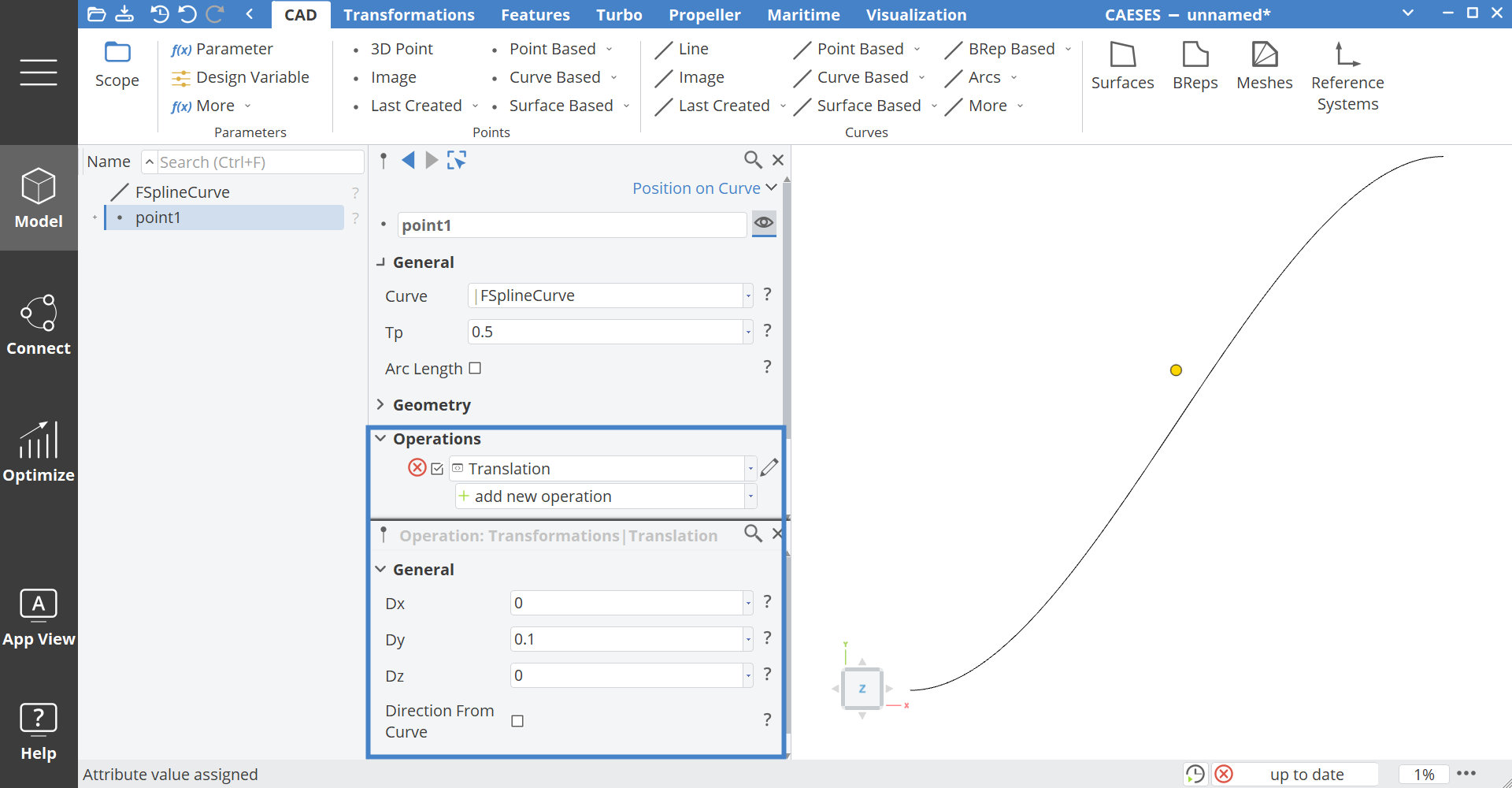
Each point type has the option to create some additional operations to transform the point:
Tips and Tricks
Create a Point on Surface or Face
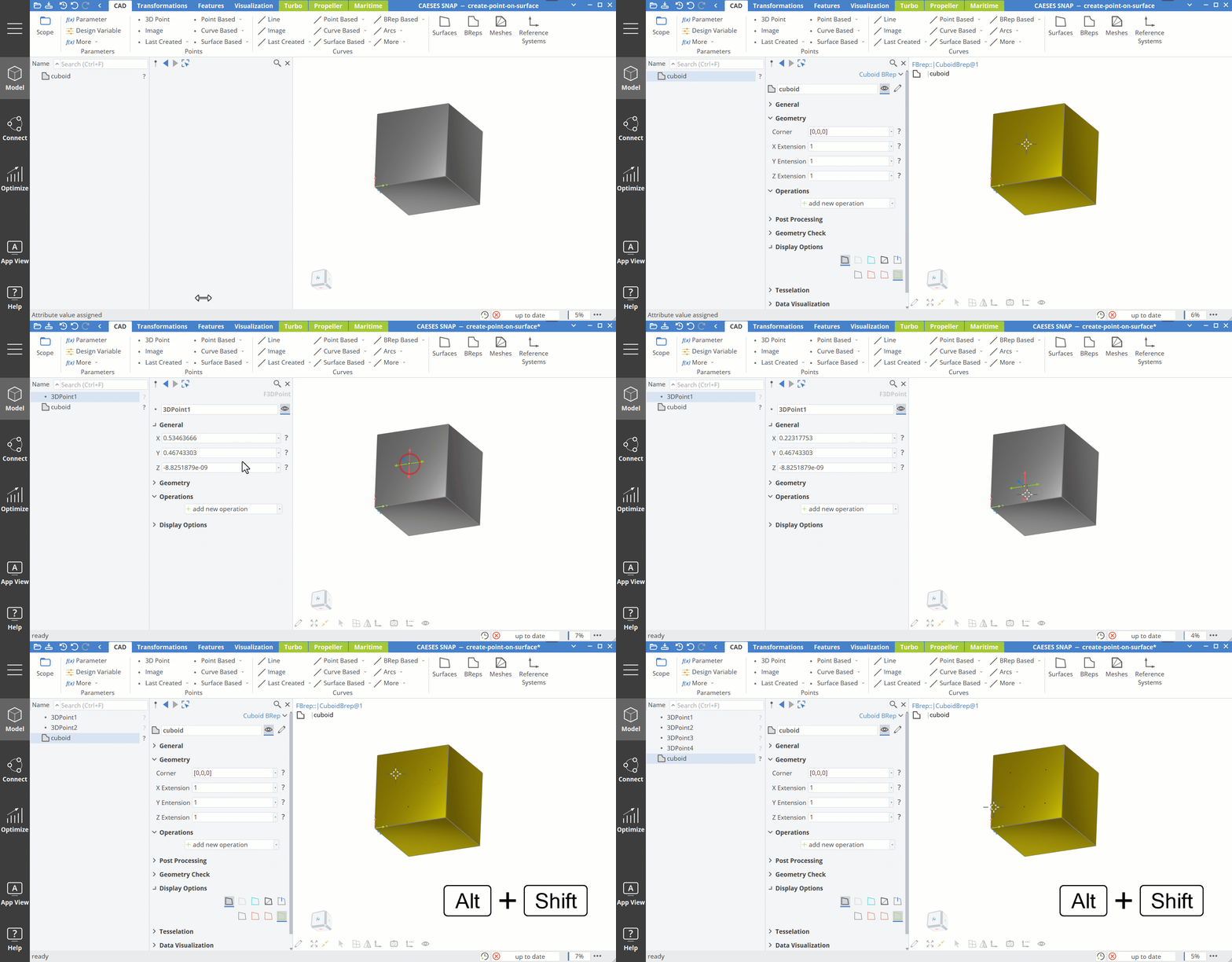
For fast point creation select an object in the object tree, use the shortcut Alt+Shift and click on the surface or face of a BRep to create a detached 3DPoint that is lying directly on the surface or face. The 3DPoint is not linked to the underlying surface and can be freely moved with the handles after creation.
Curve-Curve Intersection
One Intersection
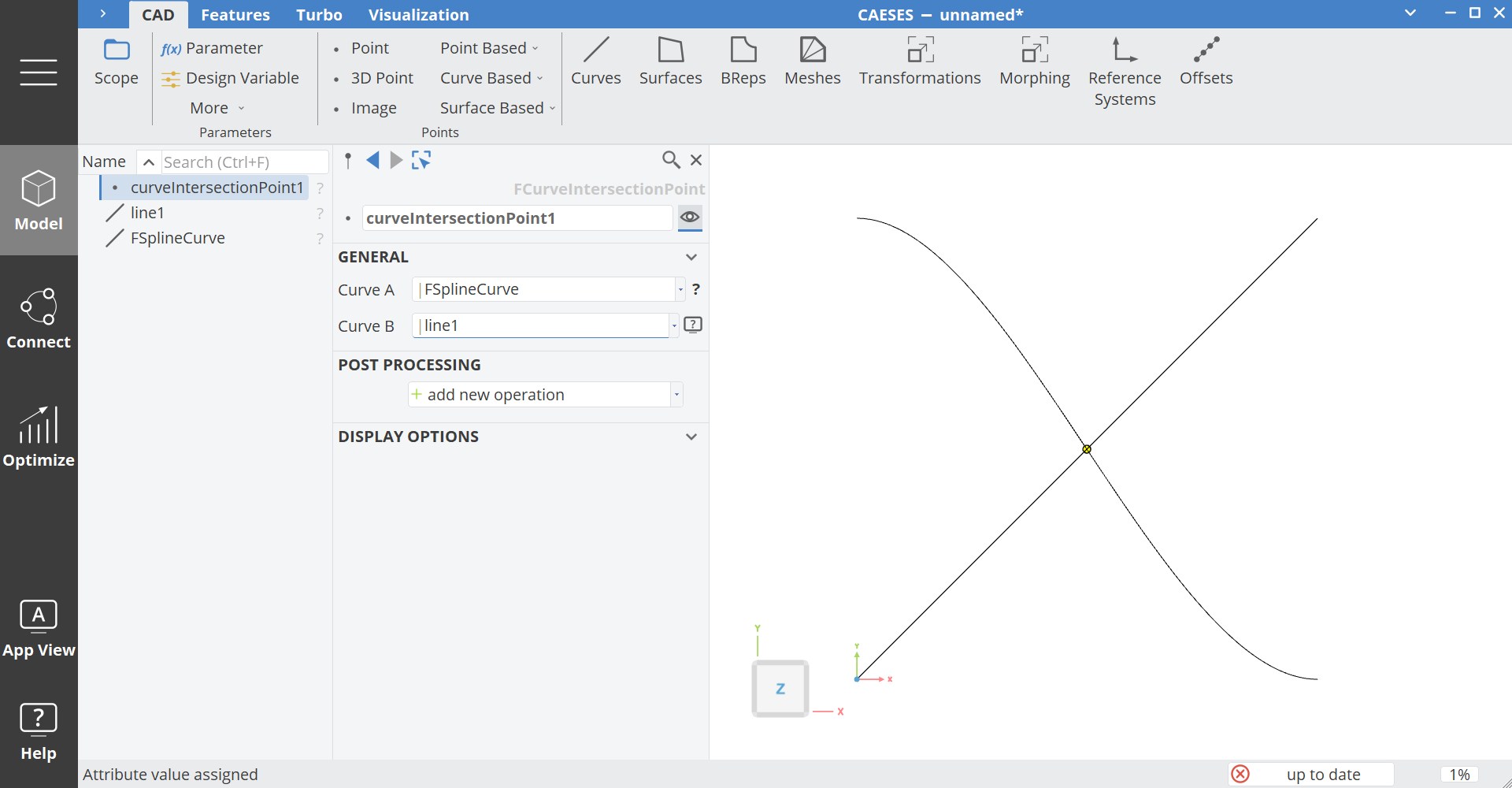
This type expects two input curves and returns the intersection point or the nearest location of the two curves. Besides the 3D location on the curves, you can also receive the parameter locations on the two curves using the following commands (assuming the name of the intersection point is "p"):
p.getParameterOnCurveA()p.getParameterOnCurveB()
Multiple Intersections
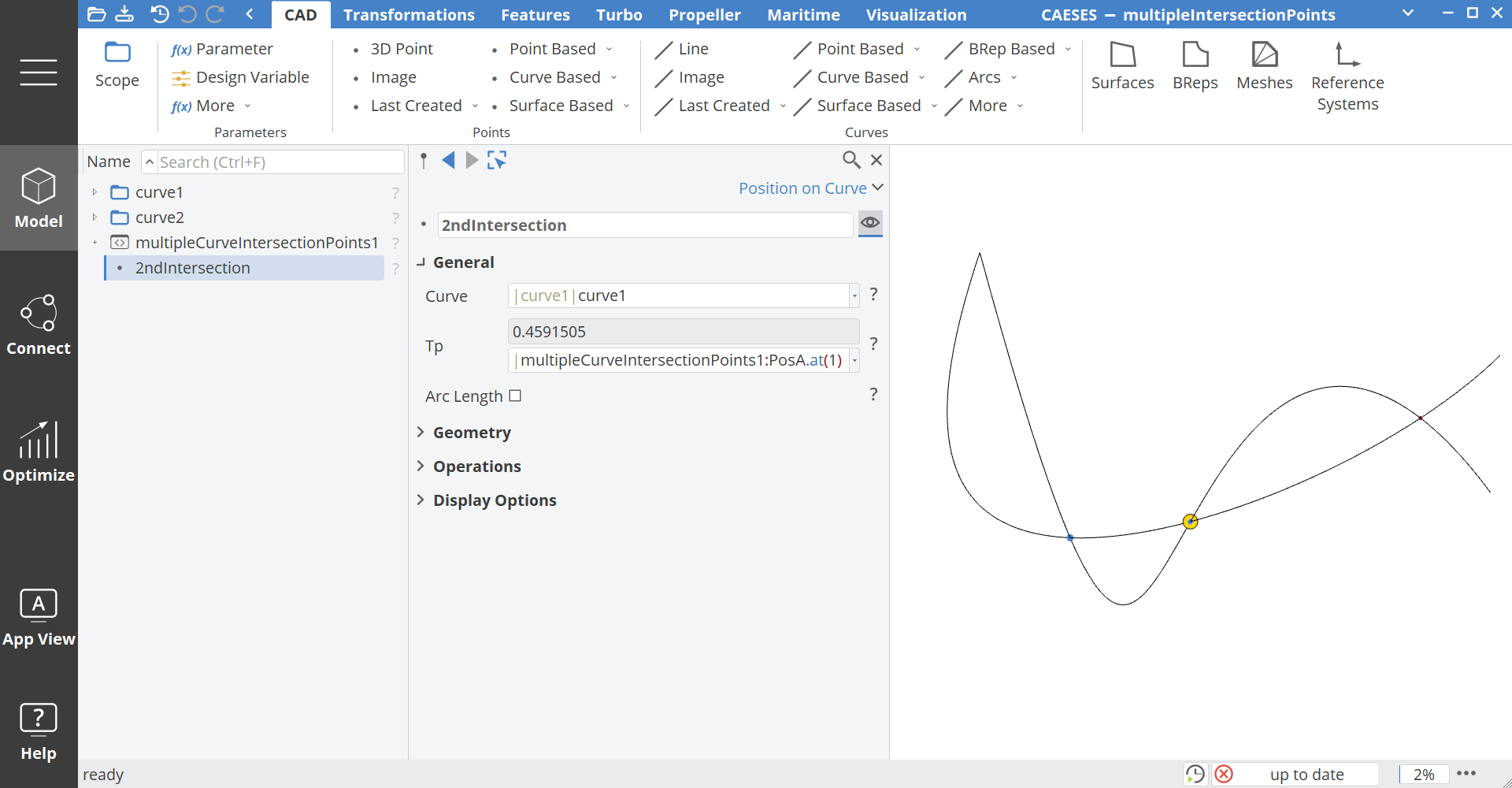
If your curves intersect multiple times you can calculate all intersections and store the parameter positions in a double series.
curveintersectionpoint cip1(curveA,curveB)

FDoubleSeries posA()
FDoubleSeries posB()

cip1.calcCurveIntersections(curveA,curveB,posA,posB)
To access e.g. the second intersection point you can create a Curve Based Point > Position on Curve and set the second entry (index 1) as the Tp parameter position input.
Curve-Surface Intersection
This intersection point also returns a 3D location of the intersection. The parameter location on the curve and the surface can be accessed through the following commands:
p.getT()for the curve parameterp.getU()andp.getV()for the surface parameters
Projection Point
The projection point allows you to project a 3D location onto a surface. The surface parameter location can again be accessed through the commands p.getU() and p.getV().
Image Point
This type allows you to create a dependent image of another point that can be additionally transformed (e.g. scaled or translated).