Triangle Data
CAESES offers an object that is dedicated to triangle data: The trimesh. It is used to manage imported STL data, and can potentially be used to create STL data from surfaces.
Trimeshes are "older" than BReps in CAESES, and they had been the only object for creating STL data. However, in newer versions of CAESES, BReps have their own controls to create excellent tessellations, so you would rather use BReps and their controls to create STL data. The surface mesh of a BRep can then be exported as STL data if needed.
Trimesh from STL Data
If you import STL data into CAESES, the result is stored and displayed in trimeshes. These objects hold triangle data and you can apply a set of operations to it. Trimeshes can also be exported again as STL data where you can choose between various flavors of the STL format (colored, multi-body, binary etc.).
Trimesh from Surfaces
This had been an important application of trimeshes for a long time: They can be used in the context of surface modeling, to create and control a surface mesh. However, if you have surfaces in your setup, the use of BReps is recommended.
Creation
Select a surface or several surfaces at once and choose
- Model > CAD > Meshes > Trimesh.
You can also have BReps as input for your trimesh. But since BReps have their own controls there is no need for an additional trimesh.
Controls
There is an accuracy property "Error" to control the surface mesh density.
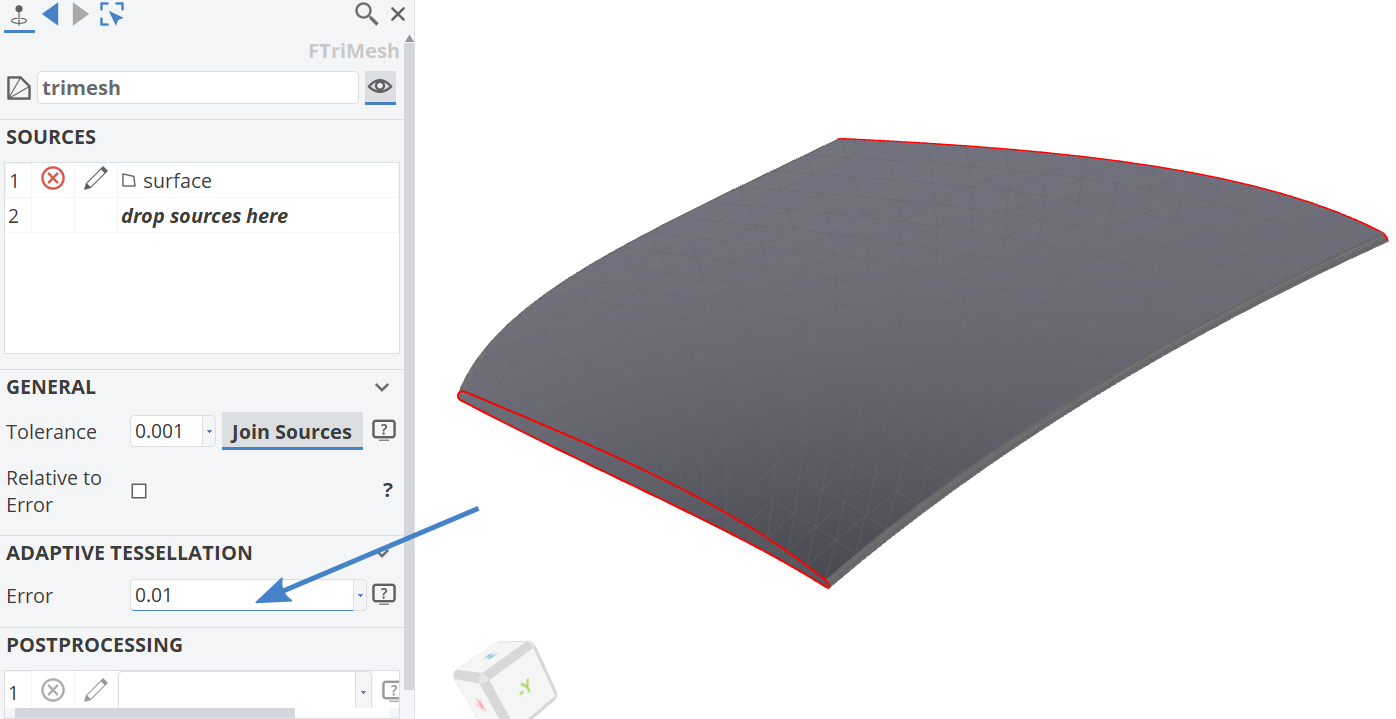
Another property "Tolerance" allows you to join surfaces if their neighboring edges do not fully match, i.e., this snaps the edges and corners of the adjacent surfaces within the specified tolerance.
Edit Input Surfaces
You can find an edit button in the list editor to edit each input surface. You can ignore edges for the snapping mechanism, allow internal edge snapping, override the tesselation defaults, and set a color.
Post-Processing
You can create and configure a set of post-processing operations that are applied to the trimesh data. For instance, you can cut the trimesh at specific elevations, reverse the normals, remove tiny triangles and so forth.
Solids from Triangle Data
If you create a trimesh that is closed (solid), its icon will turn from a grey one into a blue one. This feature supports you in judging whether your geometry is really closed and watertight.
The trimesh has a set of useful getter methods, such as .getNumberOfOpenEdges() and .isClosed(). You can use them to check your final geometries during studies. Store such a call within a parameter and monitor it through a constraint. Closed bodies should always return a zero or a true, respectively.
Solid Type
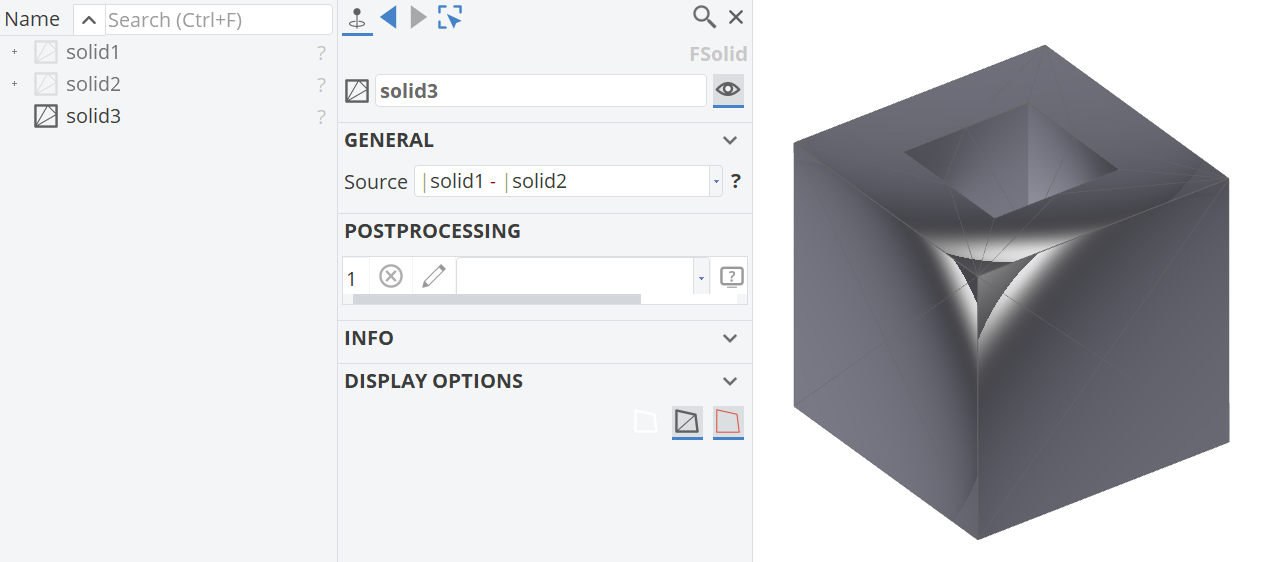
There is another related object, called FSolid, that can be used to create solid objects from triangle data. You find it in the menu
- Model > CAD > Meshes > More > Solid.
It comes with a couple of inbuilt Boolean Operations that can be applied to triangle data. Simply set solids or closed trimeshes as source of the solid object. For Boolean Operations, concatenate the objects in the source editor, e.g.:
- Union:
solid_A + solid_B - Difference:
solid_A - solid_B - Intersection:
solid_A * solid_B