Import and Export Formats in CAESES
CAESES supports a broad range of industry-standard, academic, and software-specific geometry formats to enable reliable geometric data exchange for collaboration and engineering workflows.
Import and export formats cover both major geometry representations used in CAD/CAE:
- NURBS-based (BRep) geometries (exact CAD geometry)
- Tessellated (mesh-based) geometries (discretized surfaces, typically triangles)
Understanding this distinction is essential for choosing the correct import and export format in CAESES.
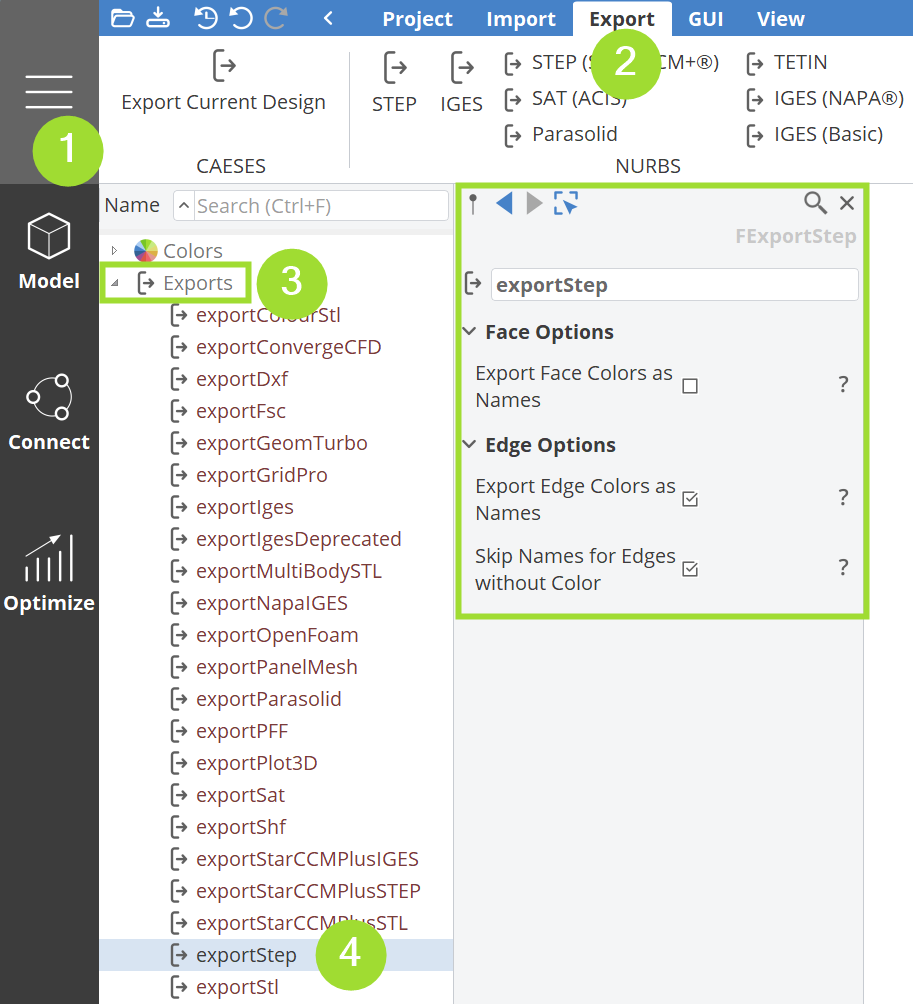
Most import and export formats can be found under Menu (☰) > Import tab or Menu (☰) > Export tab. Some application specific export formats are available in the corresponding add-on tabs (e.g. Turbomachinery specific exports can be found in the Model > Turbo tab).
Instead of navigating to the Menu (☰) > Export tab, CAESES also provides a quick export option in the context menu.
By right-clicking on a geometric object in the object tree, a context menu appears that allows you to export the object directly.
NURBS-Based Formats
NURBS-based (Non-Uniform Rational B-Splines) or BRep geometries describe shapes using basis functions, control points and weights.
This representation provides a high level of geometric accuracy and allows for:
- Exact surfaces and curves
- Robust geometric operations
- Parametric modifications
NURBS geometry is the standard representation used in most CAD systems and is the preferred format for design, optimization, and downstream CAD workflows.
STEP (.stp, .step)
STEP stands for Standard for the Exchange of Product Model Data and is standardized as ISO 10303 and is a widely used file format for 3D modeling and data exchange. As an ISO standard, it is designed to ensure robust interoperability between different CAD, CAM, and CAE software systems.
Unlike mesh-based formats (for tesselated geometries), STEP files can store the complete definition of a 3D model, not just basic geometric shapes. This includes:
- Exact geometry and topology (BRep / NURBS)
- Product structure and assemblies
STEP files are text-based and follow a well-defined, structured syntax. This allows a wide range of CAD systems to read, interpret, edit, and exchange models in a consistent and standardized way.
Advantages: high geometric accuracy, complete model exchange, long-term stability due to international standardization, broad support across CAD and CAE tools, can include names for colored regions.
Available STEP export options ☰ > Import/Export > NURBS >
- STEP: STEP format to export BReps. Optionally, color names assigned to faces and edges can be exported.
- STEP (STAR-CCM+): STEP export for BReps, that is modified for STAR-CCM+ workflows. Export includes face colors as names. Assign colors to different boundary faces of your BRep in CAESES prior to export.
STEP is the preferred format for importing and exporting NURBS-based CAD geometry in CAESES whenever available.
For colored geometries that define different boundary regions choose STEP(STAR-CCM+).
IGES (.iges, .igs)
IGES stands for Initial Graphics Exchange Specification and is an older CAD exchange format. It was widely used before STEP became the dominant standard and primarily supports the exchange of geometric data. IGES files are written in ASCII-based textual format.
Advantages: high geometric accuracy, long-term stability, broad support across CAD and CAE tools, can include colored regions.
You can import a NURBS-based IGES file via ☰ > Import > NURBS > IGES.
Available IGES export options can be found under ☰ > Export > NURBS >
- IGES: Exports BReps, surfaces, curves or points in IGES format. You can define different regions by assigning face colors to the geometry.
- IGES (NAPA): IGES variant tailored for NAPA ship design workflows, disassembling BReps into individual trimmed surfaces (Entity Type 144).
- IGES (Basic) [deprecated]: IGES export that uses a reduced subset for maximum compatibility with older systems. This format is deprecated and should only be used if no other option works. Exports only untrimmed surfaces.
Parasolid (.x_t, .x_b)
Parasolid files store precise boundary-representation (BRep) geometry, making them well suited for exchanging exact solid and surface models between Parasolid-based systems. The Parasolid export is fully integrated into CAESES Standard Edition and a native export module.
Parasolid files are available in both text-based (.x_t) and binary (.x_b) formats.
- ☰ > Import/Export > NURBS > Parasolid: Exports BReps in Parasolid format. You can define different regions by assigning face colors to the geometry.
SAT (.sat)
SAT is the native file format of the 3D ACIS geometric modeling kernel, developed by Spatial (Dassault Systèmes).
SAT files store exact B-Rep solid and surface geometry** are commonly used to exchange models between ACIS-based CAD and CAE applications.
The SAT format is text-based, which makes it readable and debuggable, but it is also kernel-specific and therefore best suited for workflows involving ACIS-based tools.
- ☰ > Import/Export > NURBS > SAT (ACIS): Exports BReps and surfaces. It supports region definition via colors; preserved color names can be used downstream for boundary/region identification.
TETIN (.tin)
In CAESES, the TETIN export format is specifically adapted for a smooth connection to Ansys ICEM CFD, supporting boundary region definition via colors assigned in CAESES before export.
- ☰ > Export > NURBS > TETIN: Exports BReps in TETIN format. It supports region definition via colors; preserved color names can be used downstream for boundary/region identification.
Tessellation-Based Formats
Tessellated geometries (discretized surface meshes / mesh-based) approximate surfaces using polygonal elements, typically triangles (Trimeshes in CAESES). They are lower-level than NURBS and do not contain exact surface definitions.
- ✅ You can convert NURBS → tessellated geometry
- ❌ You cannot convert tessellated geometry → NURBS geometry
CAESES allows control of tessellation resolution to balance:
- Geometric accuracy
- File size
- Solver requirements
STL (.stl)
STL stands for Stereolithography and is one of the most widely used tessellation-based geometry formats.
An STL file represents a surface as a collection of triangular facets that approximate the shape of a 3D object. It does not contain information about topology, parametric definitions, or assemblies.
STL files are available in both ASCII and binary variants and are supported by almost all CAD, CAE, and manufacturing tools.
Key characteristics of STL:
- Surface geometry represented by triangular meshes
- No exact geometry (no NURBS or BRep information)
- No support for topology, units, or assemblies
- Broad compatibility across tools
The accuracy of an STL file depends entirely on the tessellation resolution used during export. You can configure the tessellation resolution BReps/Trimeshes. A coarse tessellation may result in visible faceting and geometric inaccuracies.
The STL import accuracy depends on the tessellation quality of the source.
You can import a tesselated/triangulated STL file via ☰ > Import > Tesselated Geometry > STL.
Available STL export options via ☰ > Export > Tesselated Geometry >
- STL (Multi Body): Exports a single STL file with colored regions; patch names correspond to colors assigned in CAESES.
- STL: pure tessellated STL (no colors/patch names).
- STL (Color): Binary STL with colored regions.
- STL (Extract Colors): Exports one STL file per colored region; common to connect to GridPro meshing tool.
- STL (STAR-CCM+): exports BReps or Trimeshes in STL form optimized for STAR-CCM+; boundary regions via assigned colors.
- STL (OpenFOAM): OpenFOAM-compatible STL format for OpenFOAM meshing/simulation workflows.
CONVERGE (.dat)
CONVERGE format refers to tessellated surface geometries used with the CONVERGE CFD solver, typically provided in .dat file format. These geometries are typically provided as triangulated surface meshes (often STL-based) that define fluid and solid boundaries for the simulation.
The CONVERGE setups contain identifiers (IDs) for the different boundaries of a geometry. These numbers are referenced at different locations in different CONVERGE input files. CAESES allows users to assign such an ID to a color, and then use this color during the geometry modeling process. This makes sure that the IDs of the CAESES geometry are always identical to the ones in the CONVERGE setup, even during automated design variations.
An imported CONVERGE file must include surfaces that form closed, watertight volumes to ensure correct region definition. These geometry files contain the different boundary identifiers (IDs), from which CAESES automatically creates colors. These colors are assigned to the imported geometry and hence give the different regions their IDs.
You can import a CONVERGE file via ☰ > Import > Tesselated Geometry > CONVERGE.
CAESES lets you create parametric models based on curves and surfaces. CONVERGE users can then control the triangulation/tesselation of the final shape using the trimesh (i.e., the triangulated geometry) and BRep controls. The accuracy or the maximum edge length can be optionally set to prepare the triangulation for the CONVERGE analysis. These settings are retained for each design candidate during automated studies.
- ☰ > Export > Tesselated Geometry > CONVERGE: Exports geometry in a CONVERGE CFD–compatible format; boundary regions can be defined by assigning colors in CAESES which will be exported with a unique ID. During this export, the geometry is checked in terms of its face normal vectors. If they point to the outside of the geometry, there will be an automated correction to let all normal vectors point inward.
For CONVERGE workflows, it is essential that tessellated geometries are clean, consistently oriented, and free of gaps to avoid errors during simulation setup.
Wavefront OBJ export
- ☰ > Export > Tesselated Geometry > Wavefront OBJ: Tessellated geometry export mainly for visualization and exchange with OBJ-compatible tools.
Maritime-Based Formats
These formats support ship hull geometry, solver setups, meshes, and result data, often used with panel methods and potential-flow solvers such as SHIPFLOW.
Panel Mesh (.pan)
Panel Mesh formats describe a vessel’s surface using a set of quadrilateral or triangular panels. These meshes are typically used in panel-method solvers for potential-flow analysis and are commonly provided in the .pan file format.
Key characteristics of Panel Mesh formats:
- Surface representation using panels
- Suitable for potential-flow and seakeeping analyses
- Requires smooth, watertight geometry
- Commonly used in maritime CFD and hydrodynamics
Unlike tessellated STL meshes, panel meshes are usually structured and solver-oriented, containing additional information such as panel connectivity and surface orientation.
- ☰ > Import/Export > Tesselated Geometry > Panel Mesh: Exports a panelized surface representation (typically quadrilateral panels) for panel-method/potential-flow solvers. The hull surface is discretized into panels for hydrodynamic analysis.
Offsets (NAPA / SHIPFLOW) (.shf)
Offsets describe the hull geometry using stations, waterlines, and buttocks, which is a traditional representation in naval architecture.
Formats from tools such as NAPA or SHIPFLOW use offsets to define the hull shape in a compact and parametric manner. These formats are well suited for fair hull definitions and early-stage design studies.
Key characteristics of Offset formats:
- Parametric hull description using curves
- Compact and lightweight geometry representation
- Well suited for ship hulls and marine structures
- Commonly used in ship design and hydrostatics
Offsets can be imported as .shf, .xyz, or .csv file formats.
- ☰ > Import/Export > Maritime > Offsets: Exports hull stations/waterlines/buttocks representation for fairness evaluation, hydrostatics, and exchange with SHIPFLOW in
.shfformat.
Results (SHIPFLOW) (.cgns)
SHIPFLOW Results files contain simulation output data from SHIPFLOW analyses.
These files may include pressure distributions, velocity fields, wave elevations, or integrated hydrodynamic quantities such as resistance and forces. In CAESES, such data can be imported for post-processing, visualization, and further analysis. Check the tutorial for the comparison of CFD results for more insights.
SHIPFLOW result data is typically provided in the .cgns file format.
- ☰ > Import > Maritime > Results (SHIPFLOW): Imports SHIPFLOW results data.
Configuration (SHIPFLOW)
SHIPFLOW Configuration formats define the simulation setup for SHIPFLOW runs.
Key characteristics of SHIPFLOW configuration formats:
- Solver-specific setup information
- Defines boundary conditions and analysis parameters
- Enables reproducibility of simulations
The configuration file includes information such as solver settings, flow conditions, reference values, and analysis options. Importing configuration data allows CAESES to reproduce, manage, or modify SHIPFLOW simulation setups consistently.
- ☰ > Import > Maritime > Configuration (SHIPFLOW): Imports SHIPFLOW solver-specific setup information.
Wakefield (.csv)
Wakefield data describes the velocity deficit and flow characteristics in the wake of a vessel, typically downstream of the hull or at the propeller plane.
Wakefield data is commonly used in propeller–hull interaction studies and propulsion analyses. In CAESES, wakefield data can be imported to support design evaluation and optimization workflows.
Key characteristics of Wakefield formats:
- Flow field representation in the vessel wake
- Used for propulsion and performance analysis
- Often coupled with propeller design tools
- Solver- or measurement-based data
Wakefield data is typically provided in .csv file format.
- ☰ > Import > Maritime > Wakefield: Imports wake velocity deficit/flow characteristics for propeller–hull interaction and propulsion studies; solver- or measurement-based.
PLOT3D (Panel Meshes) (.xyz)
The PLOT3D (Panel Meshes) export outputs panel-based surface meshes.
This format is often used in CFD and potential-flow solvers that require structured surface mesh input, as well as for visualization and post-processing.
- ☰ > Export > Maritime > PLOT3D (Panel Meshes):
Turbo-Based Formats
Turbo-based import formats are used to support propeller and turbomachinery design workflows, focusing on blade geometry definitions that are commonly used in propulsion and rotating machinery applications.
PFF (.pff)
The Propeller Free Format (PFF) is a text-based format used to describe propeller blade geometry.
PFF files typically define the propeller geometry using radial distributions of blade parameters such as chord, pitch, rake, skew, and thickness. This makes the format well suited for parametric propeller design, analysis, and optimization.
Key characteristics of the Propeller Free Format (PFF):
- Text-based and human-readable format
- Radial definition of propeller blade geometry
- Suitable for propeller design and optimization workflows
- Widely used in turbo applications
- Easy to modify and automate
The file extension for this format is .pff.
- ☰ > Import/Export > Turbo > PFF: Standardized propeller geometry exchange format widely used by shipyards, manufacturers, and propeller design companies.
GeomTurbo (.geomTurbo)
GeomTurbo is a geometry export format developed by NUMECA for turbomachinery blade design.
This type is used to import or export impeller or blade geometry in GeomTurbo format via:
- Model > Turbo > Imports > GeomTurbo
- Model > Turbo > Exports > GeomTurbo (Alternative: - ☰ > Export > Turbo > GeomTurbo (NUMECA)).
TurboGrid
TurboThis functionality requires the Turbo add-on to be enabled.The TurboGrid export is used for the Ansys TurboGrid Software for turbomachinery blade meshing. The TurboGrid export offers two options:
- section method (
.curveand.inf) - surface method (
.tinand.tginit)
Both methods provide two sets of files. One that corresponds to the geometry and the other to the geometry related data that will be utilized by TurboGrid.
The Section method creates .curve file for spanwise section definitions for each element (hub, shroud, blade sections, splitter sections, etc..). The .inf file that defines the role of each .curve file in addition with some Turbomachine information (number of blades, axis of rotation, units, etc.).
The Surface method creates a .tin file for the geometry and a .tginit TurboGrid script file.
- Model > Turbo > Exports > TurboGrid
BladeGenRTZT (.rtzt)
TurboThis functionality requires the Turbo add-on to be enabled.
The RTZT file format is an ASCII text format used by ANSYS BladeGen to describe blade meanline geometry through lists of radius (r), angle (θ-theta), axial (z), and thickness (t) values across multiple spanwise layers. It begins with a header defining the number of blades and layers, followed by blocks of point data for each section, allowing the reconstruction of the blade’s camberline and thickness distribution in 3D.
- Model > Turbo > Imports > BladeGenRTZT
Turbo Design (.geon)
TurboThis functionality requires the Turbo add-on to be enabled.
You can import Turbo Design files in the .geon format into CAESES that store the refined 3D blade geometry, camber surface data, and thickness distributions. Hub, shroud, leading and trailing edge curves are defined in radius (R) and axial direction (Z). The main blade cambersurface is defined by points in the format: X, Y, Z, R, theta and normal thickness for multiple sections.
- Model > Turbo > Imports > Turbo Design
Drawing-Based Formats
Drawing-based import formats are used to import sketches, outlines, and reference drawings. These formats are commonly used as auxiliary geometry to support CAD modeling, parameterization, and the reconstruction of 3D shapes.
DXF (.dxf)
DXF stands for Drawing Exchange Format (also known as Drawing Interchange Format) and was developed by Autodesk for the exchange of 2D and 3D drawing data.
In CAESES, a reduced subset of the DXF standard is supported, focusing on the import/export of basic geometric entities.
Key characteristics of the supported DXF subset:
- Suitable for sketches and reference geometry
- No support for complex annotations, dimensions, or blocks
- Widely supported and easy to generate from CAD tools
Import: reduced subset supporting basic geometric entities (no complex annotations/dimensions/blocks).
- ☰ > Import > Drawings > DXF (Subset)
Export: reduced subset exporting drawing information such as curves, offsets, and labels.
- ☰ > Export > Drawings > DXF (Subset)
CAESES-Based Formats
Export Current Design (.ffw)
Exports the current design as a textual representation as a framework file (equivalent to the .ffw format in CAESES versions prior to CAESES 4).
- ☰ > Export > CAESES > Export Current Design
Export CAESES Script (.fsc)
CAESES can be controlled in a batch mode (non GUI) using a .fsc script. See the Batch Mode documentation for more details.
- ☰ > Project > CAESES Scripts > Export Script
VTK Format (.vtk)
VTK is an open, widely used data format developed for scientific visualization and post-processing. It supports structured and unstructured datasets, making it suitable for exporting meshes, scalar fields, vector fields, and simulation results.
In CAESES, the VTK export is typically used for:
- Visualization of geometry and results
- Post-processing in tools such as ParaView
- Exchange of simulation data with visualization pipelines
VTK Format can be exported via:
- ☰ > Export > VTK > VTK Format
Colors and Boundary Conditions for Automated Workflows
Many export formats (e.g., STEP STAR-CCM+, IGES, SAT, STL, CONVERGE, TETIN) support boundary/region separation by using colors defined in the final BRep in the CAESES project. These colors are not only for visualization - they are essential for:
- Separating regions/faces for simulation workflows
- Ensuring boundary conditions are applied correctly
- Supporting region/face discretization
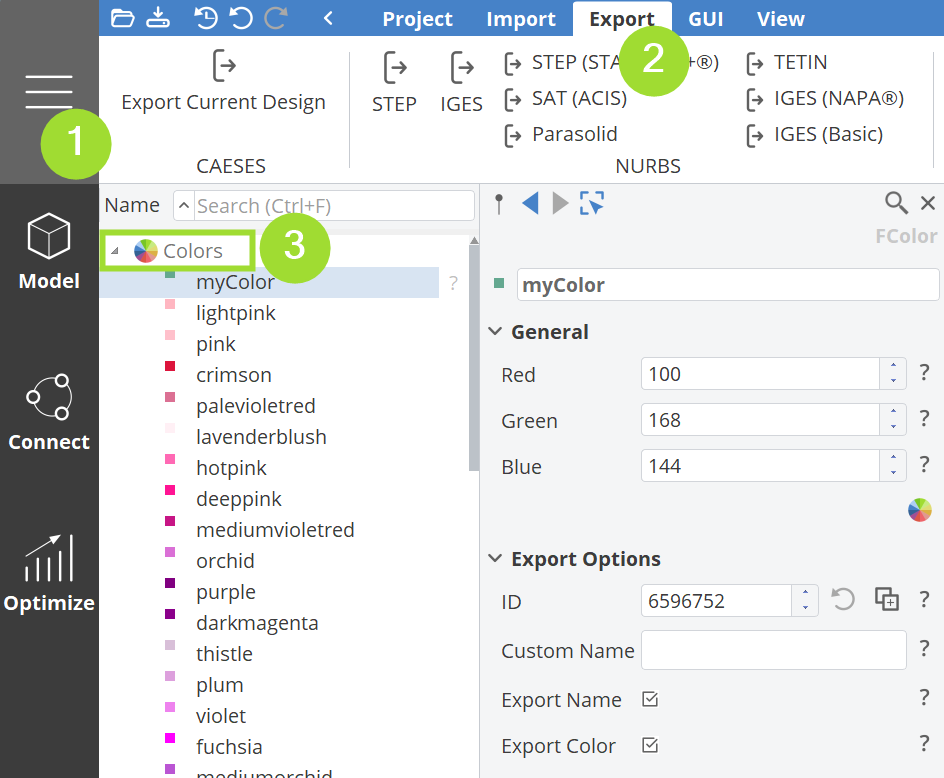
Pre-definied and newly created colors can be edited in the ☰ > Export > (Object Tree) Colors menu.
Import/Export Settings
CAESES also supports flexible Import/Export settings via commands in the ☰ > Import and ☰ > Export tabs. You can change the settings, e.g. if you want to export the face colors as names instead of color values, activate the options to export face colors as names for STEP or SAT.